

WhatsApp Payments
Introduction
Integrate your WhatsApp Business Account with BillDesk to provide a seamless and secure payment experience completely within WhatsApp.
Prerequisites
- Obtain your Merchant ID (MID) from BillDesk
- Obtain your login credentials from BillDesk
- Your Business Solution Provider (BSP) must integrate with WhatsApp Business to accept payments on WhatsApp. Click here to learn more about receiving payments on WhatsApp.
Integration Steps
- Log in to your WhatsApp Manager account and create a payment configuration
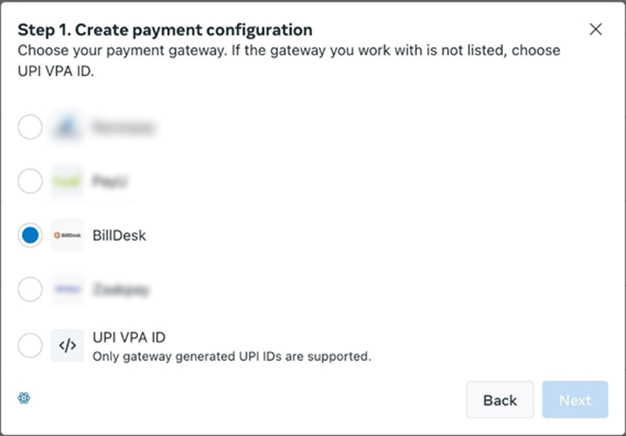
- Select Payment Gateway as the option and choose BillDesk in the dropdown menu
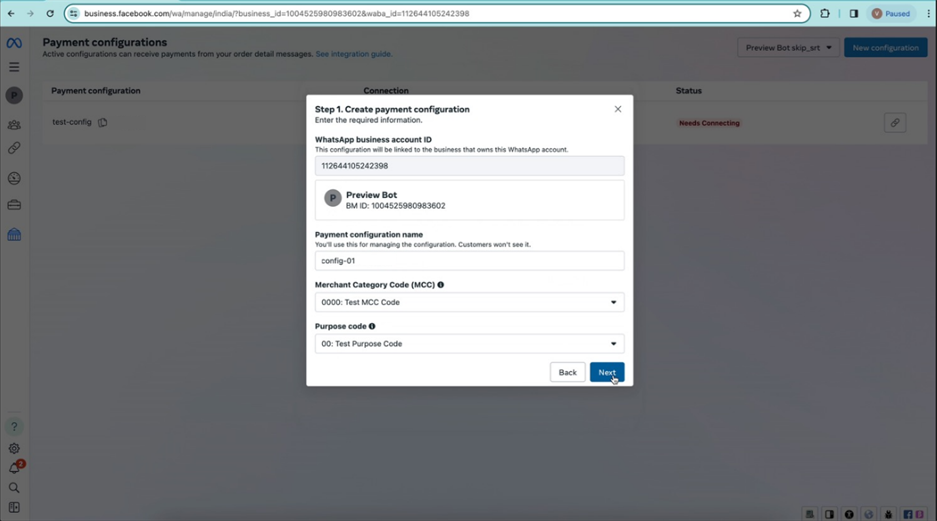
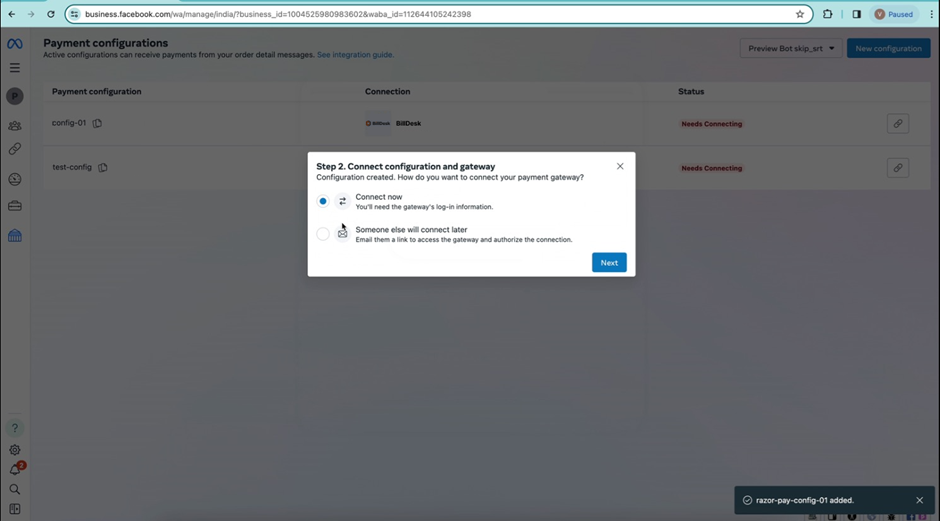
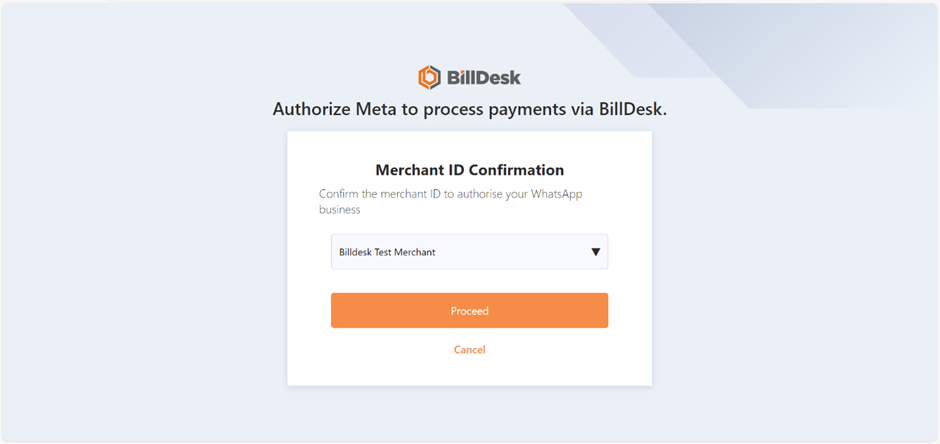
- On submission, you will be redirected to BillDesk
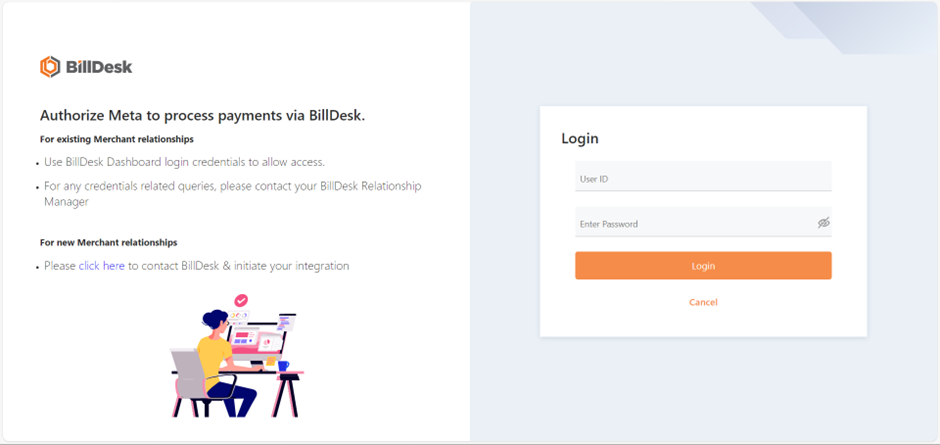
- Log in and select a merchant ID to allow WhatsApp Business to request payments on your behalf
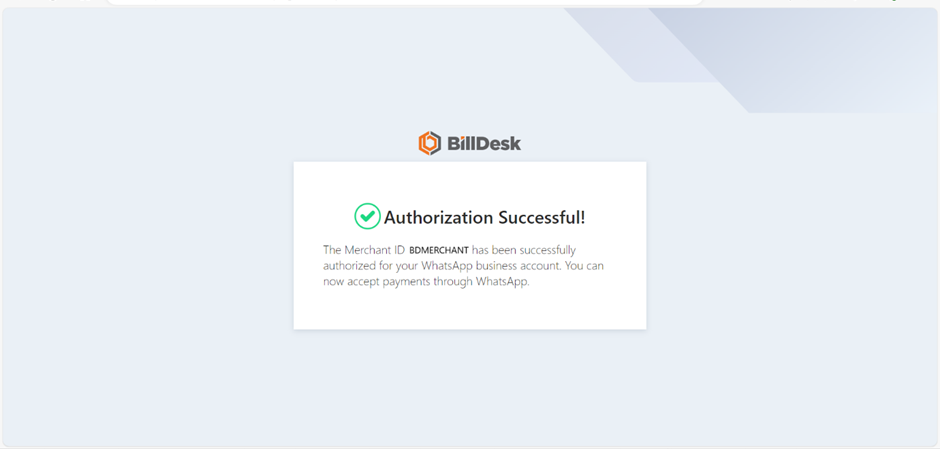
- You will have successfully linked BillDesk with WhatsApp Business
Features
Payment
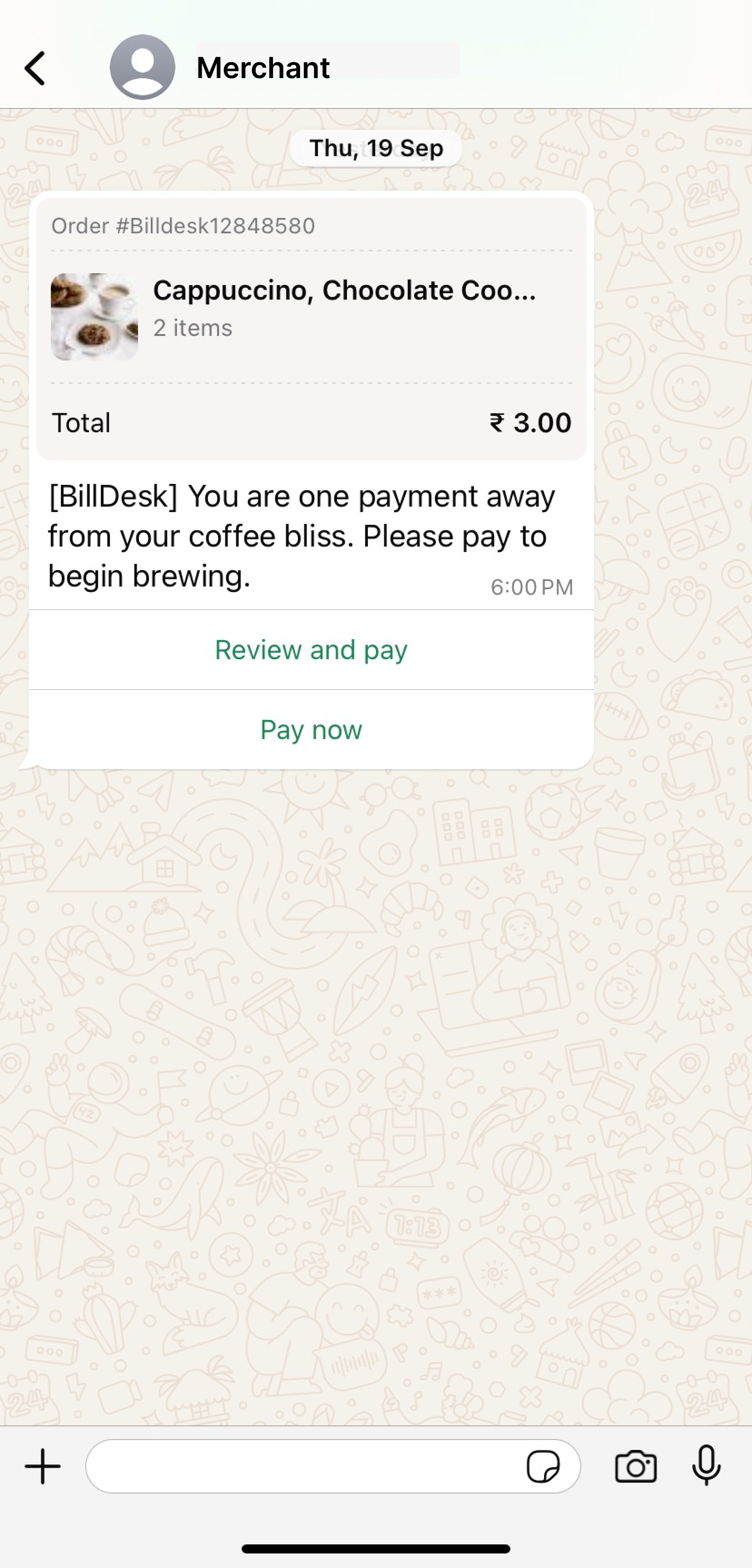
Following are the steps to make a payment on WhatsApp:
- Click on the Review and pay button
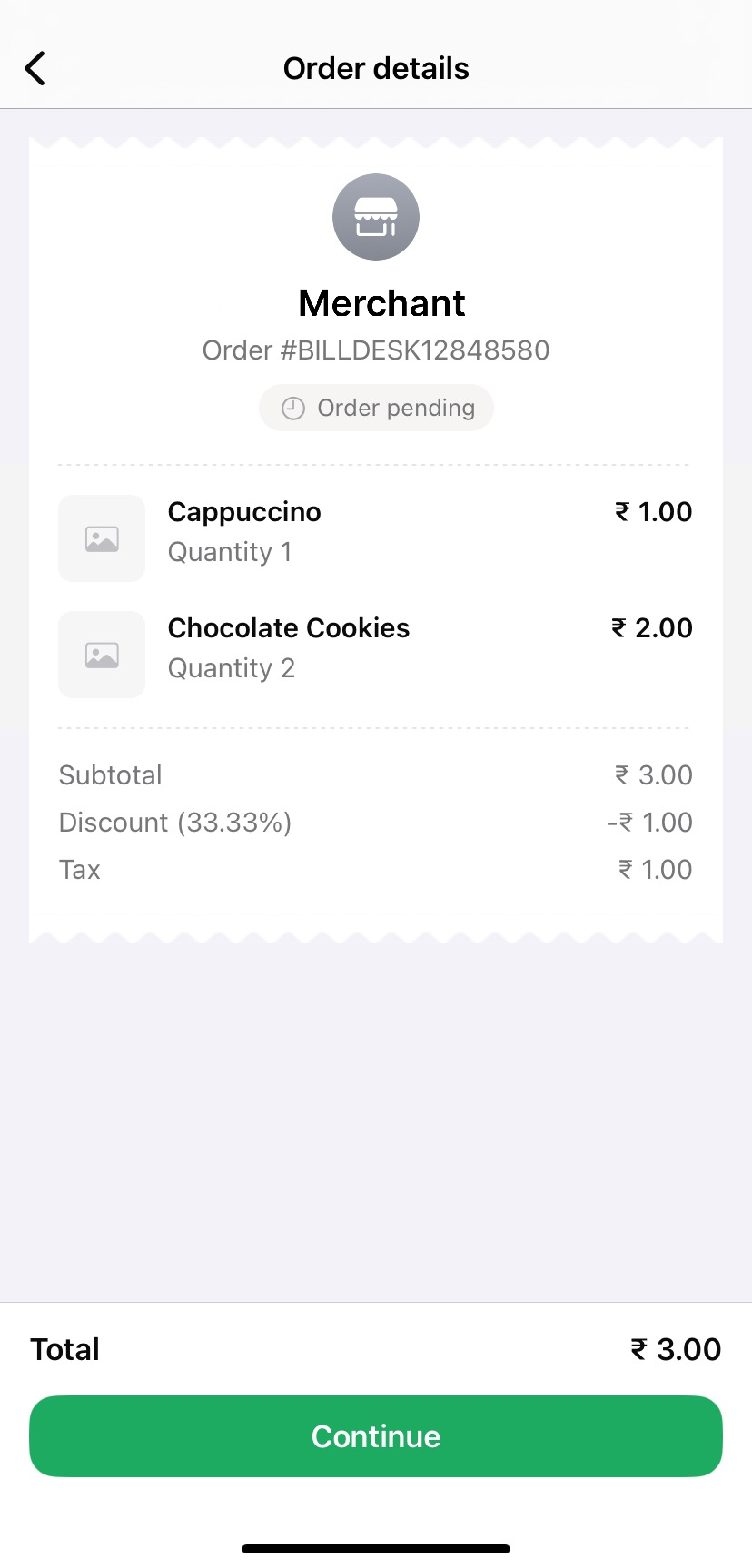
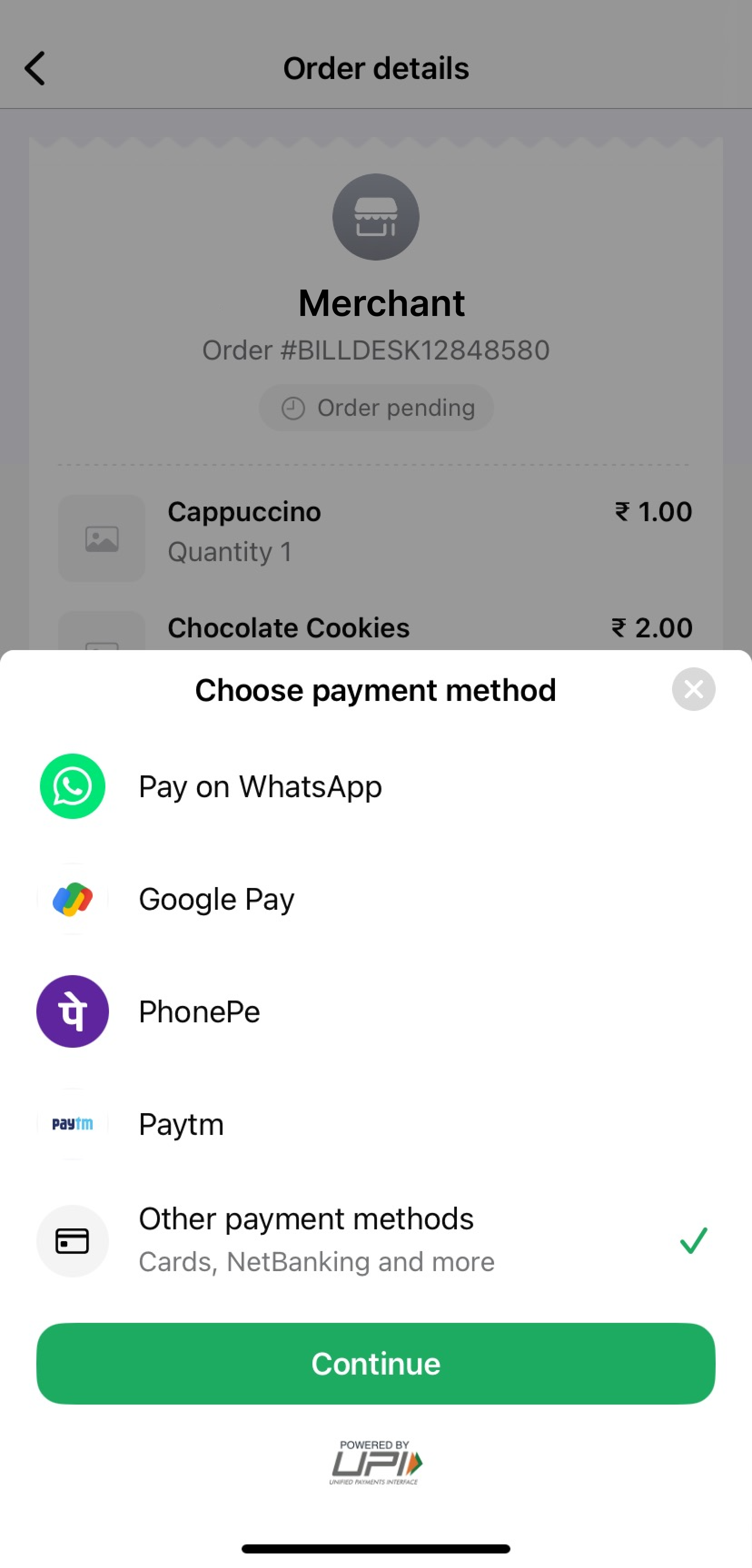
- Review your order details and click on the Continue button
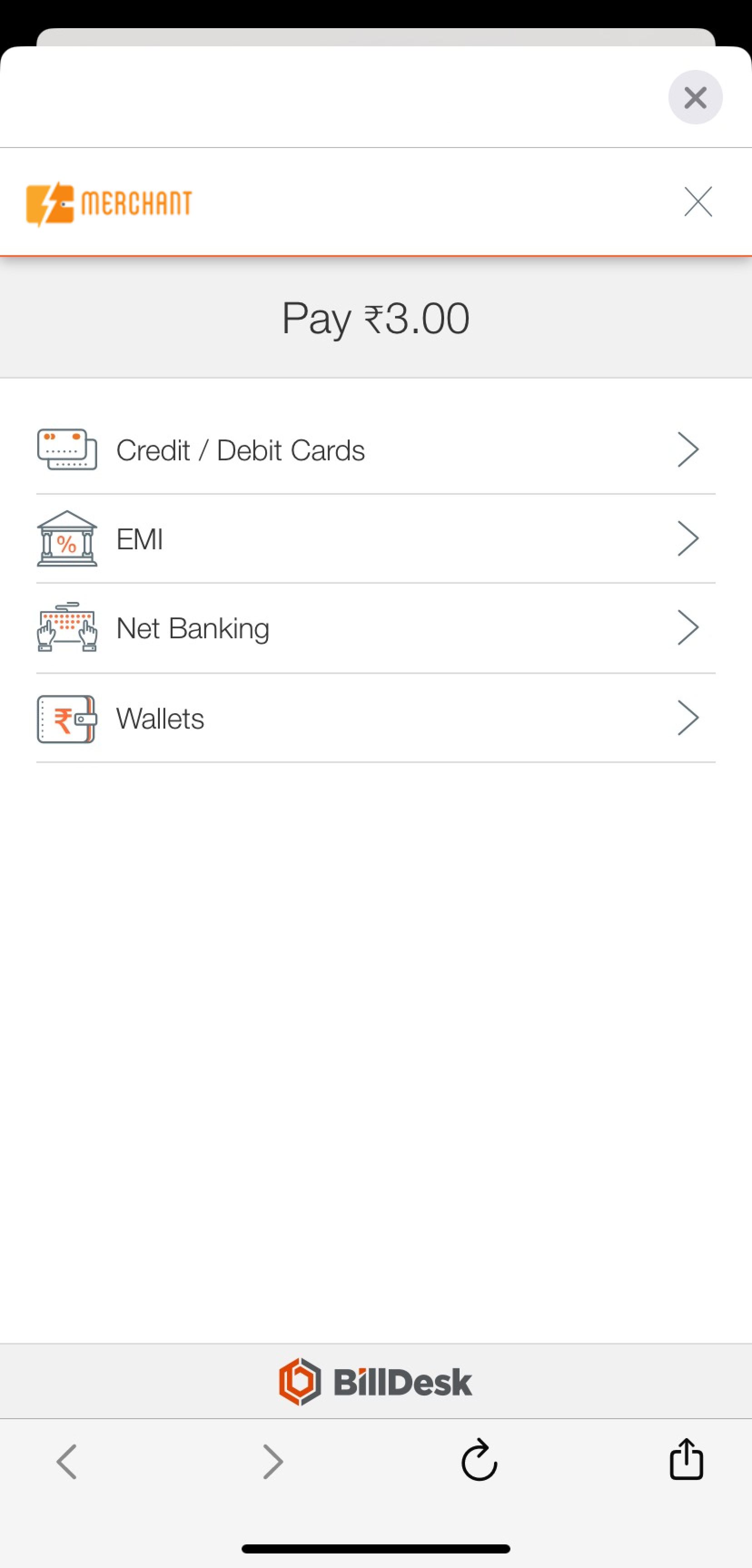
- Choose the desired payment method and make the payment using BillDesk
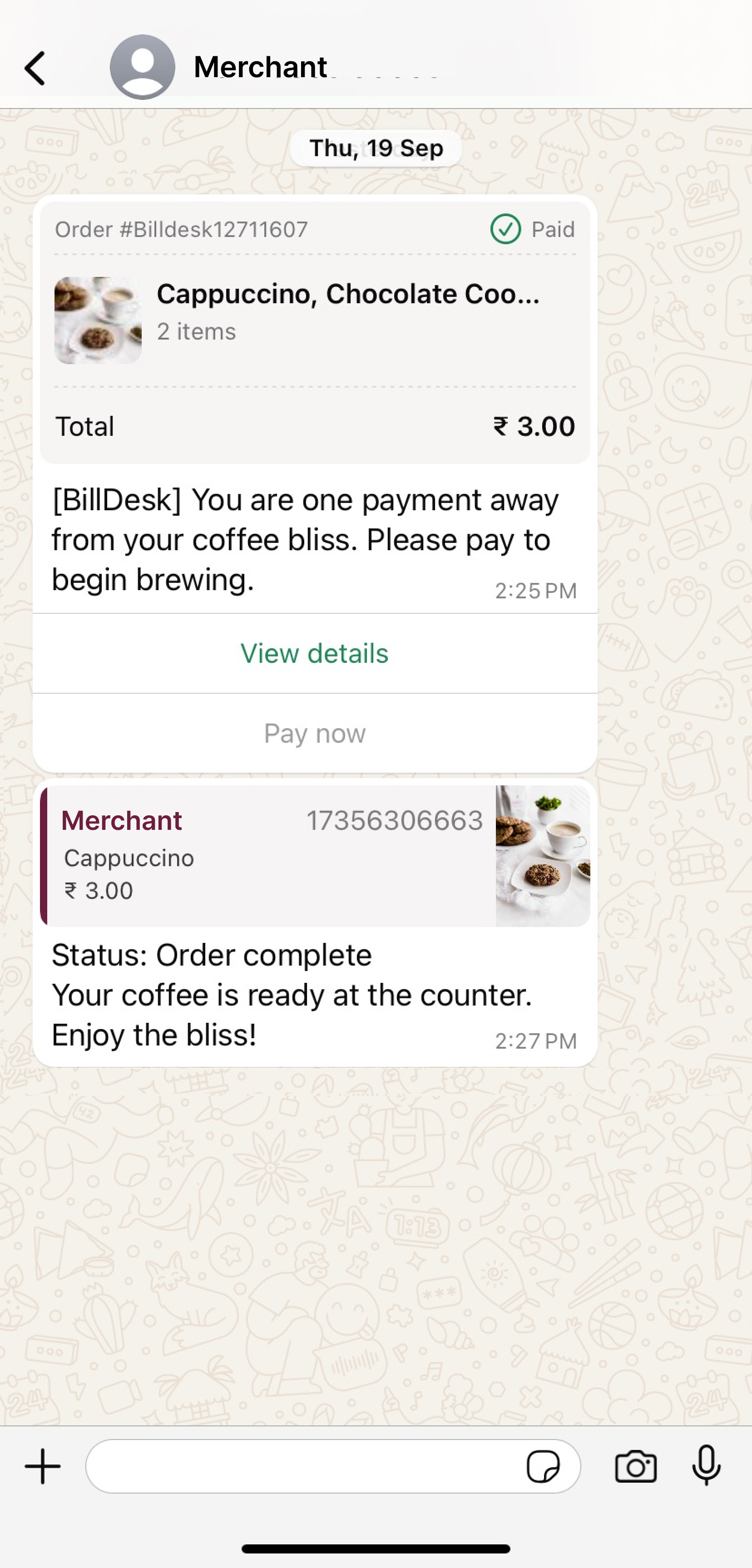
- Receive the order confirmation
Refund
Merchant can initiate a refund for an order through an integration with WhatsApp Business. Click here to learn more about initiating a refund through WhatsApp Business.
Troubleshooting
- Can I use an existing BillDesk merchant setup for the WhatsApp Business workflow?
No, a new setup will need to be made for the WhatsApp Business workflow.
- I have multiple merchant IDs with BillDesk. How can I link a particular merchant ID with WhatsApp Business.
When you create a payment configuration on WhatsApp Manager and select BillDesk, you will be redirected to login and select the desired merchant ID to link with your WhatsApp Business Account.
For further queries, please connect with your BillDesk assigned RM.
Updated 11 months ago
Did this page help you?