

Shopify
Introduction
Shopify is a global commerce platform, enabling merchants to set up online stores and retail point-of-sale systems.
Shopify offers its users a robust platform to create unique, customizable and fully featured online stores, along with end-to-end solutions such as web hosting, marketing, logistics, payments, and others.
Shopify is the platform of choice for merchants across the globe and continues to grow and expand its reach in India.
BillDesk is ideal for Shopify merchants as it enables them to offer integrated payment solutions, that maximize their customer reach and revenue.
BillDesk offers a robust platform to support the merchant's online business with high availability and best-in-class success rates.
Here are some reasons why Shopify merchants should choose BillDesk:
- Easy onboarding - Flexible and easy integrations across all platforms.
- Payments partner to leading startups and enterprises - Trusted by companies across sectors.
- Enable over 150 payment methods - Expand reach and deliver greater customer experience.
- Highly reliable platform - High availability platform designed to offer scalable industry-specific solutions.
- Direct and deep integration with banks and networks - Delivering high success rates consistently.
- Proven delivery, service quality and product evolution - Keep the business future-ready and delight customers.
- Secure connectivity - Certified for PCI DSS 3.2.1 as a Level 1 Service Provider adhering to the highest standards of compliance.
Merchant can download the plugin with the following link.
Prerequisites
Merchant may follow the below steps to onboard the BillDesk payment application on their Shopify website:
- Register with BillDesk
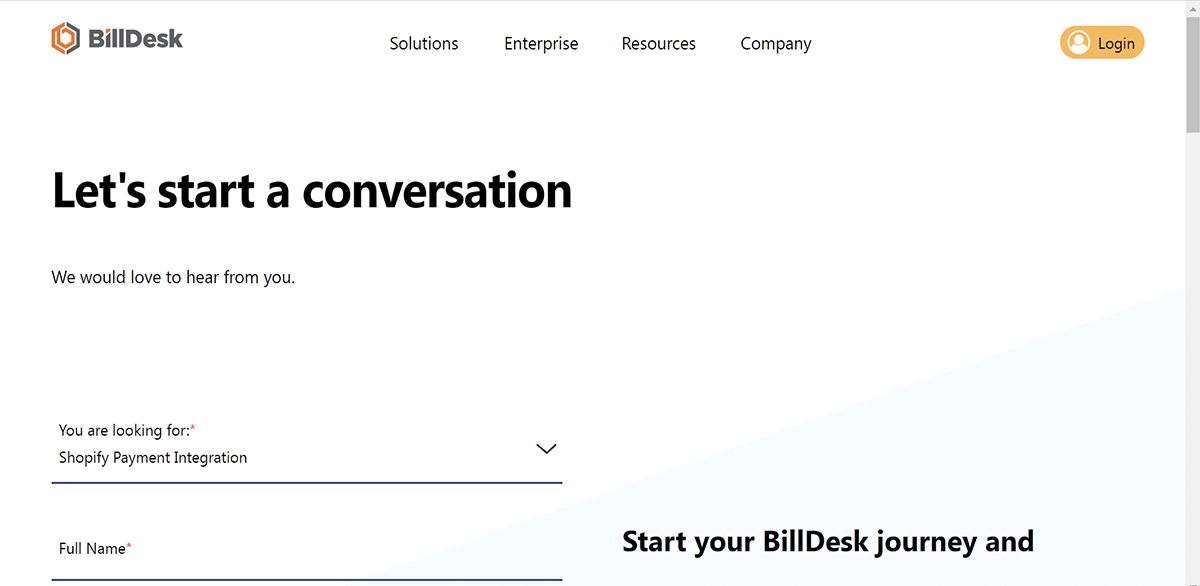
- Visit BillDesk Support.
- Select Shopify Payment Integration, enter the required details, and submit.
- Review KYC requirements
- Click here for a step-by-step guide on the BillDesk merchant onboarding process.
- Merchant will be supported throughout the onboarding process by their respective BillDesk RM.
Integration Steps
Installation and Activation
There are two ways to install the BillDesk Payment App.
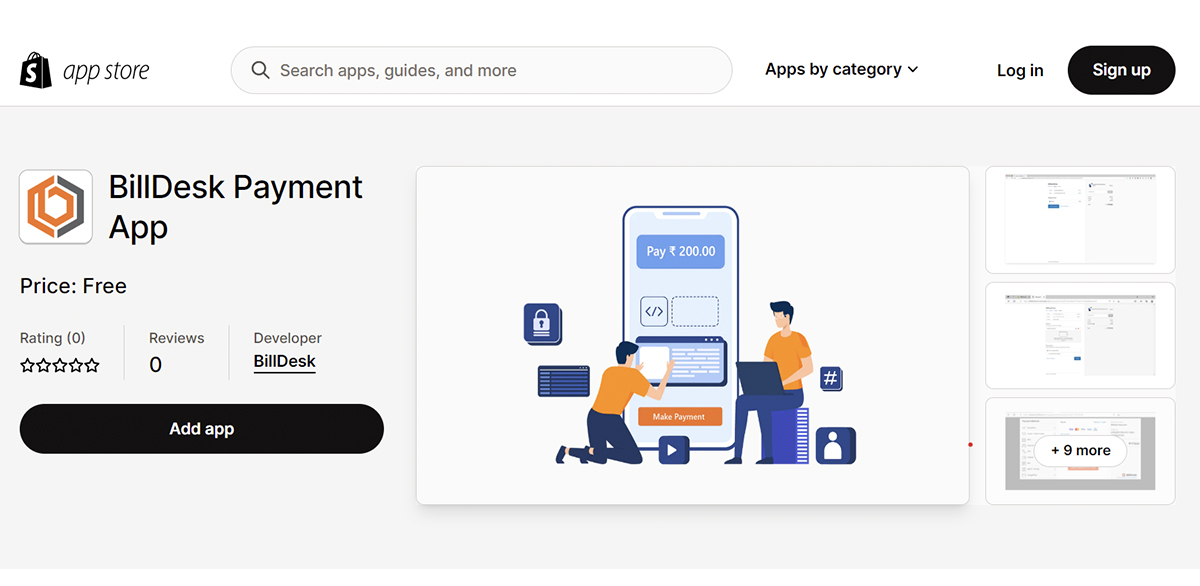
- Install the BillDesk Payment App from the Shopify App store by clicking on this link.
- Upload the plugin via Shopify admin panel as mentioned below:
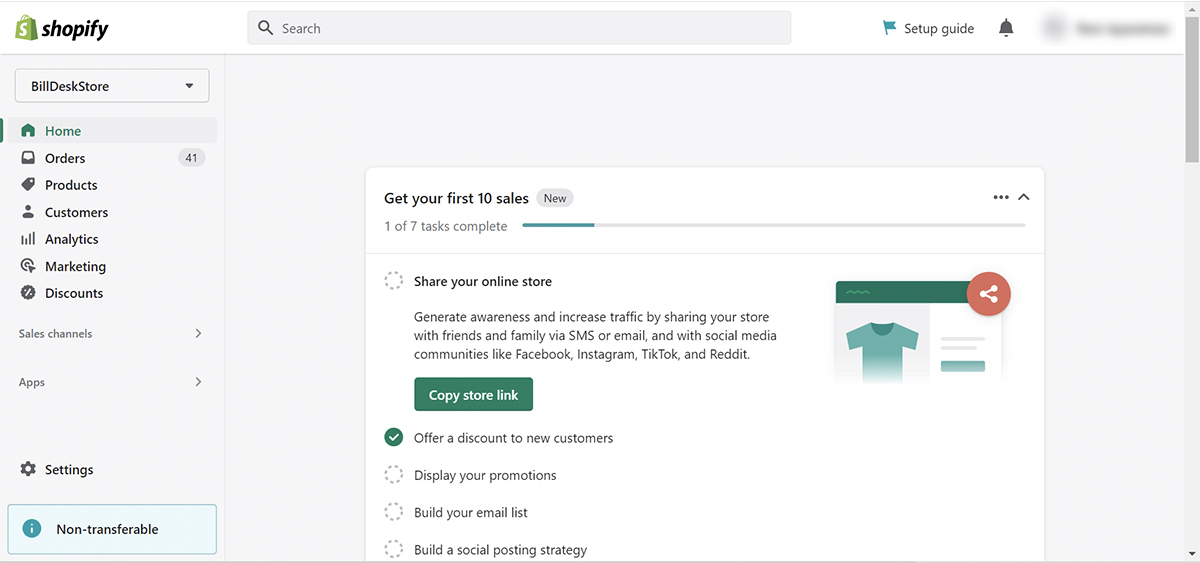
- Login to the Shopify Account.
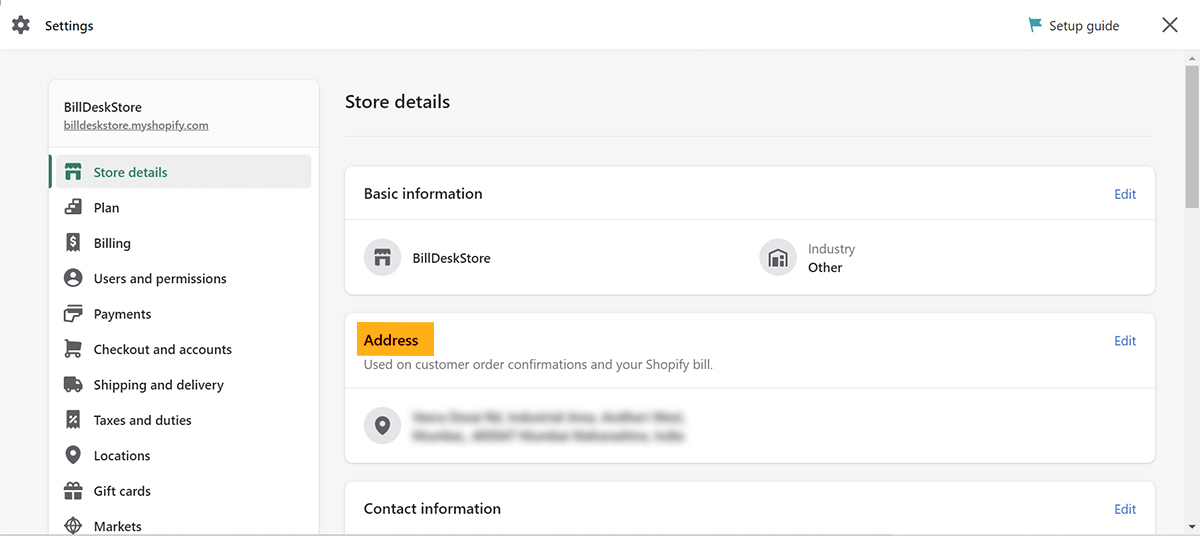
- Go to Settings.
- Click on Payments.
- Click on Add payment methods.
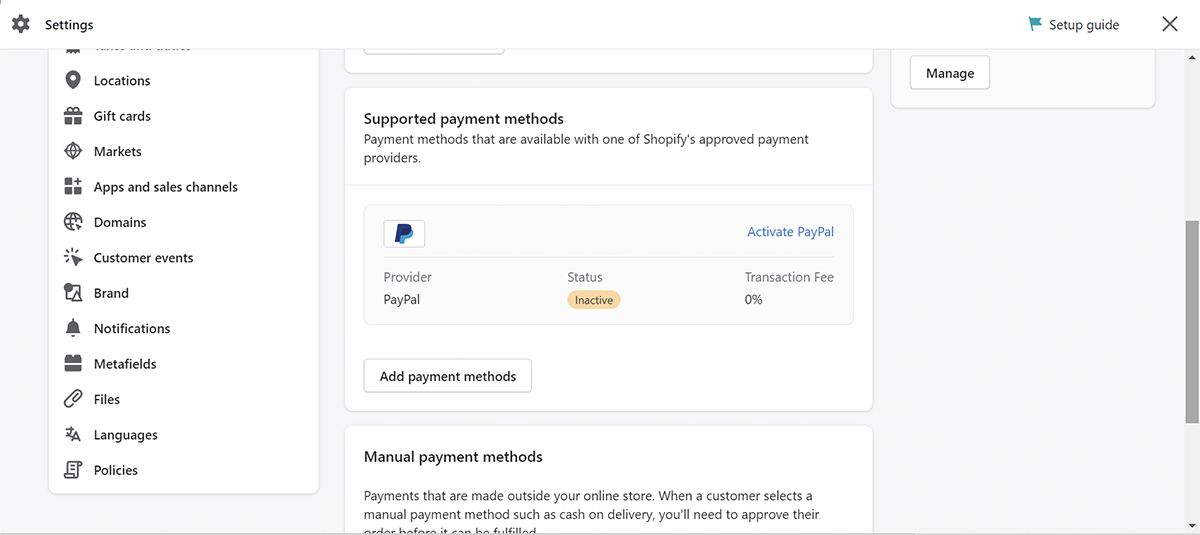
- Go to Search by provider tab and search for 'BillDesk Pay'.
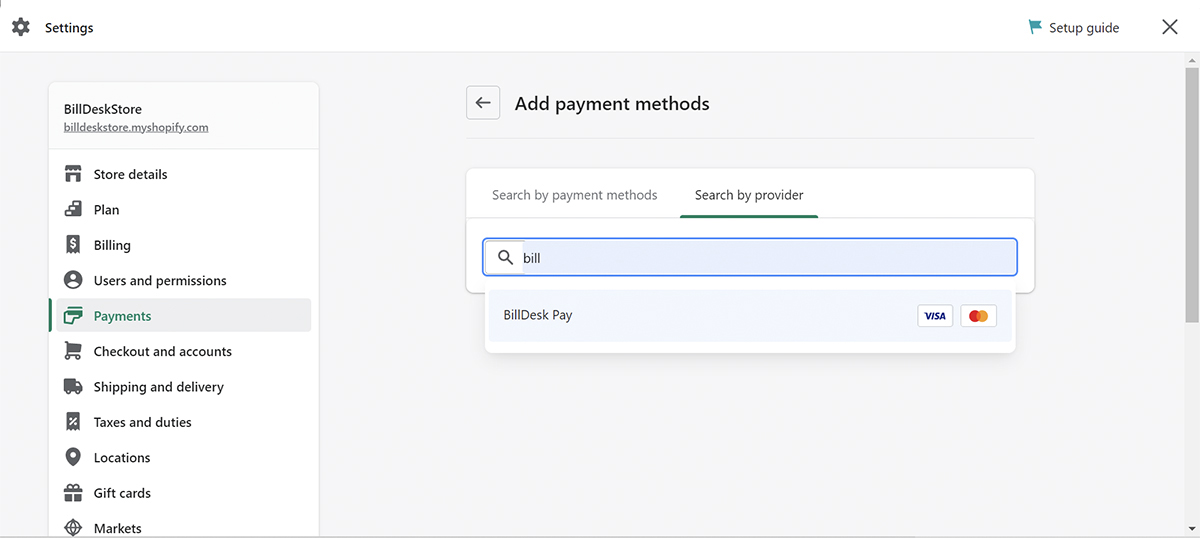
- Click on Manage.
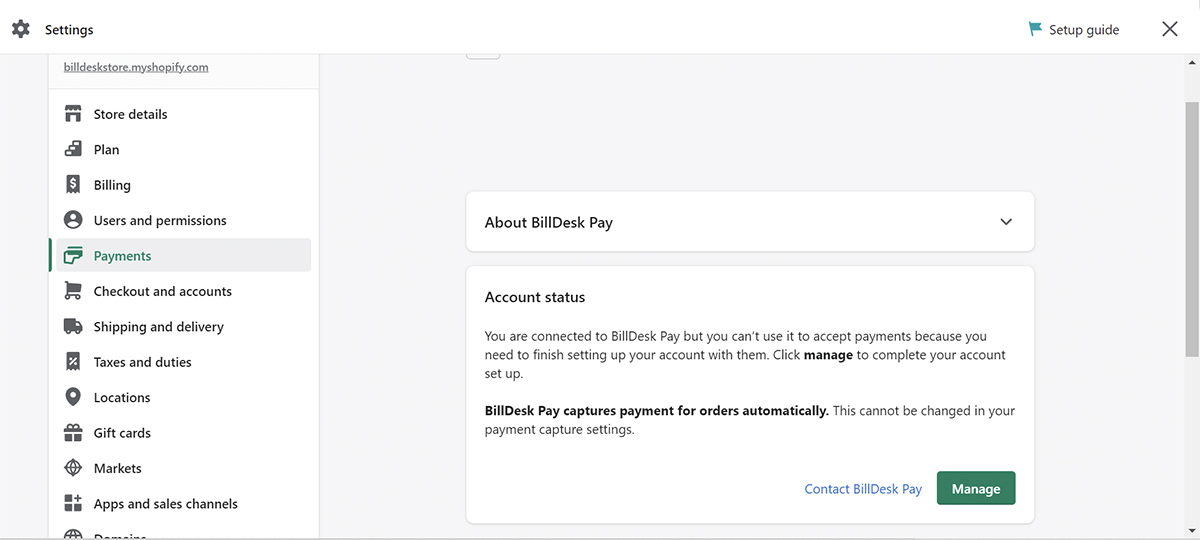
- Click on Install unlisted app.
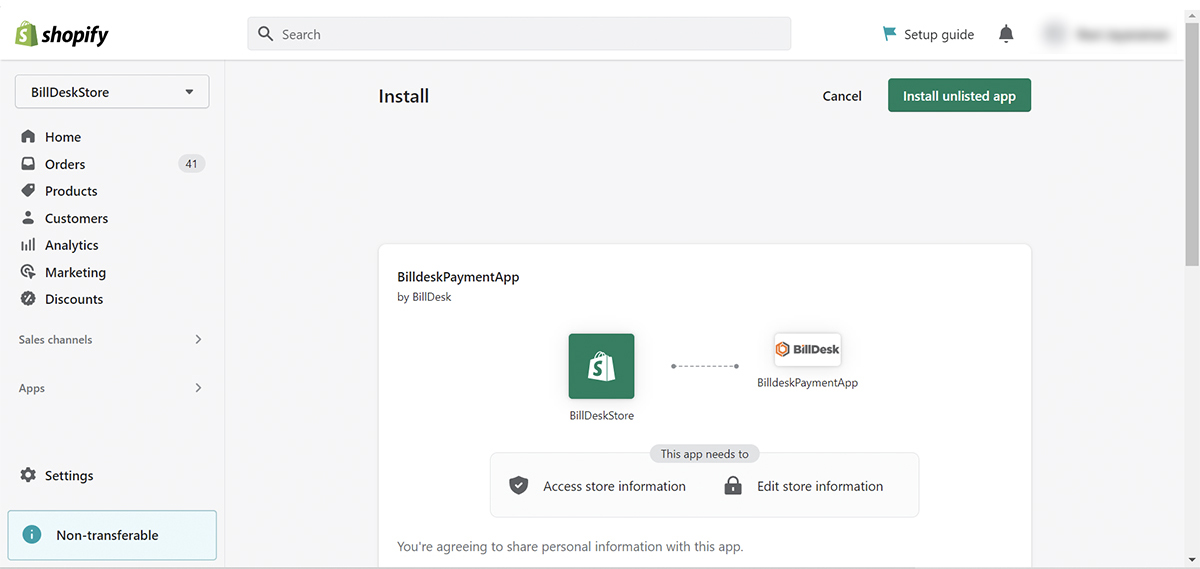
This will successfully install the BillDesk Payment App for the merchant's Shopify account.
Activation
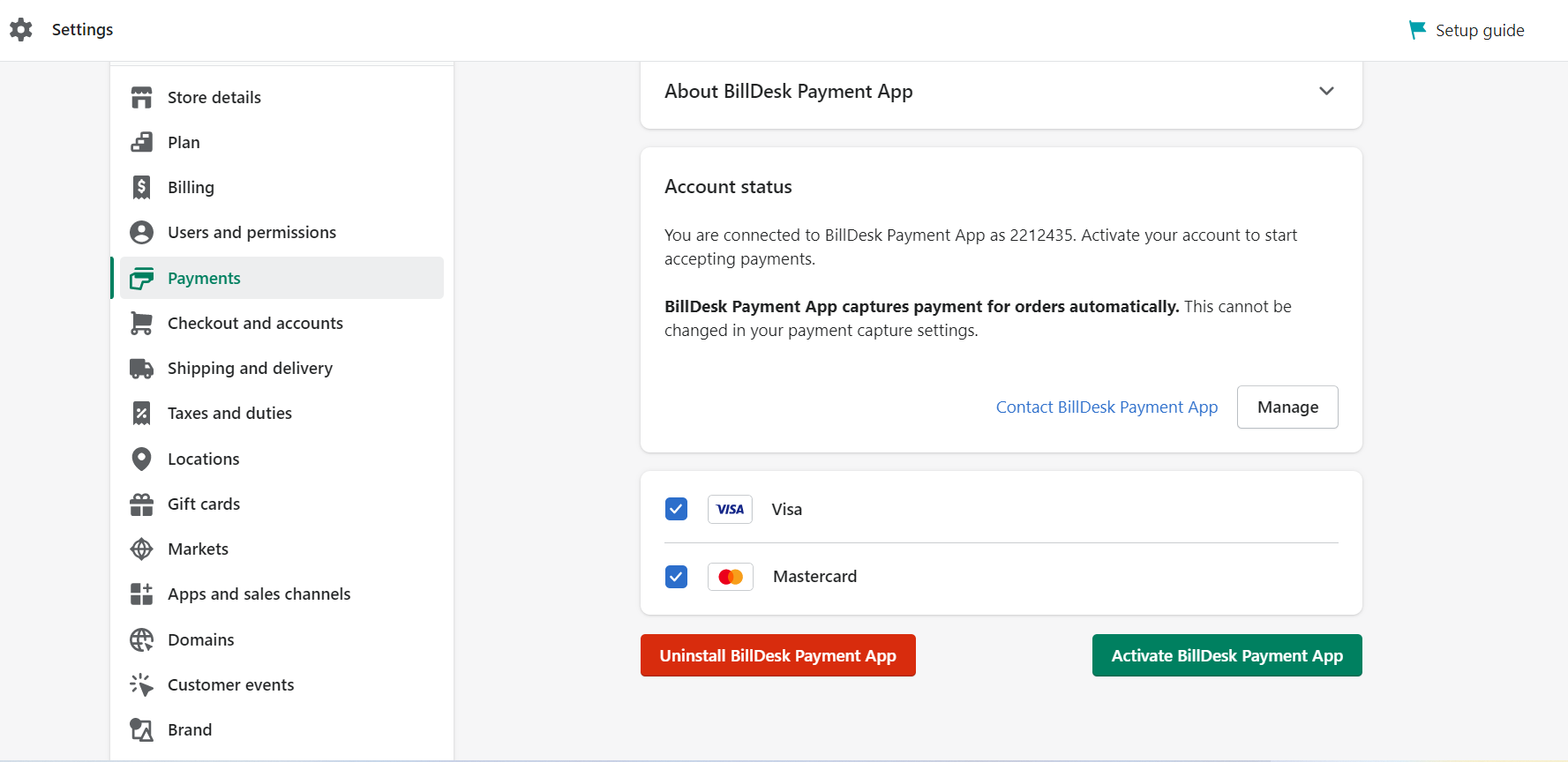
Post installation, merchant will be redirected to the following screen:
- Click Activate BillDesk Payment App to complete the BillDesk payment integration in the Shopify Store.
Note: The Activate BillDesk Payment App tab will be activated once the merchant has been successfully onboarded onto the BillDesk platform.
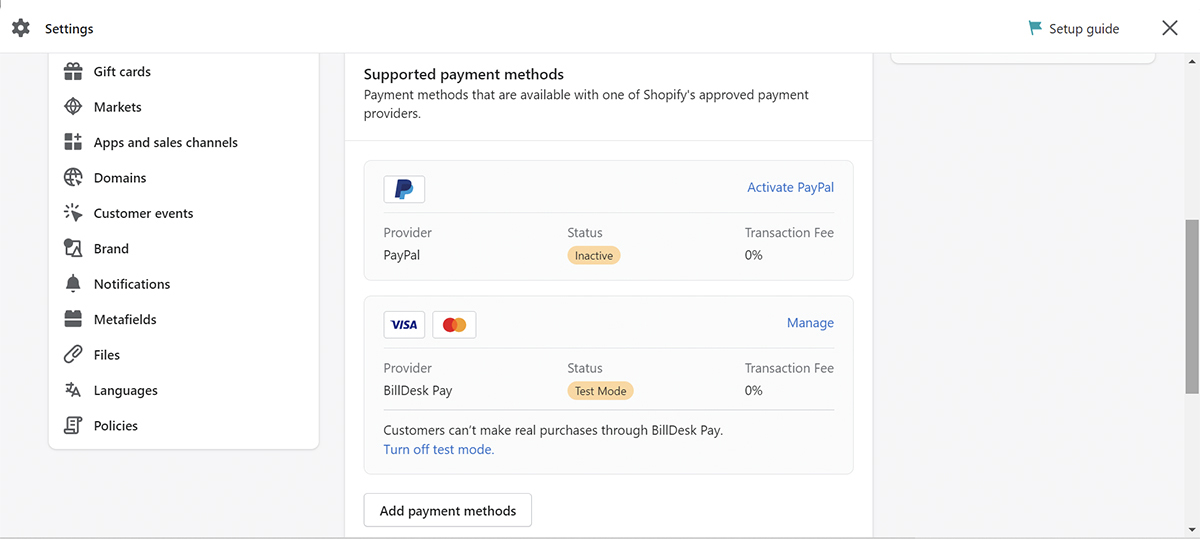
After successful activation, merchant can see BillDesk Payment App under the payments section.
Features
Payment
Placing an Order
Below are the steps to place an order on the merchant website:
- Select a product to purchase from the Shopify Store and Add to cart.
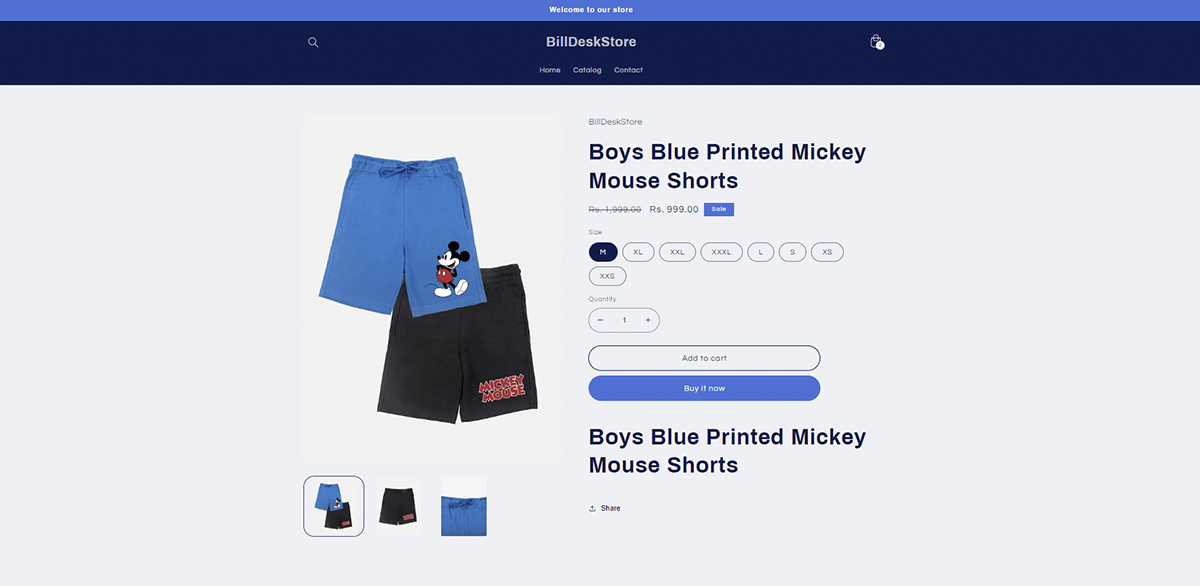
- Go to the cart and click on Checkout.
The user will be redirected to enter their details.
- Click on Continue to shipping.
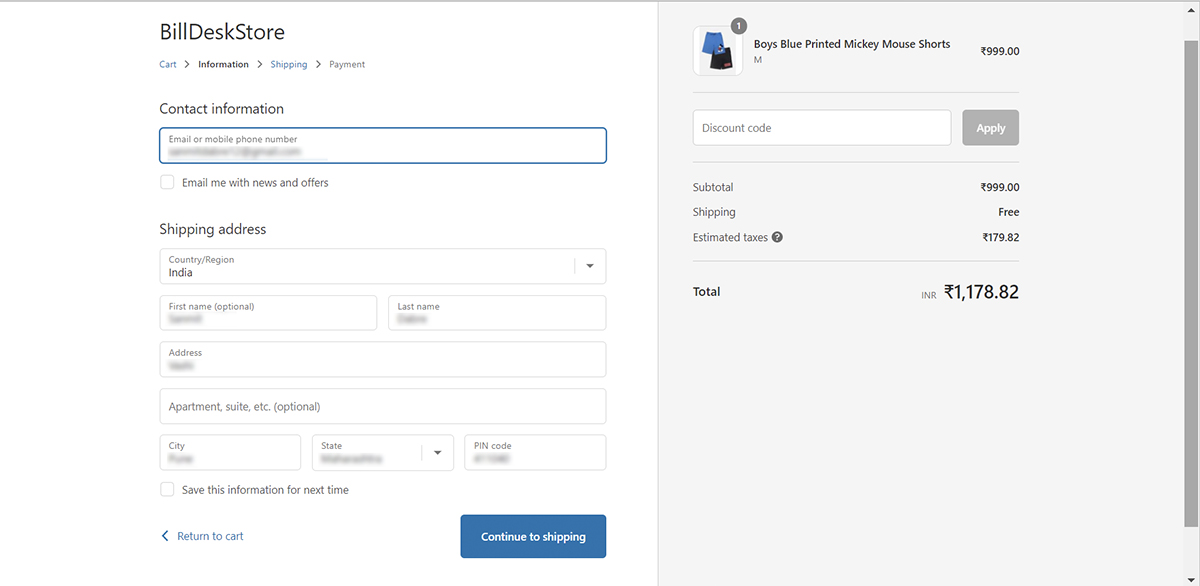
- Select a shipping method and then click on Continue to payment.
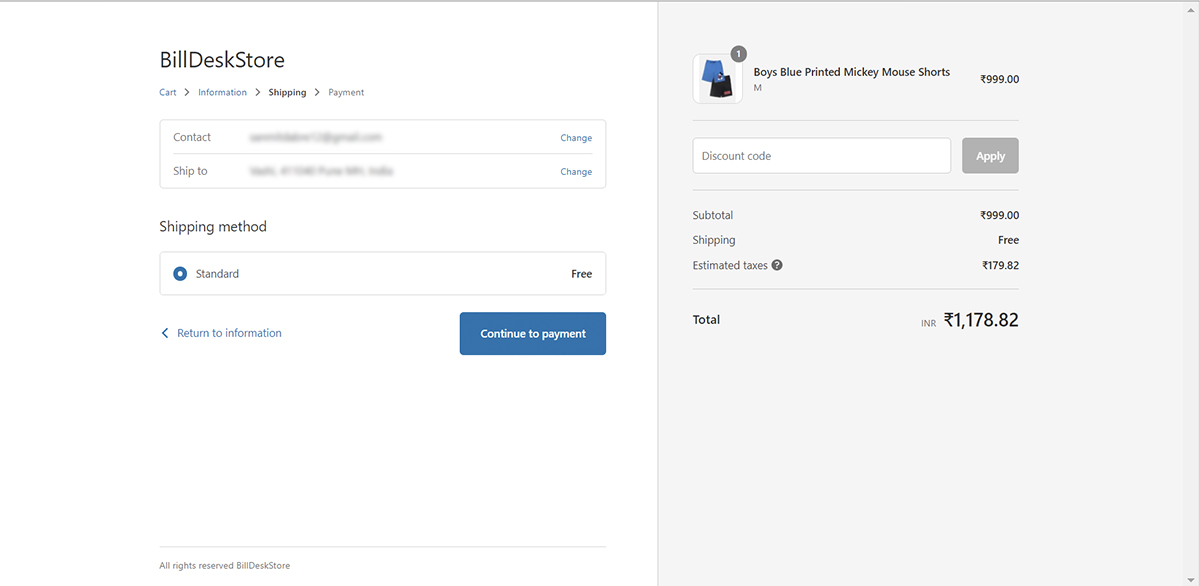
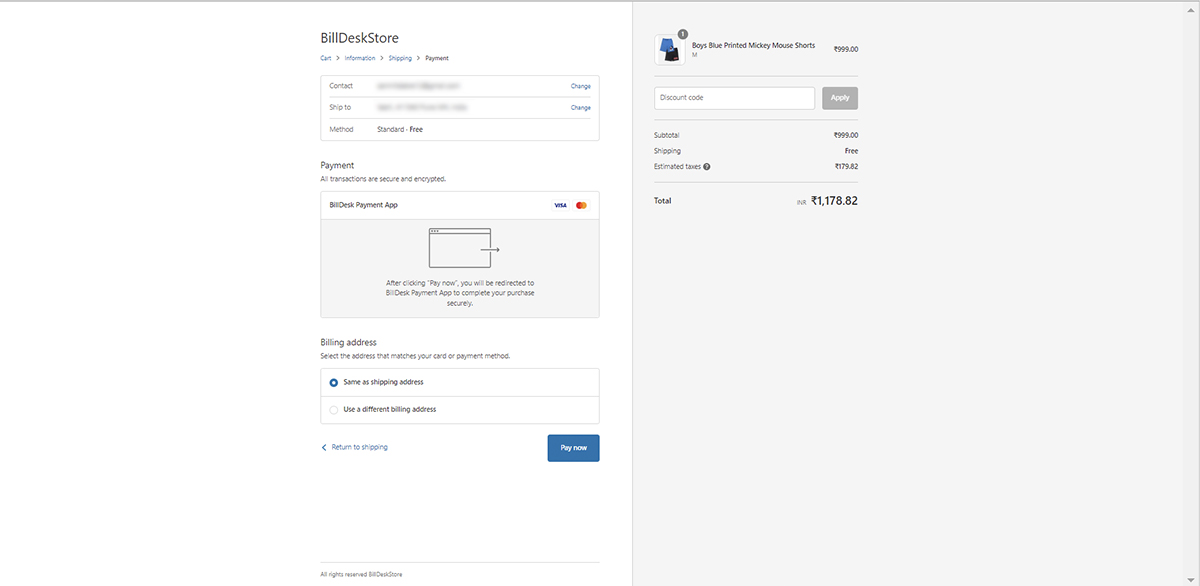
The user will be redirected to the 'Payment page'.
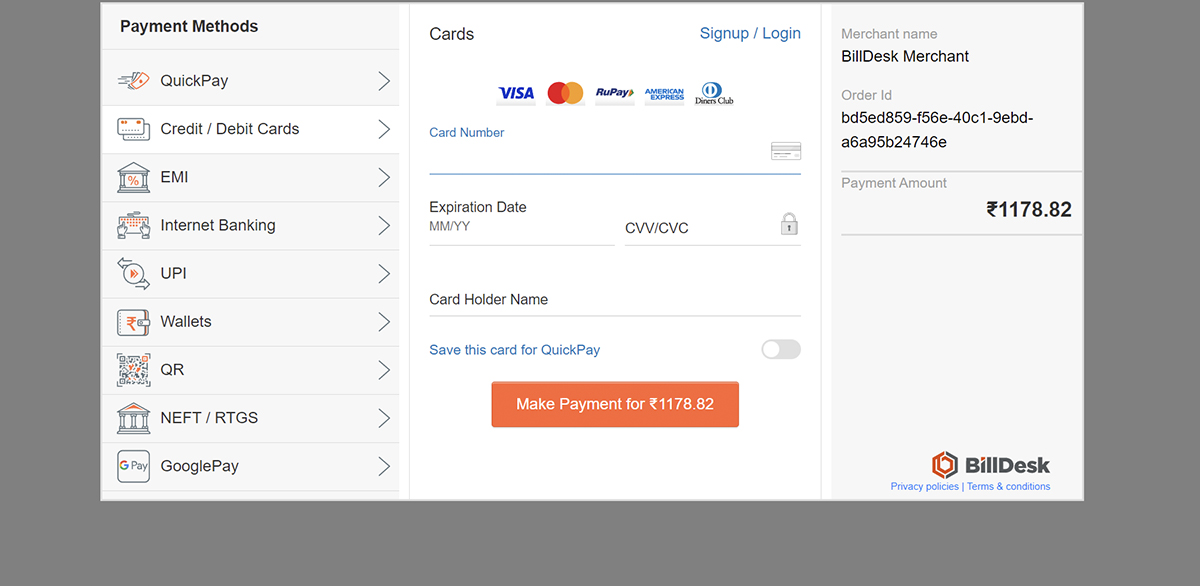
- Select the Billing address and click on Pay now.
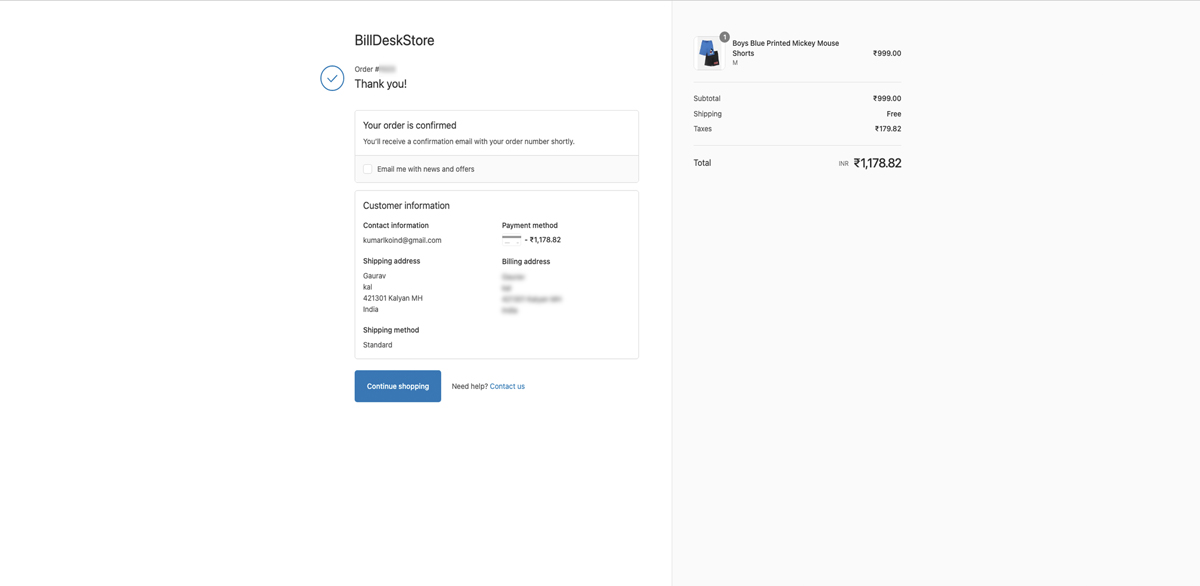
- Select the desired payment method and click Make Payment.
- After a successful transaction, an invoice will be displayed containing the order and payment details.
Refund
Merchant can follow the below steps to process a refund.
Refund Process
- Go to Orders and select an order that needs to be refunded.
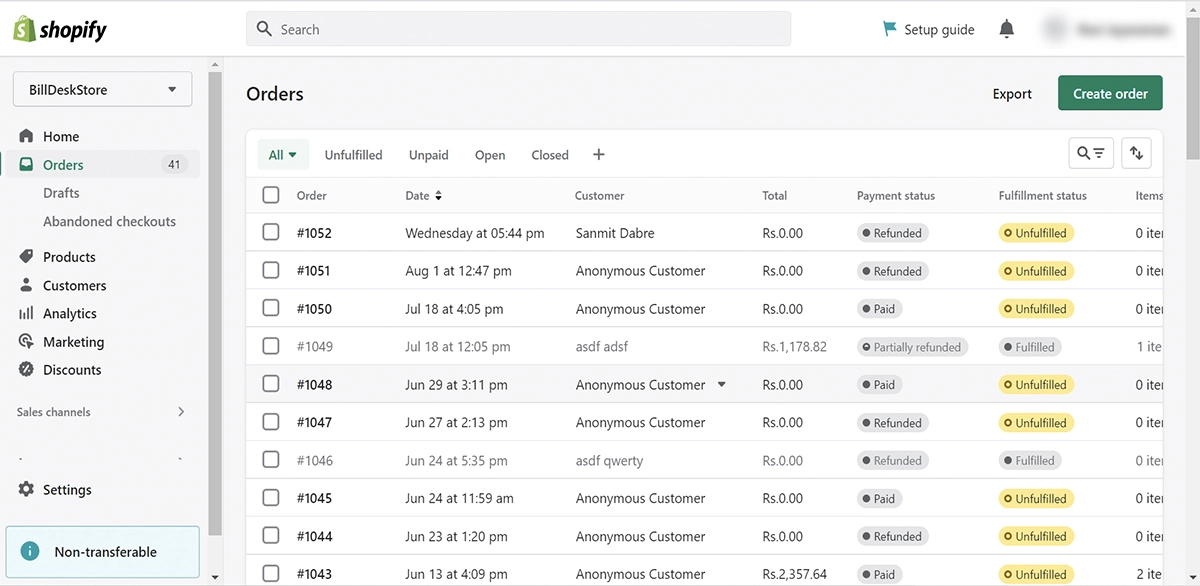
- Click on Refund.
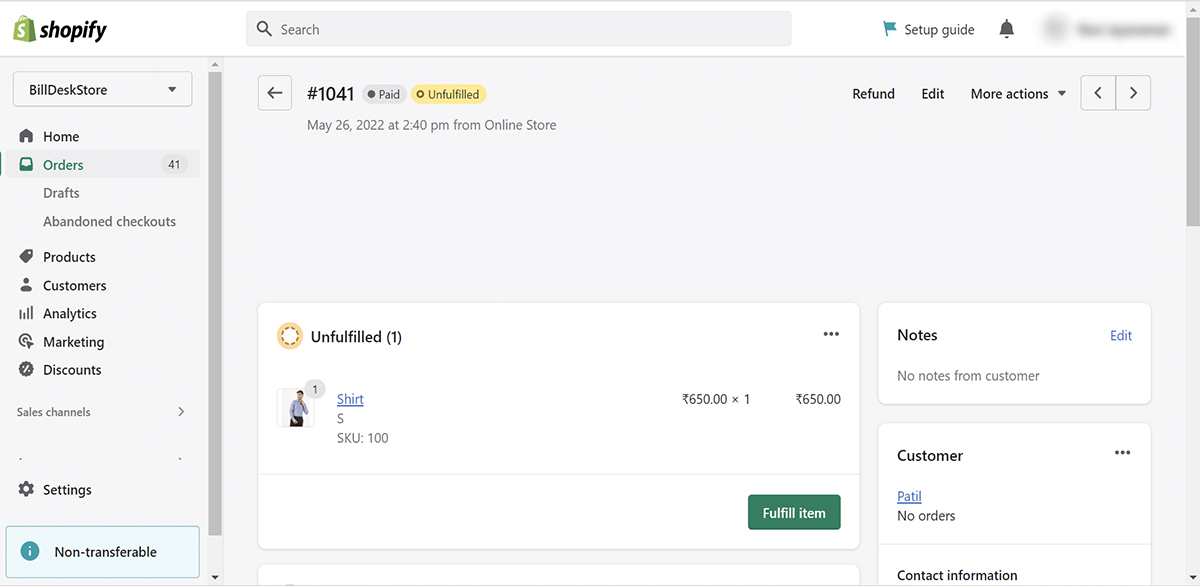
- Enter the reason for the refund and the amount to be refunded. Then, click on Refund.
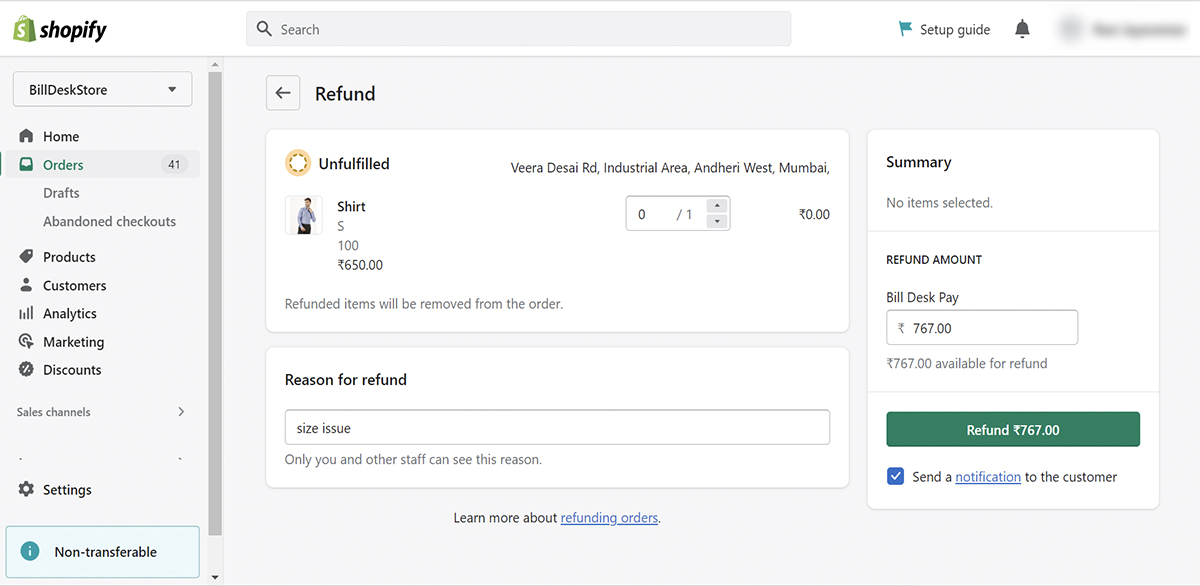
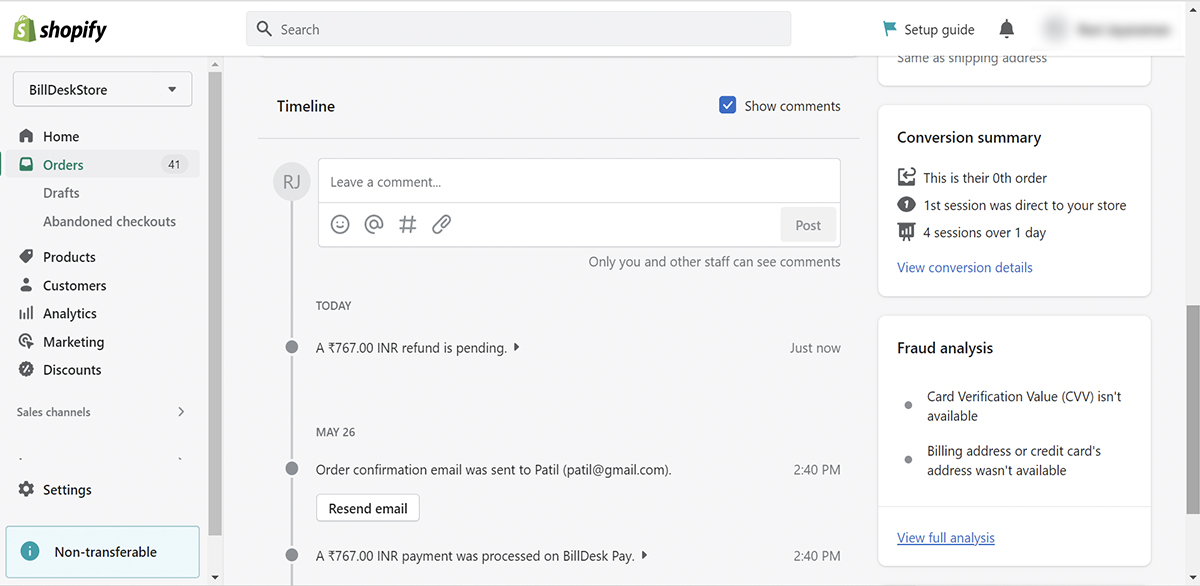
- The refund will be successfully initiated.
Order Listing
View Order Details
- Merchant can view order details by clicking Orders.
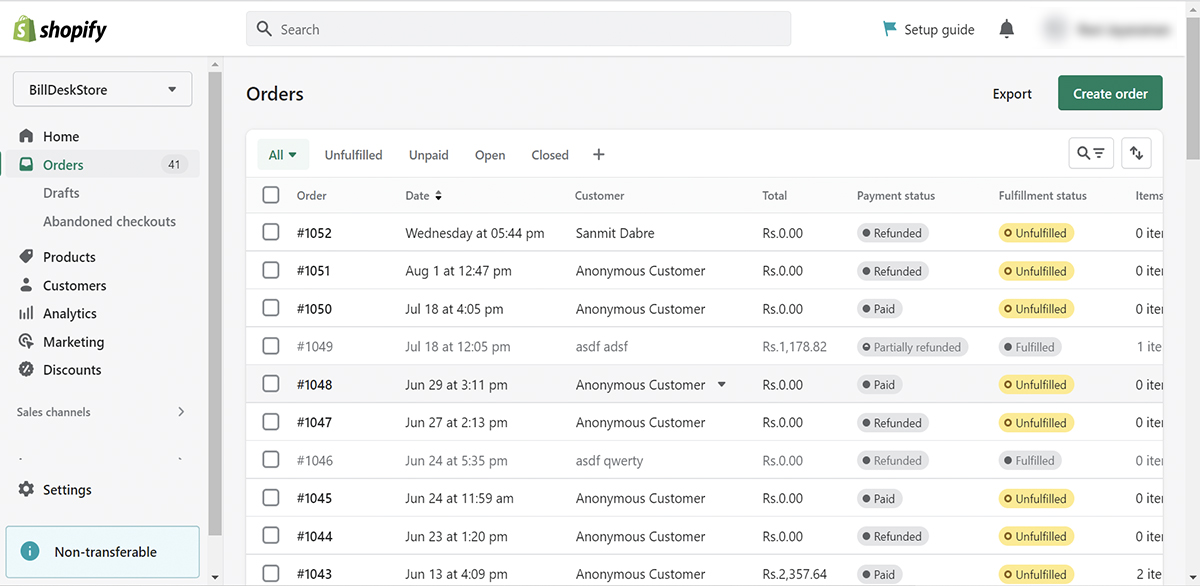
NoteMerchant will get detailed information about the selected transaction.
Troubleshooting
In case of issues/queries, merchant can refer to the following steps:
- Go to Payments and click Contact BillDesk Payment App.
- Enter the query and click Send message.
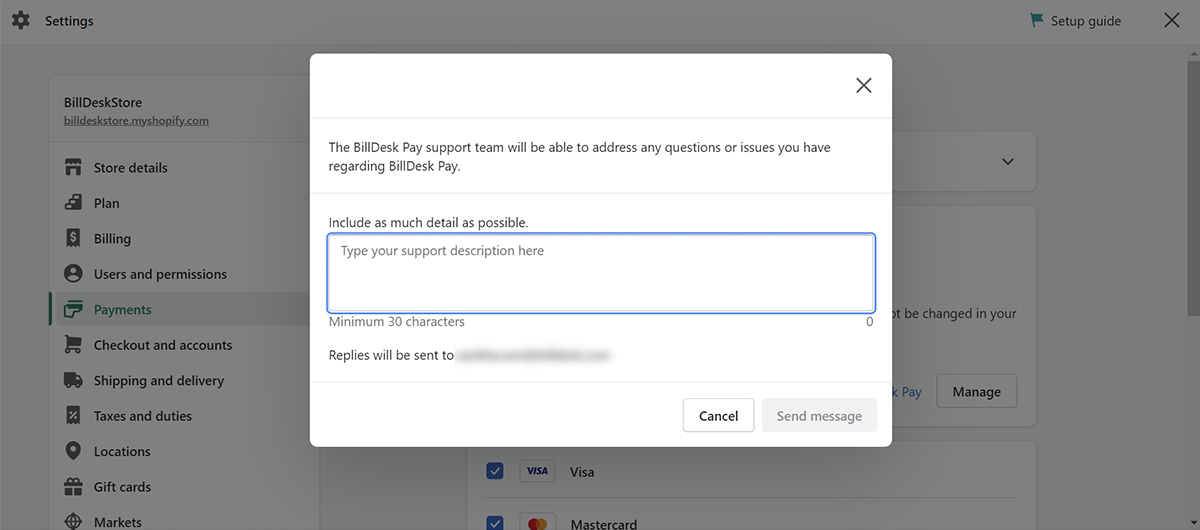
A relevant BillDesk team will contact the merchant.
Alternatively, the merchant can also connect to their BillDesk assigned RM and submit a request.
Updated 7 months ago