

nopCommerce
Introduction
nopCommerce is an open-source e-commerce platform. Add the BillDesk nopCommerce plugin to seamlessly accept payments through this store.
Merchant can download the plugin with the following link.
Prerequisites
Ensure that the merchant has downloaded, installed, and configured:
- Dotnet v6.0 and higher and MSSQL v14.14
- nopCommerce version 4.50.1
- Dependency: Navigate to Configuration → Currencies and enable currency click on Edit button.
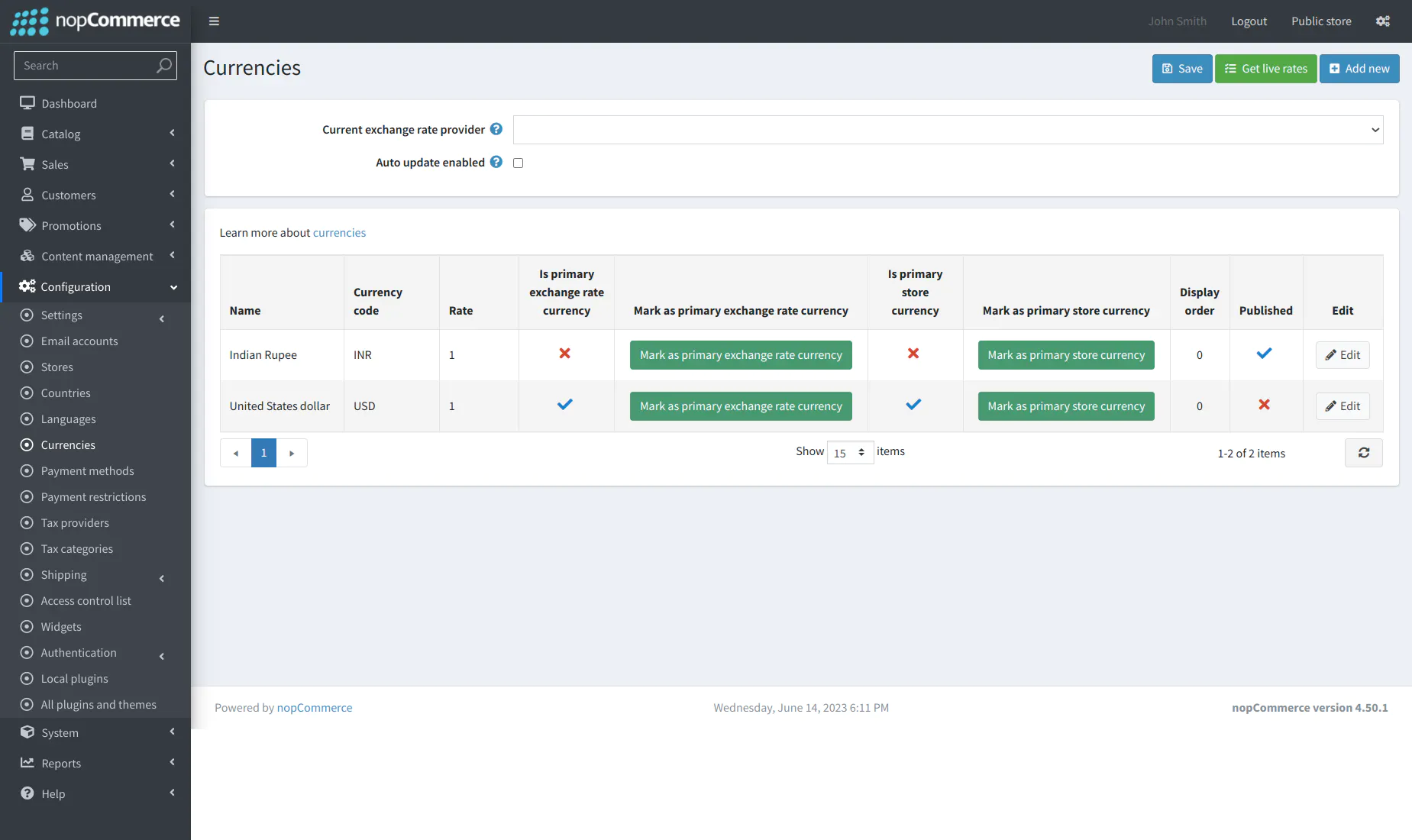
- Enter currency details.
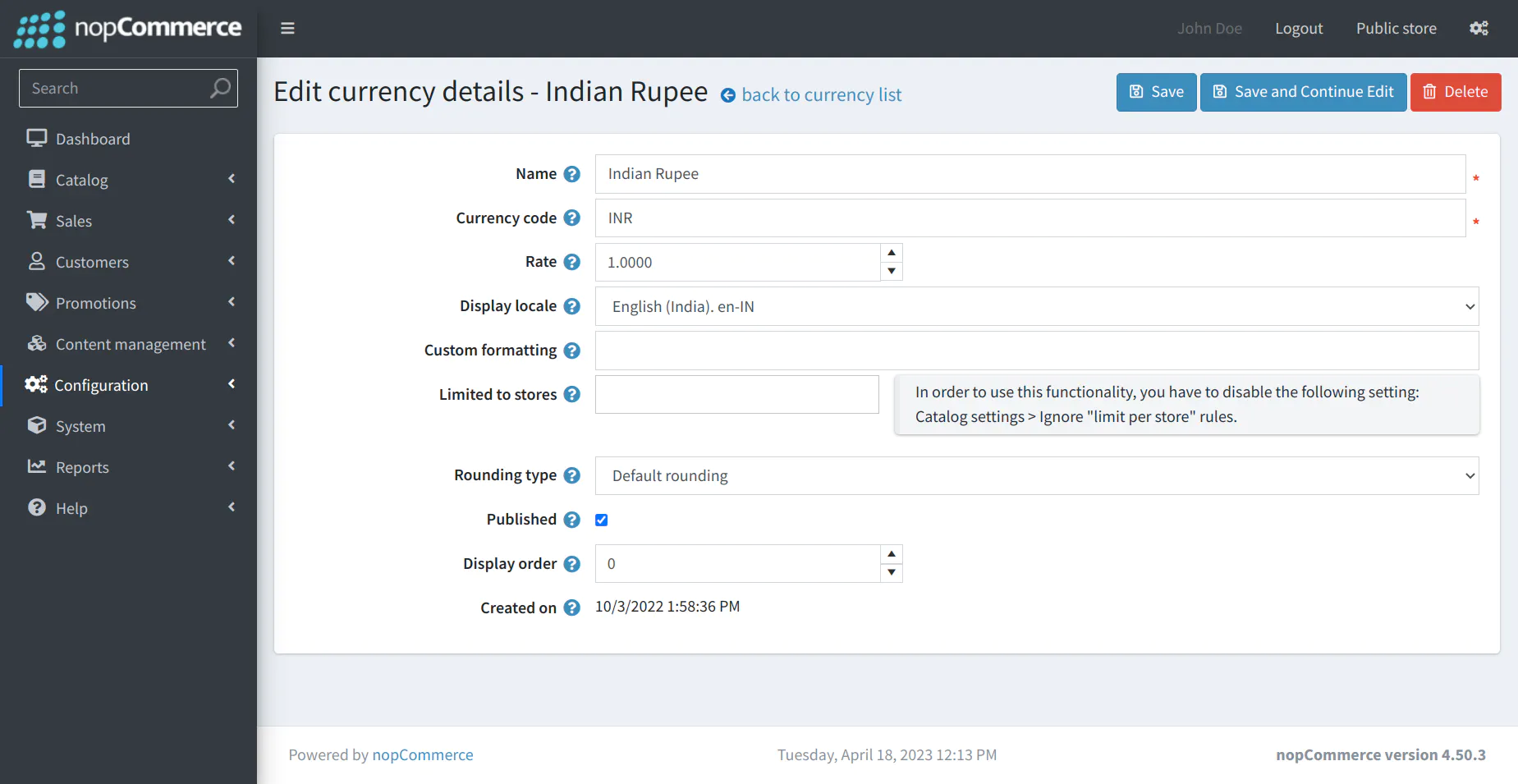
- Select the Published checkbox to publish currency.
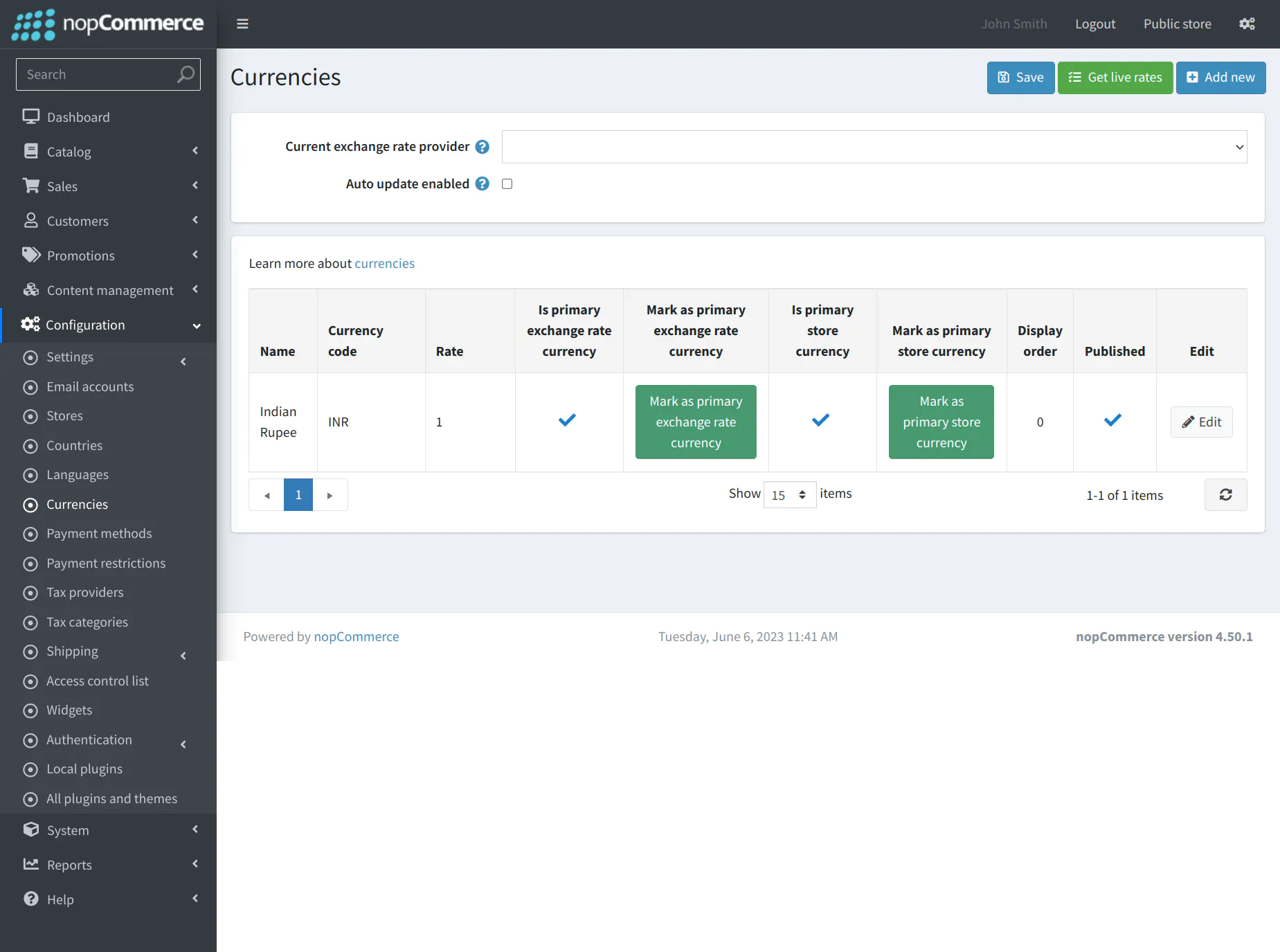
- Click on the Mark as primary exchange rate currency button and the Mark as primary store currency button.
Integration Steps
Installation
- Download the plugin from the Plugin Directory.
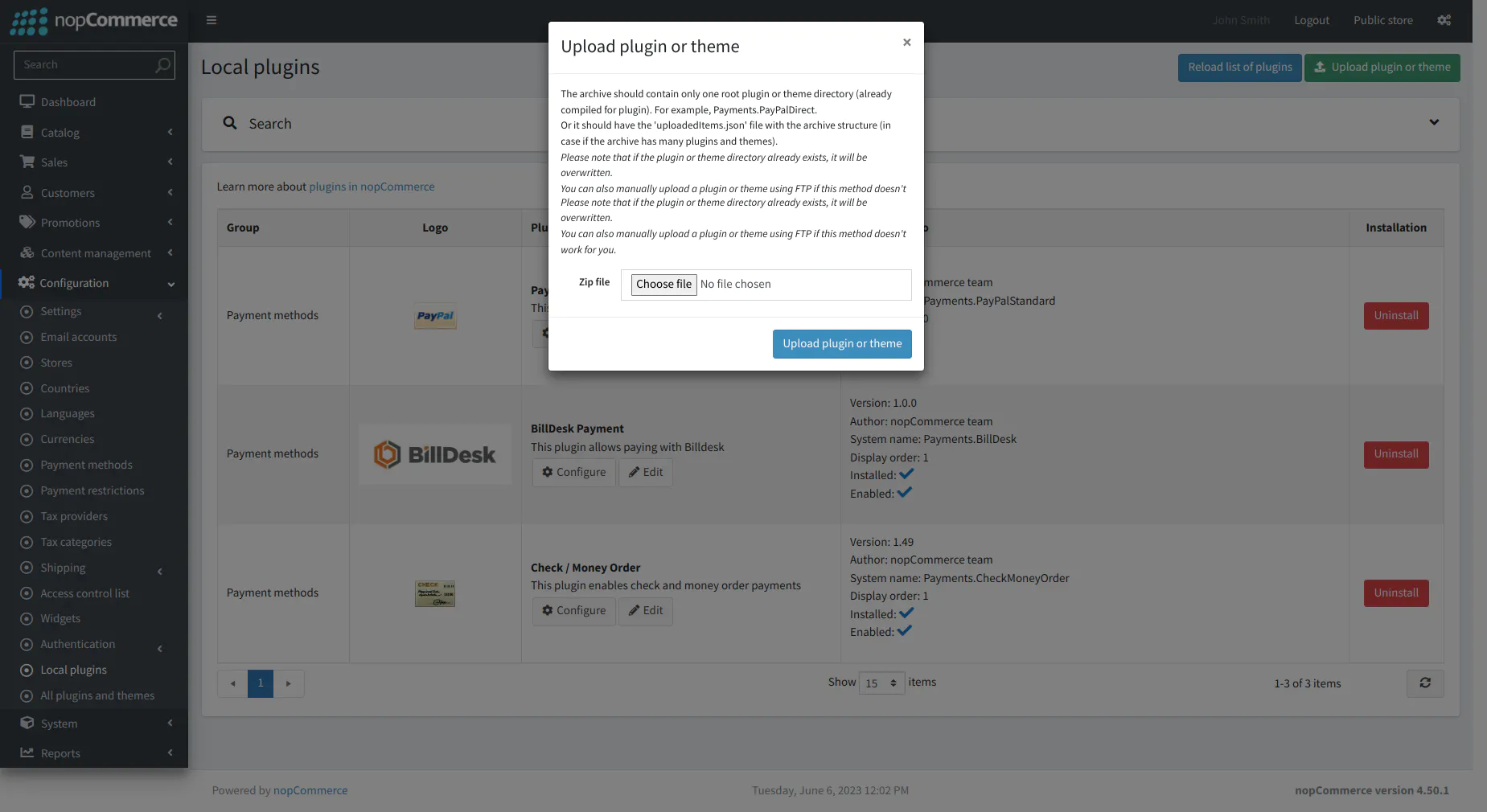
- Open the nopCommerce admin site and navigate to Configuration → Local plugins and click on Upload plugin or theme.
- Upload the Payments.Billdesk.zip file.
- In order to activate the plugin, click on Reload list of plugins.
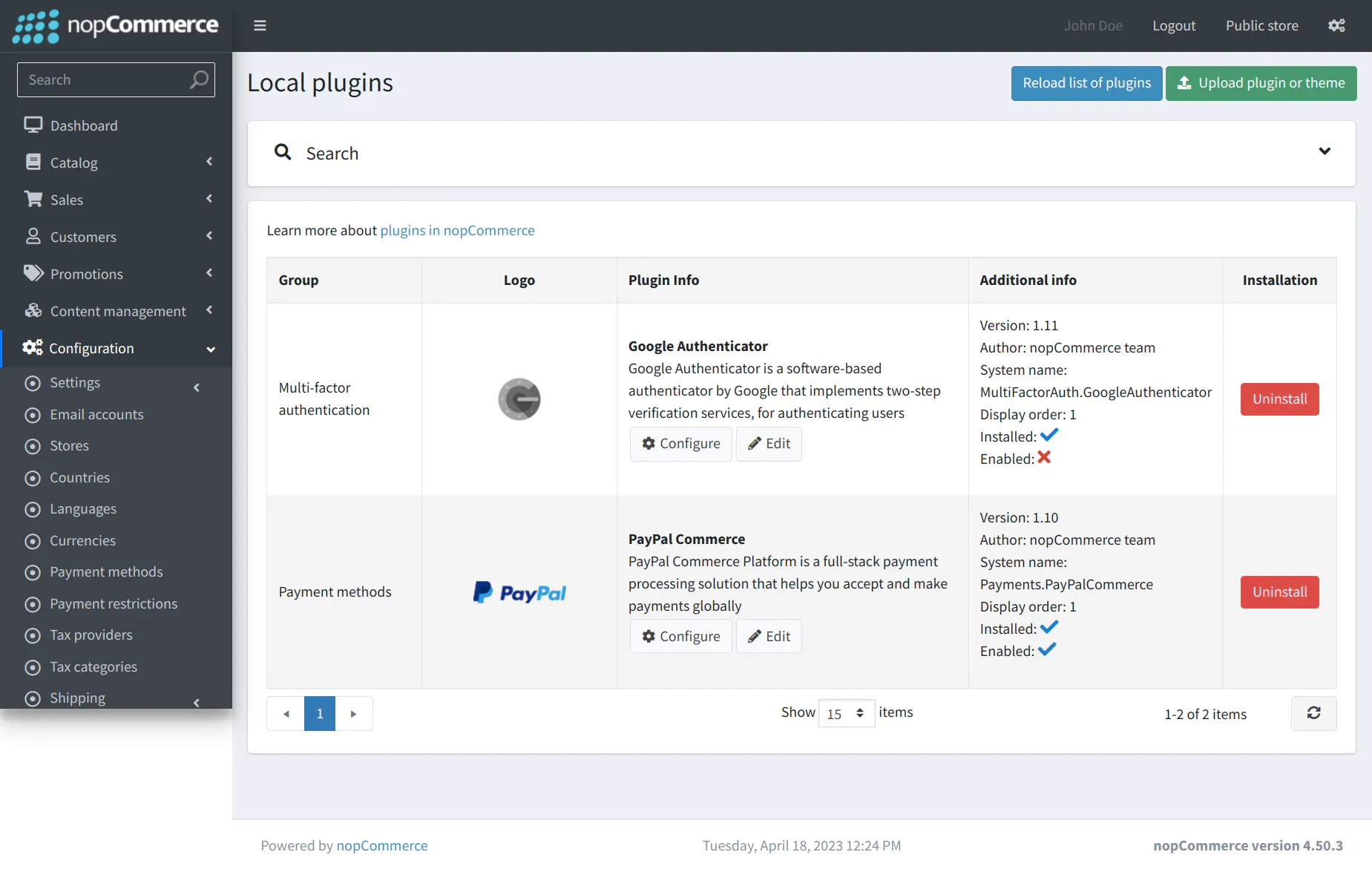
- BillDesk payment visible in the plugin list.
- To activate BillDesk as a payment method, click on Edit.
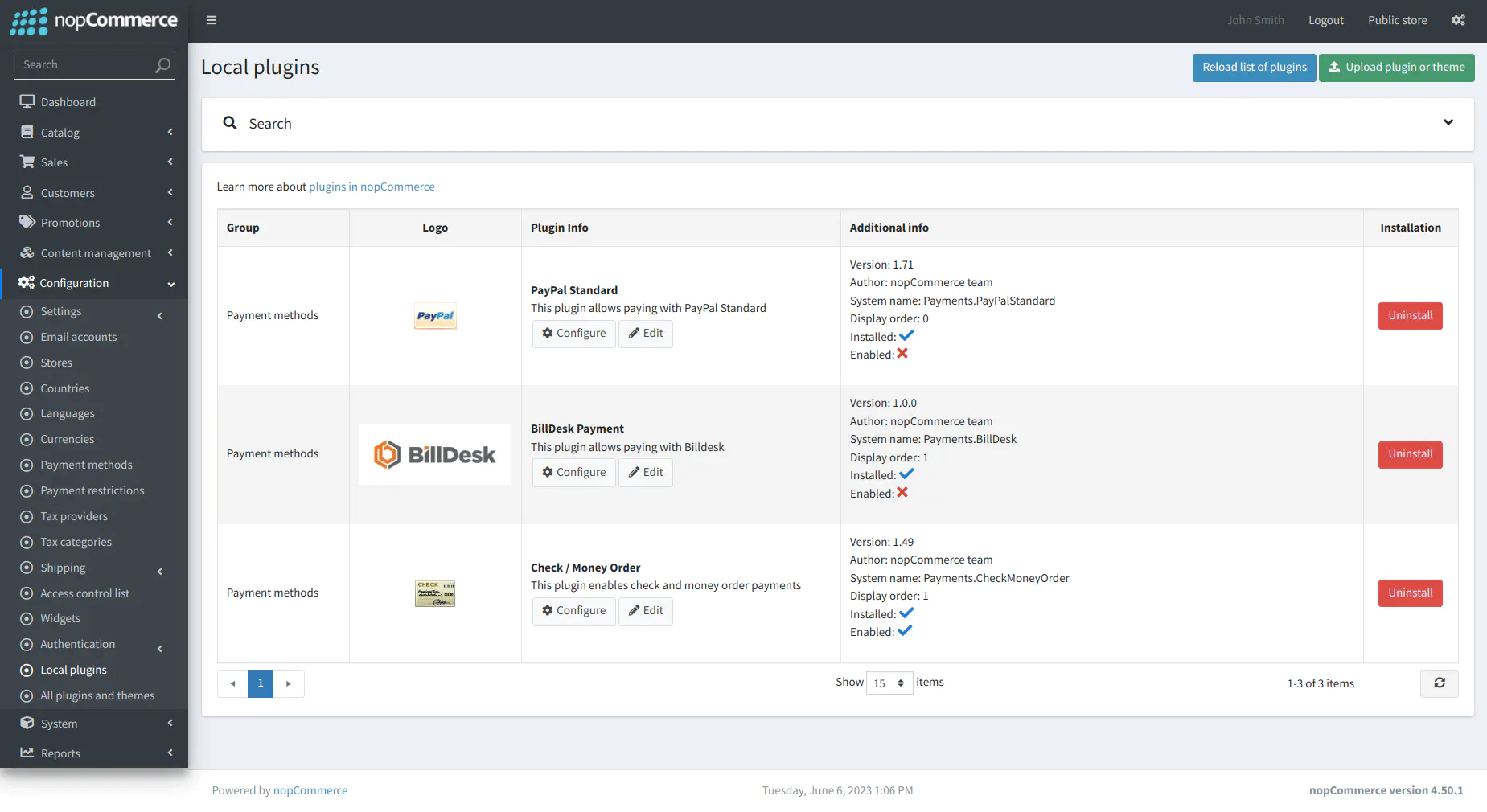
- Select the Enabled checkbox and click on Save.
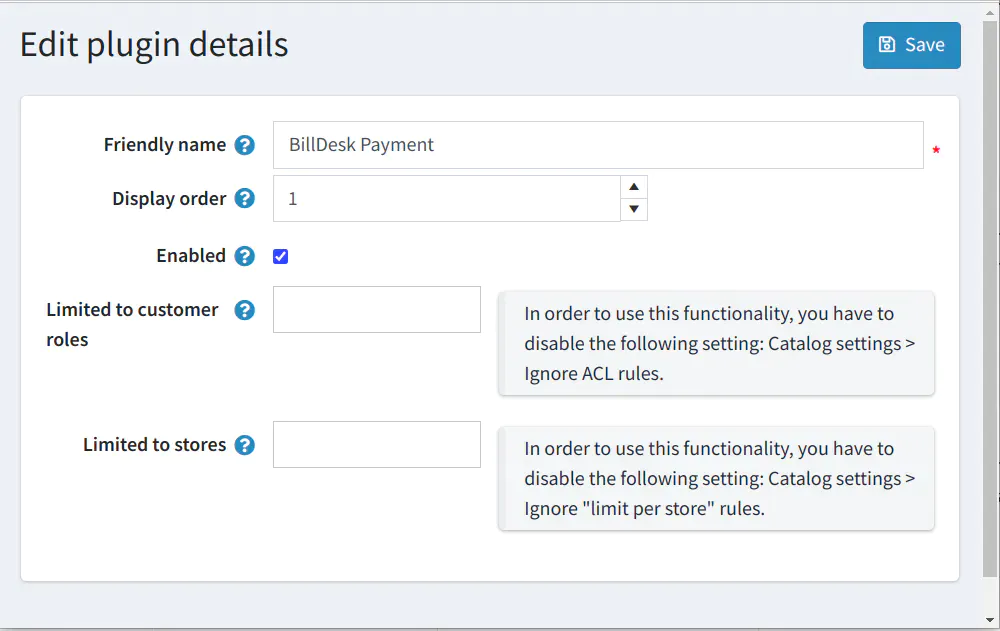
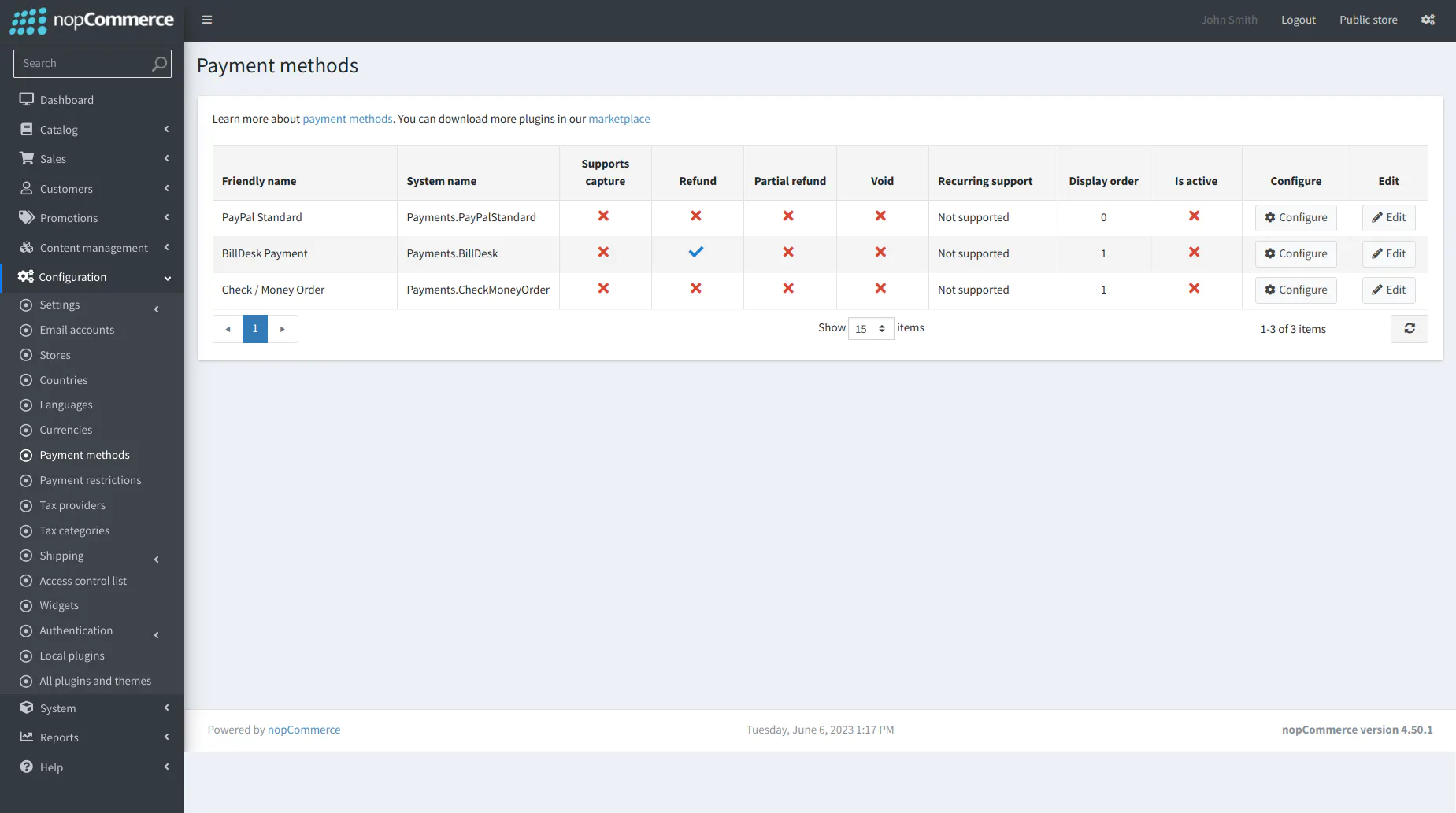
- The below screen appears after BillDesk Payment method has been successfully installed and enabled:
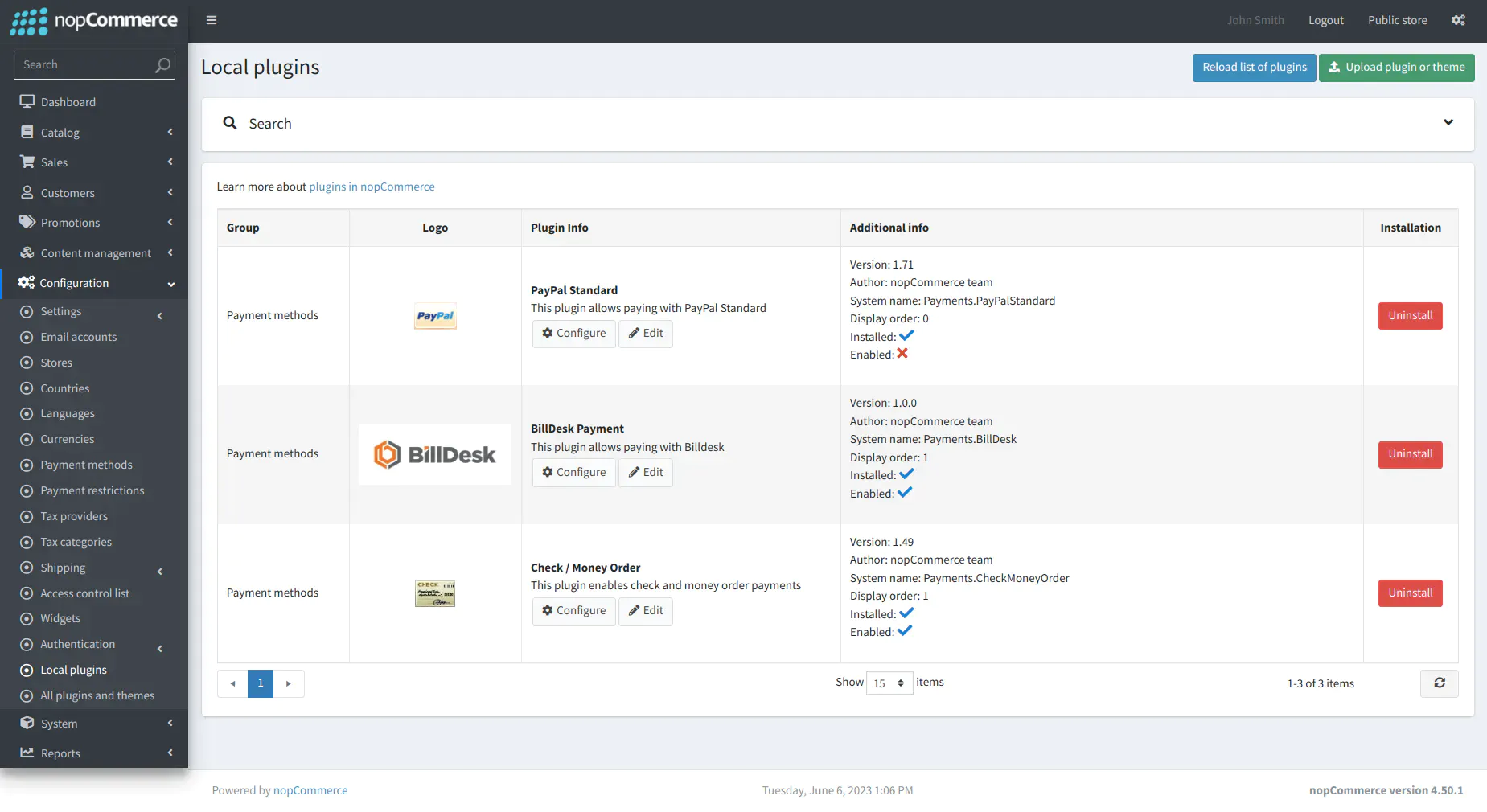
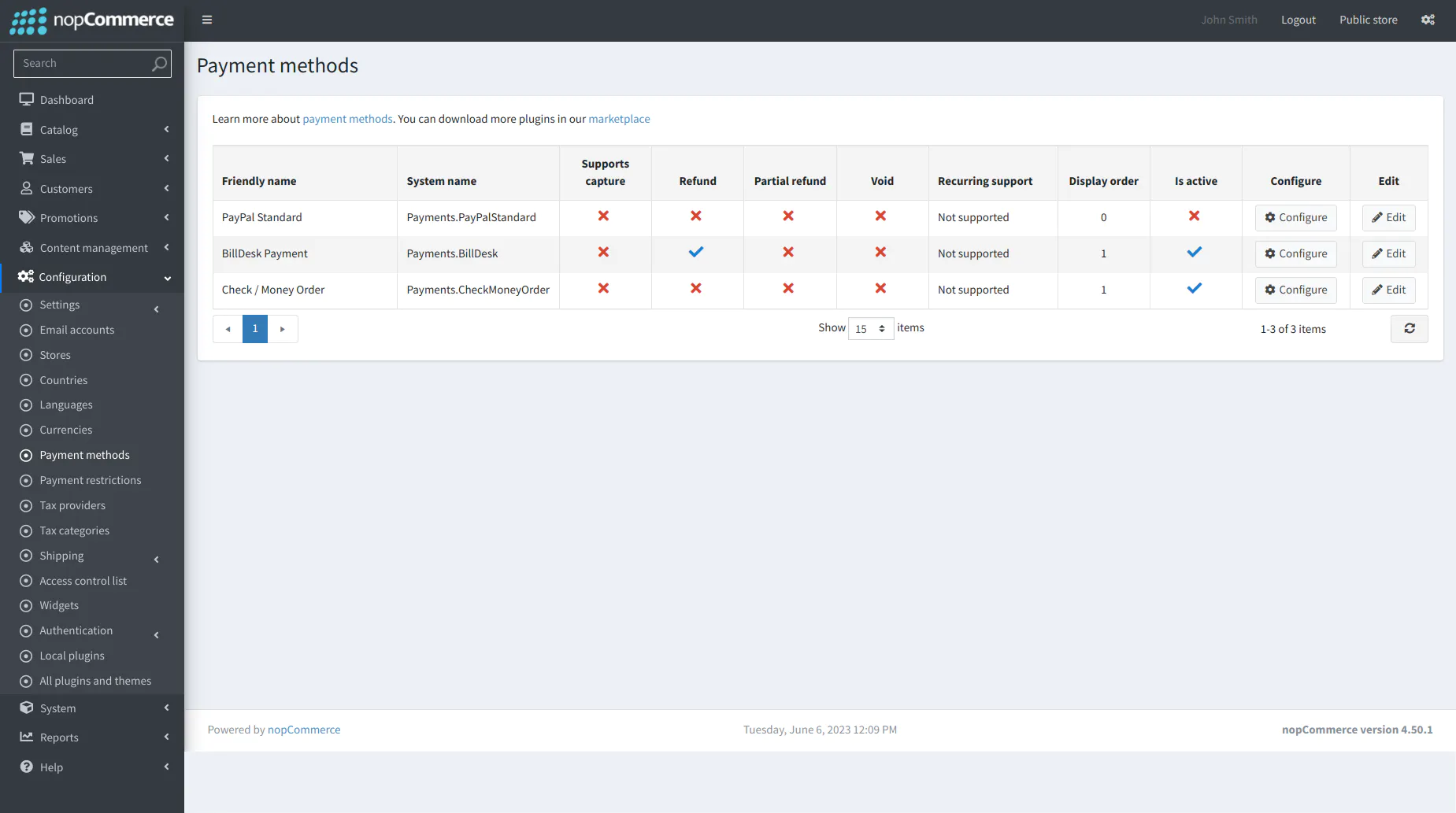
- Once the merchant navigate to Configuration → Payment methods, 'BillDesk payment method' is visible under Payment methods.
Configuration
- Navigate to Configuration → Payment methods.
- Click on the Configure button of BillDesk Payment.
- Enter BillDesk payment integration details.
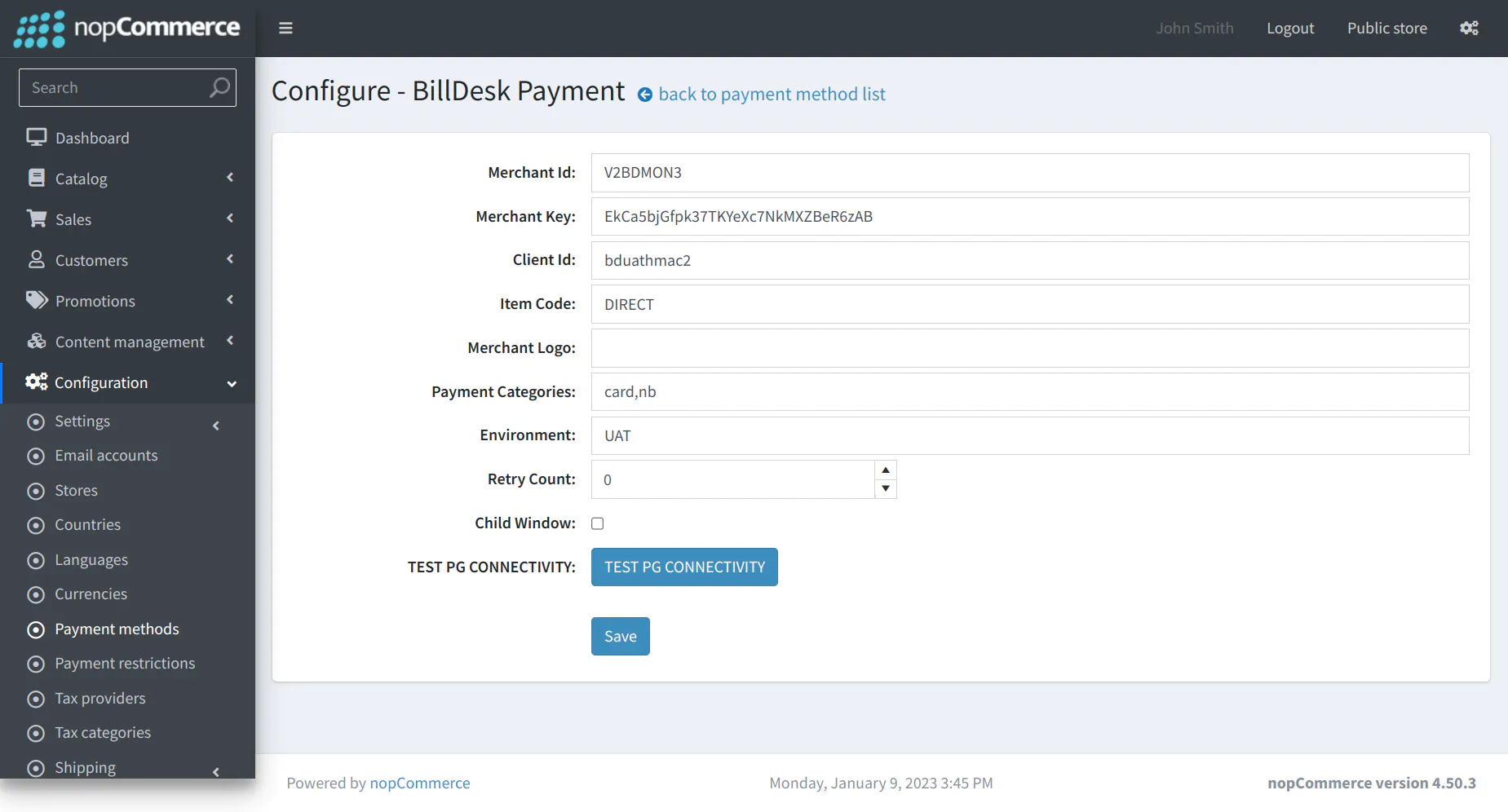
Merchant would have obtained necessary details like Merchant ID, Merchant Key, etc. from the BillDesk team.
-
Merchant Id - string - This is the unique ID created by BillDesk to identify the merchant.
-
Merchant Key - string - An encryption key that is used to protect the communication with Payment Gateway APIs.
-
Client Id - string - A client ID shared by BillDesk for accessing the Payment Gateway APIs.
-
Item Code - string - Item Code as shared by BillDesk team.
-
Environment - string - Enables switching between the UAT or Production environments. Depending on this configuration, the plugin will connect to the UAT or production URLs.
-
Merchant Logo - string - A URL or Base64 encoded logo of the merchant that will be visible on the payment dialog.
-
Payment Categories - string - Allowed Payment categories are configured for a merchant at BillDesk back end. Allowed payment categories allows the merchant to restrict and show only certain payment categories on the SDK within the ones that are already enabled for the merchant at the back end.
-
Retry Count - number - Controls the number of payment re-attempts that should be allowed to users on failed payment.
-
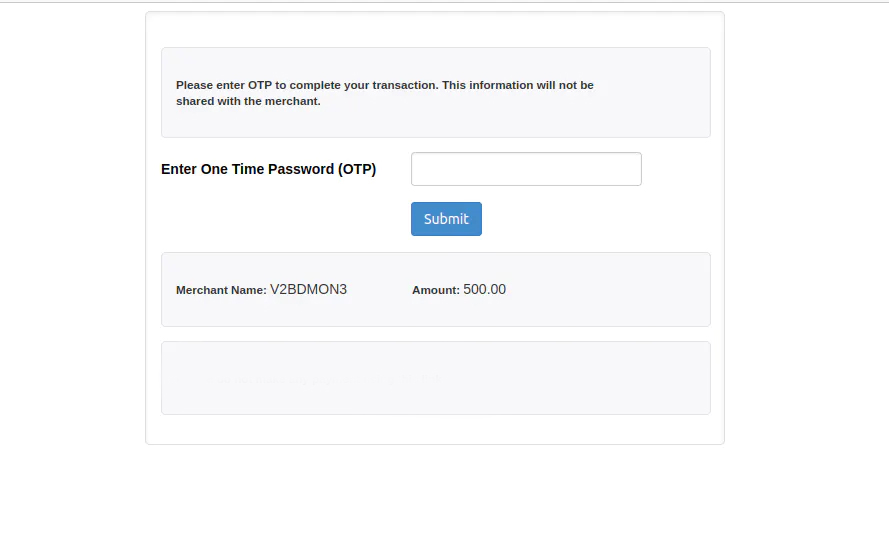
Child Window - number - Modal redirects the merchant page to bank URLs for processing the payment. “Child window” parameter gives an option to control the window in which OTP 2FA (two factor authentication) screen will open.
- Enable - In this case, a new window will open for the OTP 2FA screen.
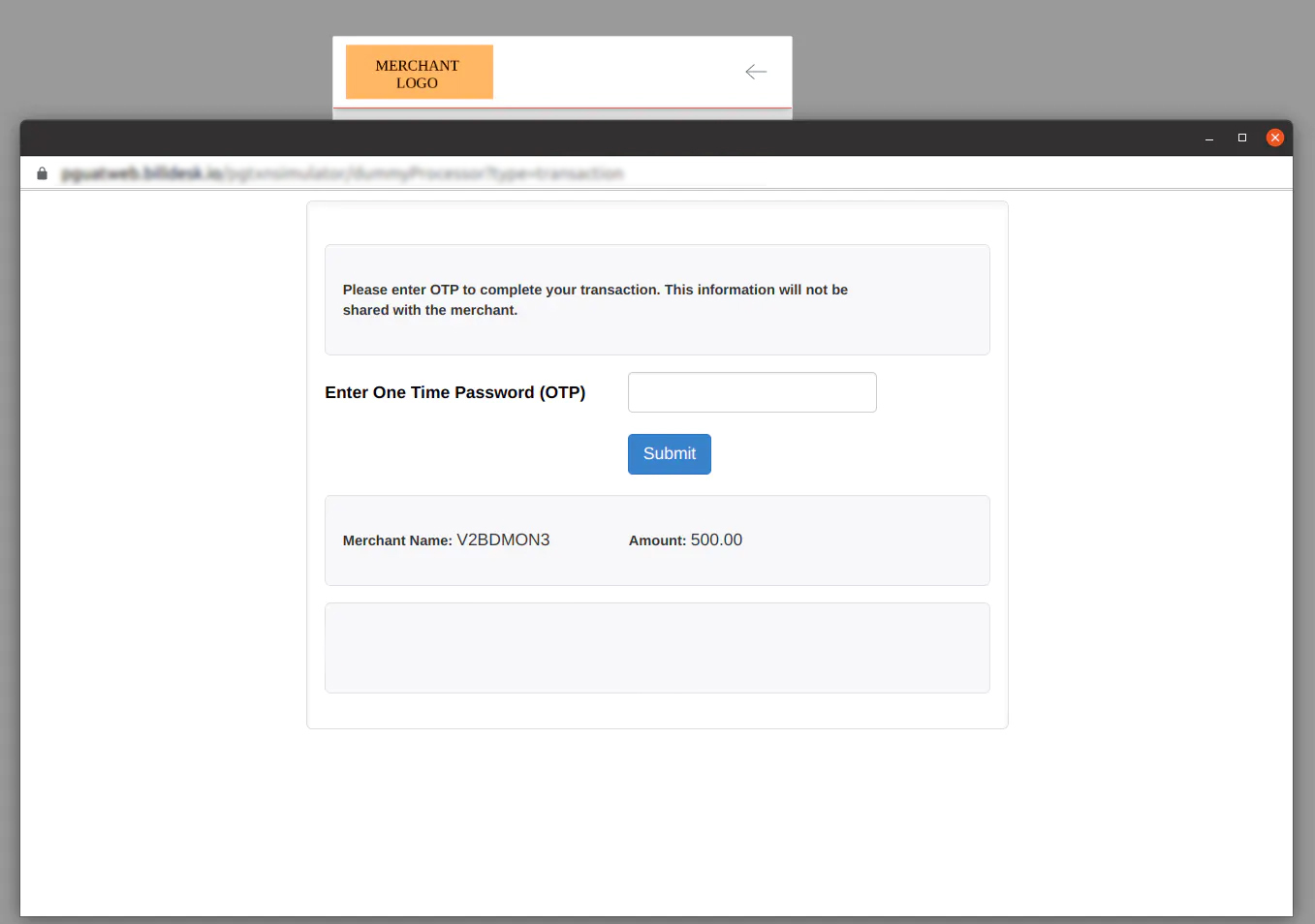
- Disable - In this case, the OTP 2FA screen will open in the same window.
-
TEST PG CONNECTIVITY - Confirm the successful configuration by clicking on 'Test PG Connectivity'. If the configuration was not successful, check Troubleshooting for error code analysis.
-
Click on Save.
SuccessAt this stage, the BillDesk extension is fully configured. The merchant can now accept payments via the BillDesk payment integration.
Features
Payment
- Go to Your Store.
- Add a product in the cart.
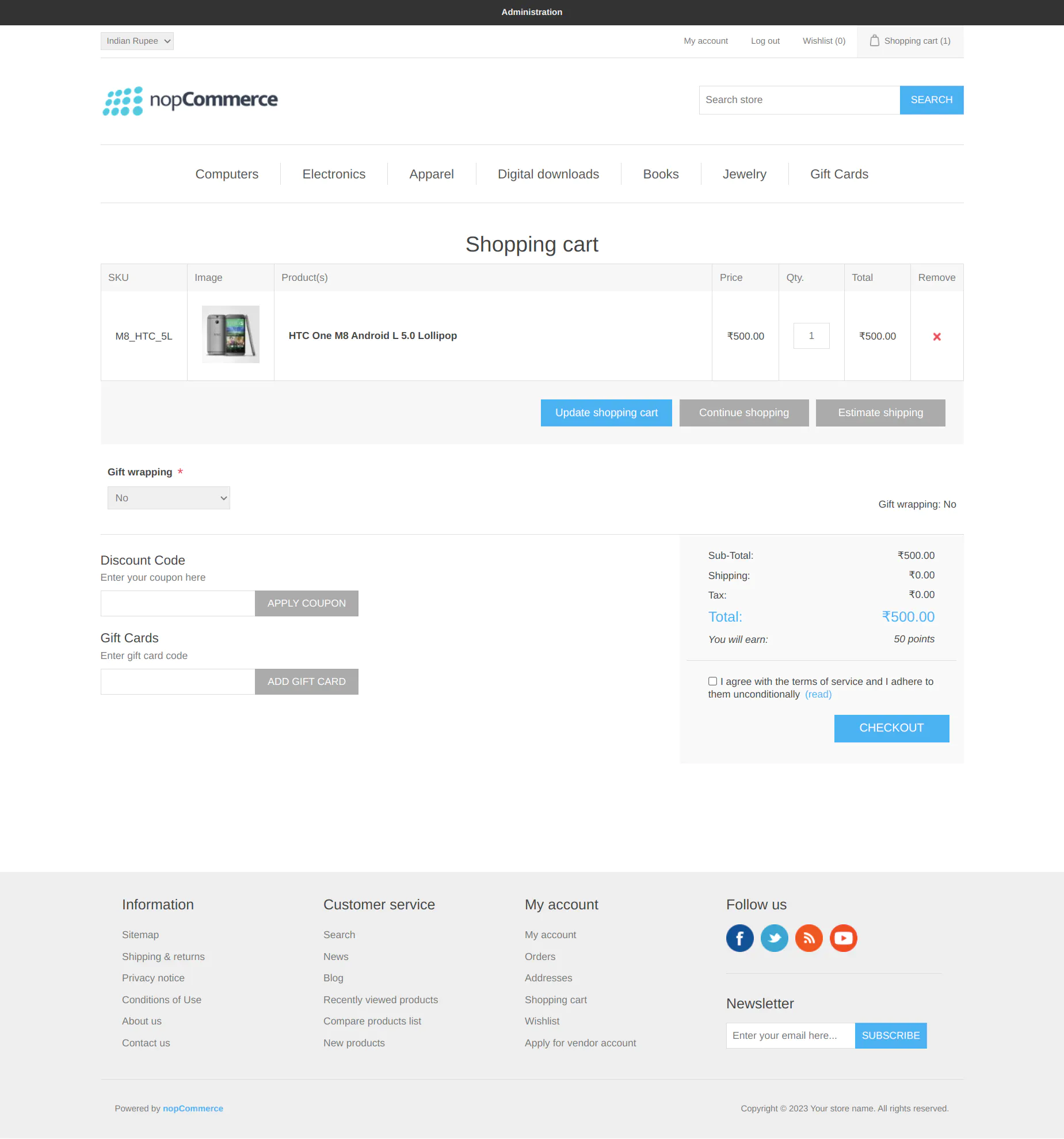
- Click on the checkbox to agree with the terms of service and click on the CHECKOUT button.
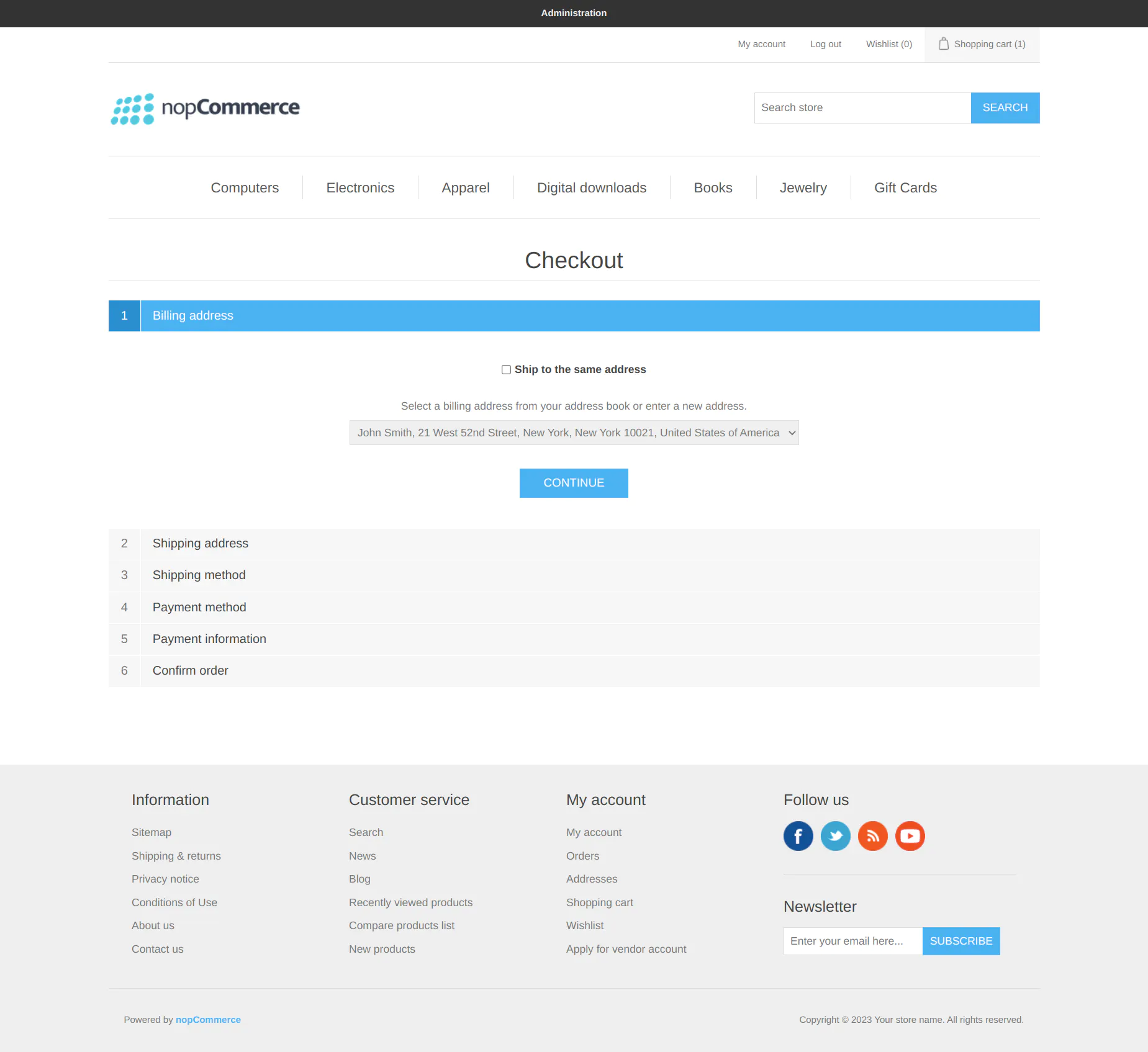
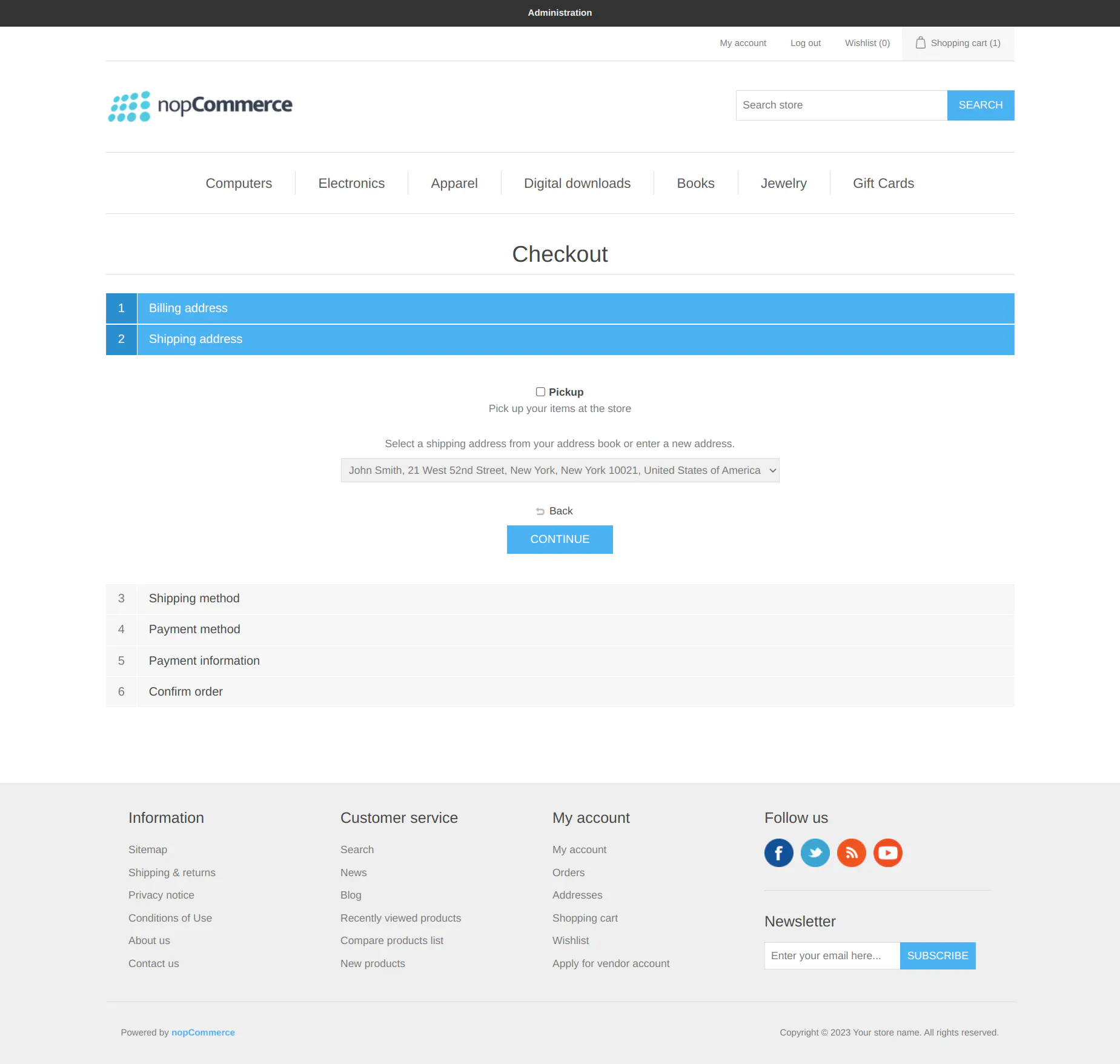
- Add the billing address.
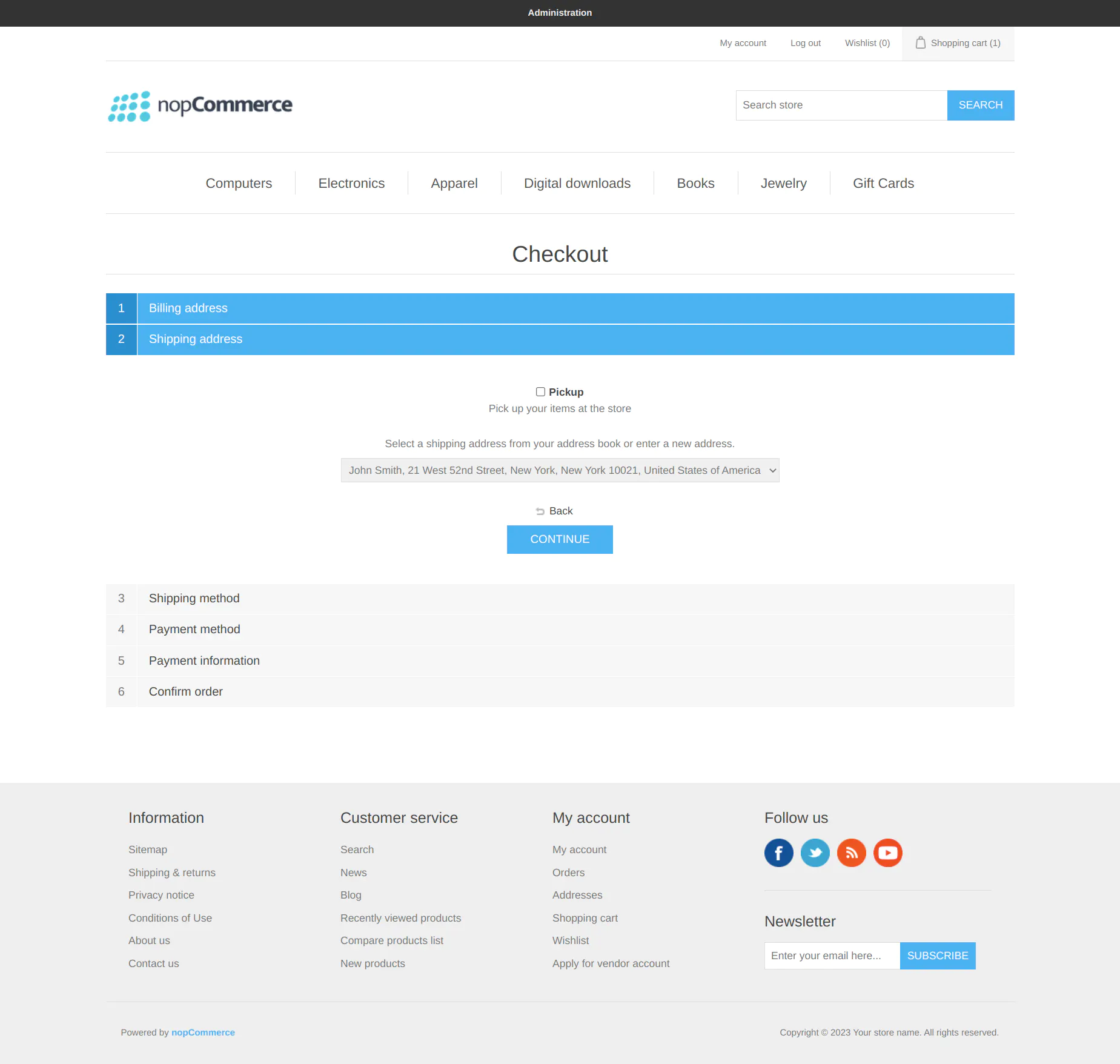
- Add the shipping address.
- Select the Shipping Method.
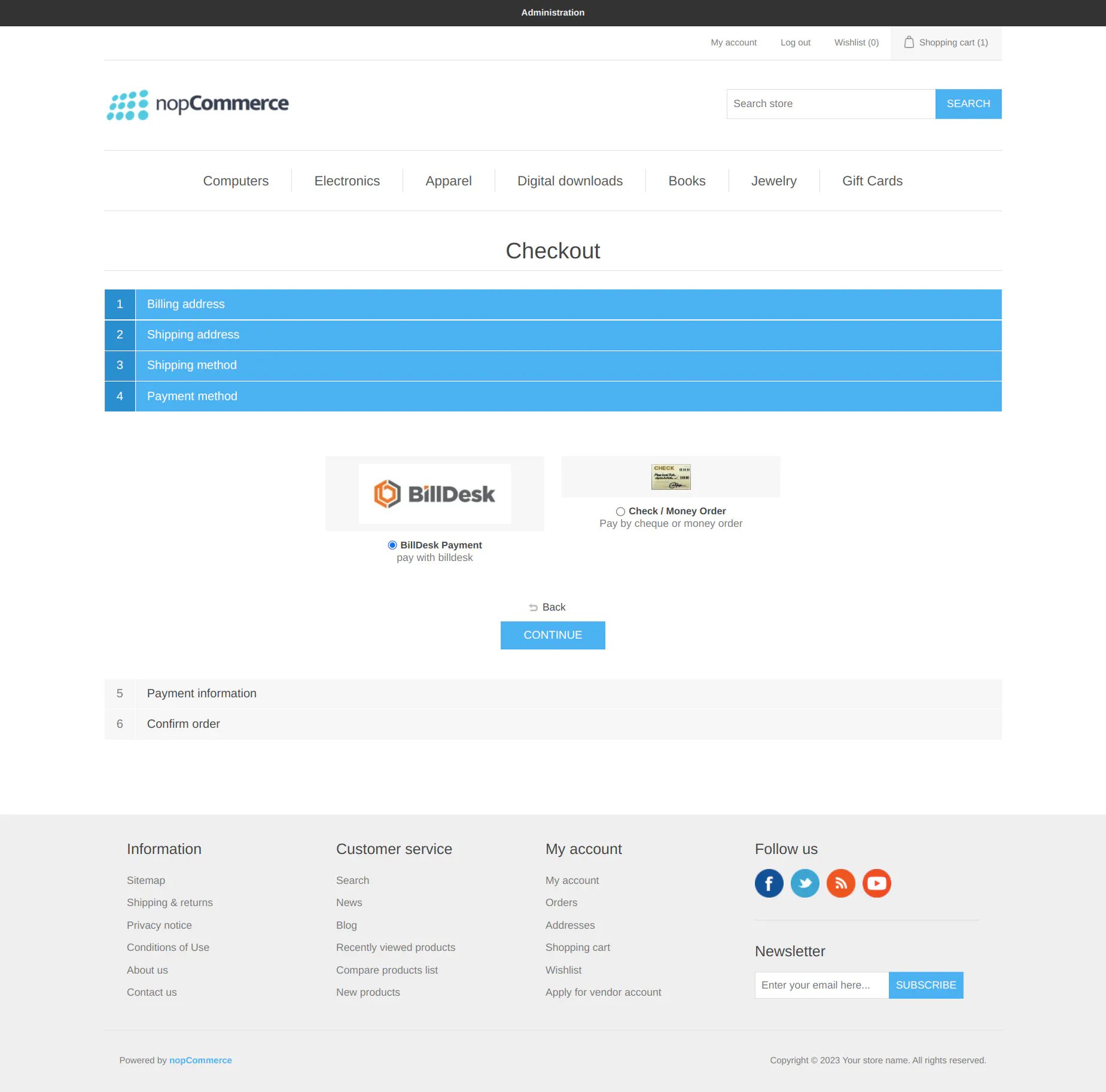
- Select the payment method as a BillDesk and click on CONTINUE.
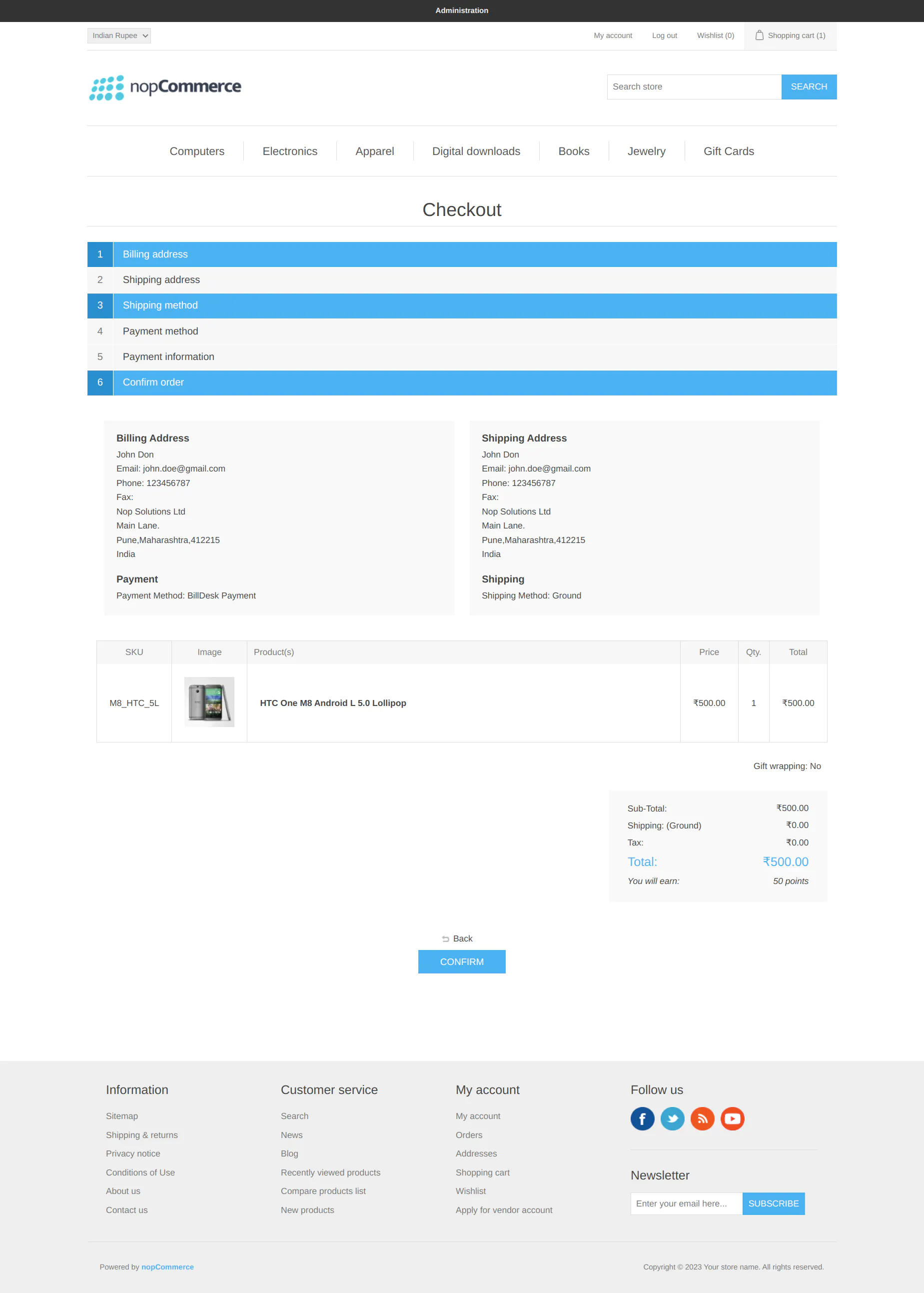
- Click on Confirm button to complete the payment using BillDesk.
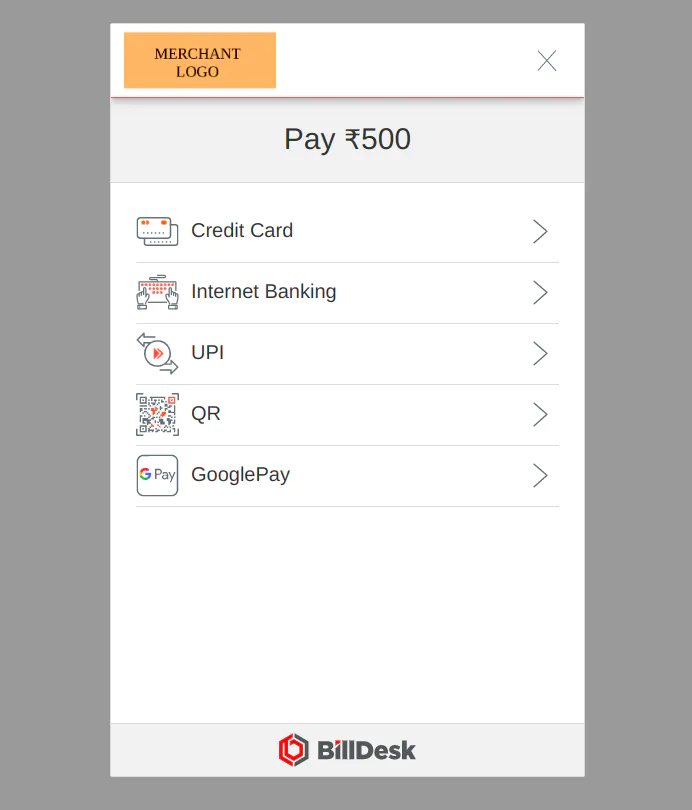
- On the BillDesk modal screen, the merchant logo will appear based on what has been configured in the “Merchant Logo” parameter of the configuration page.
- Choose the payment category and complete the payment process.
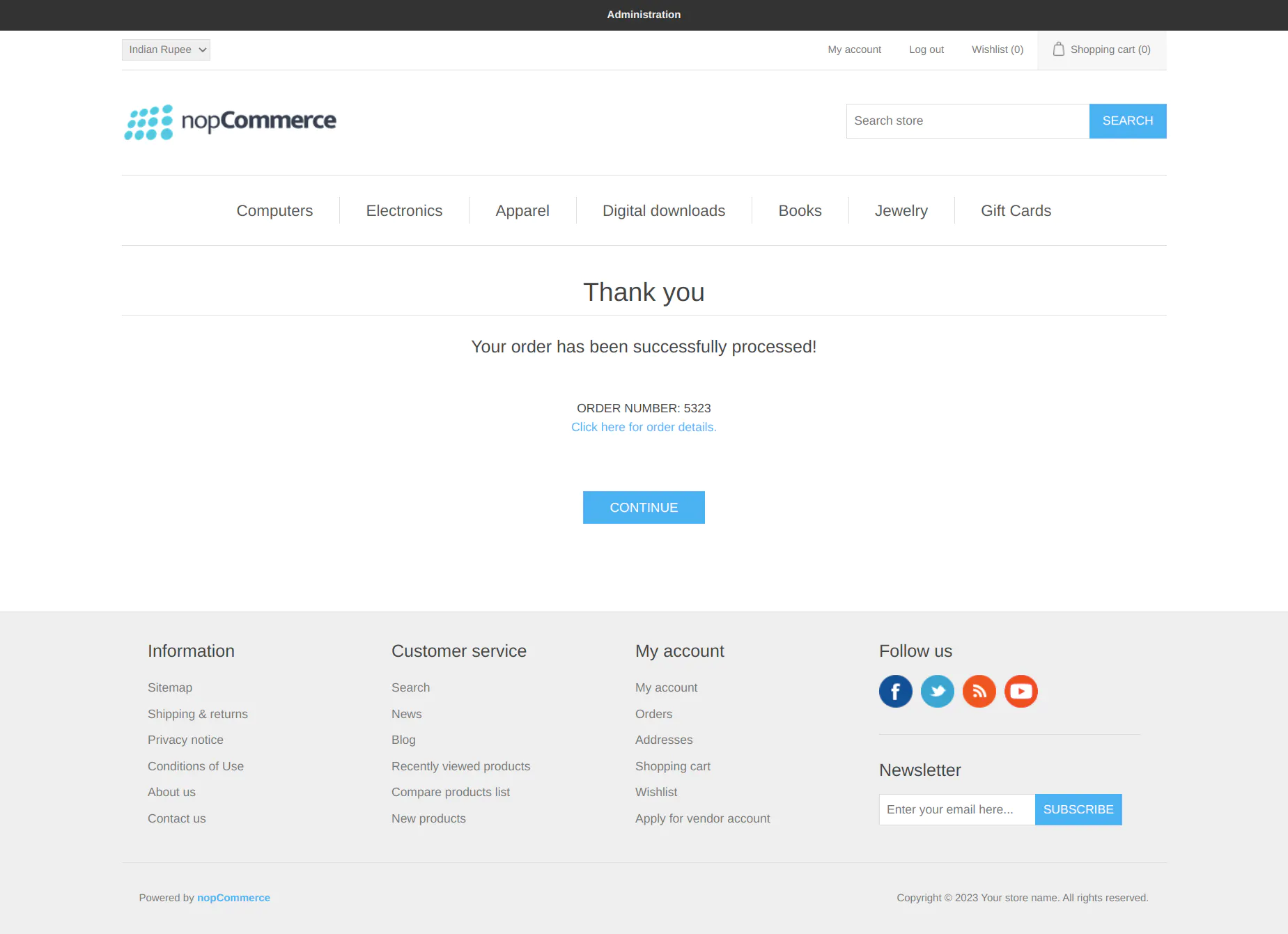
- Once the payment is completed successfully, the merchant will be redirected to the order confirmation page.
Refund
Refunds can be processed only for orders which are under Processing or Paid status.
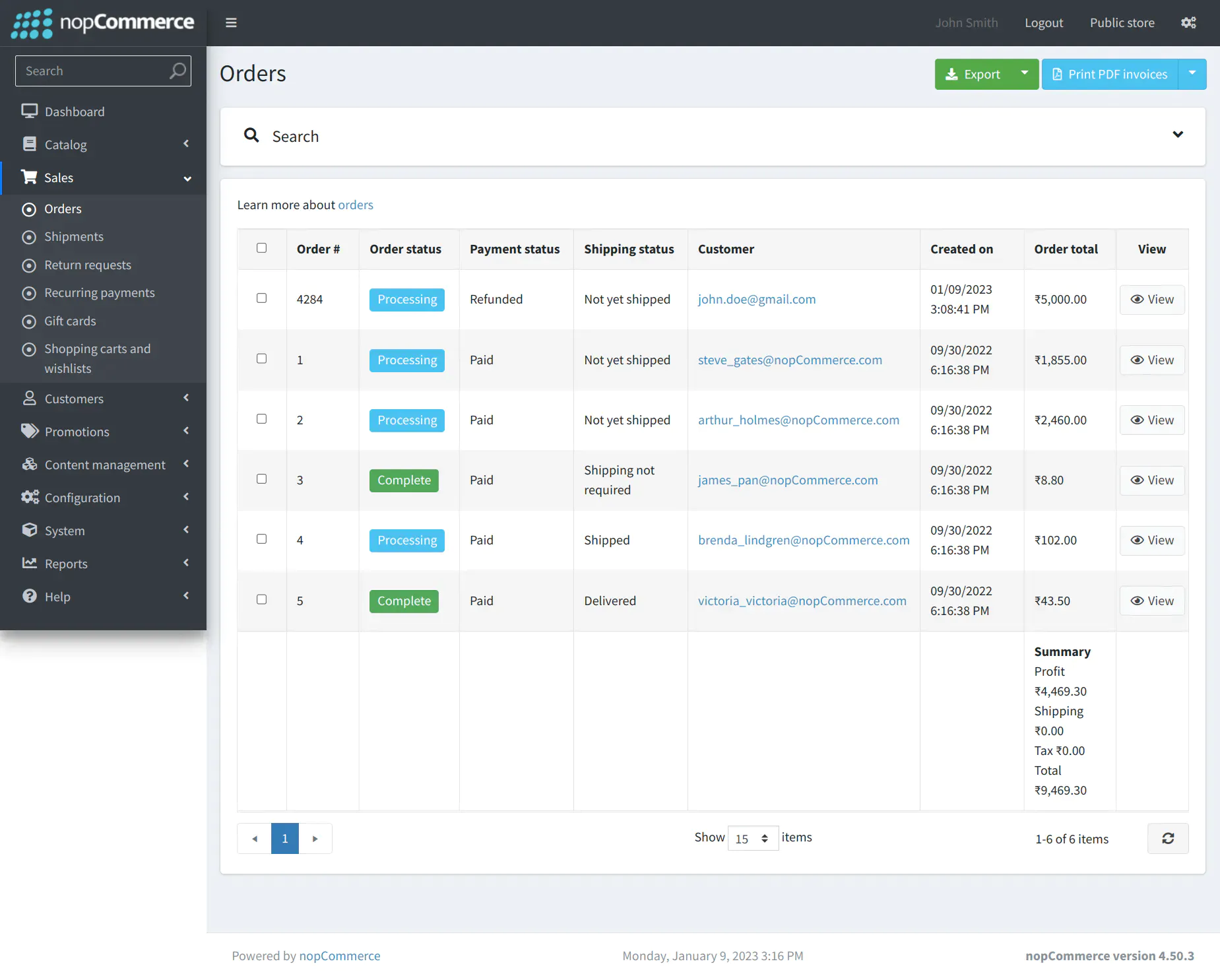
- Click on Sales → Orders and select the order to be refunded from the order list.
- Click on the View button to view details of the selected order.
- Click on Refund to process a full refund of the selected order.
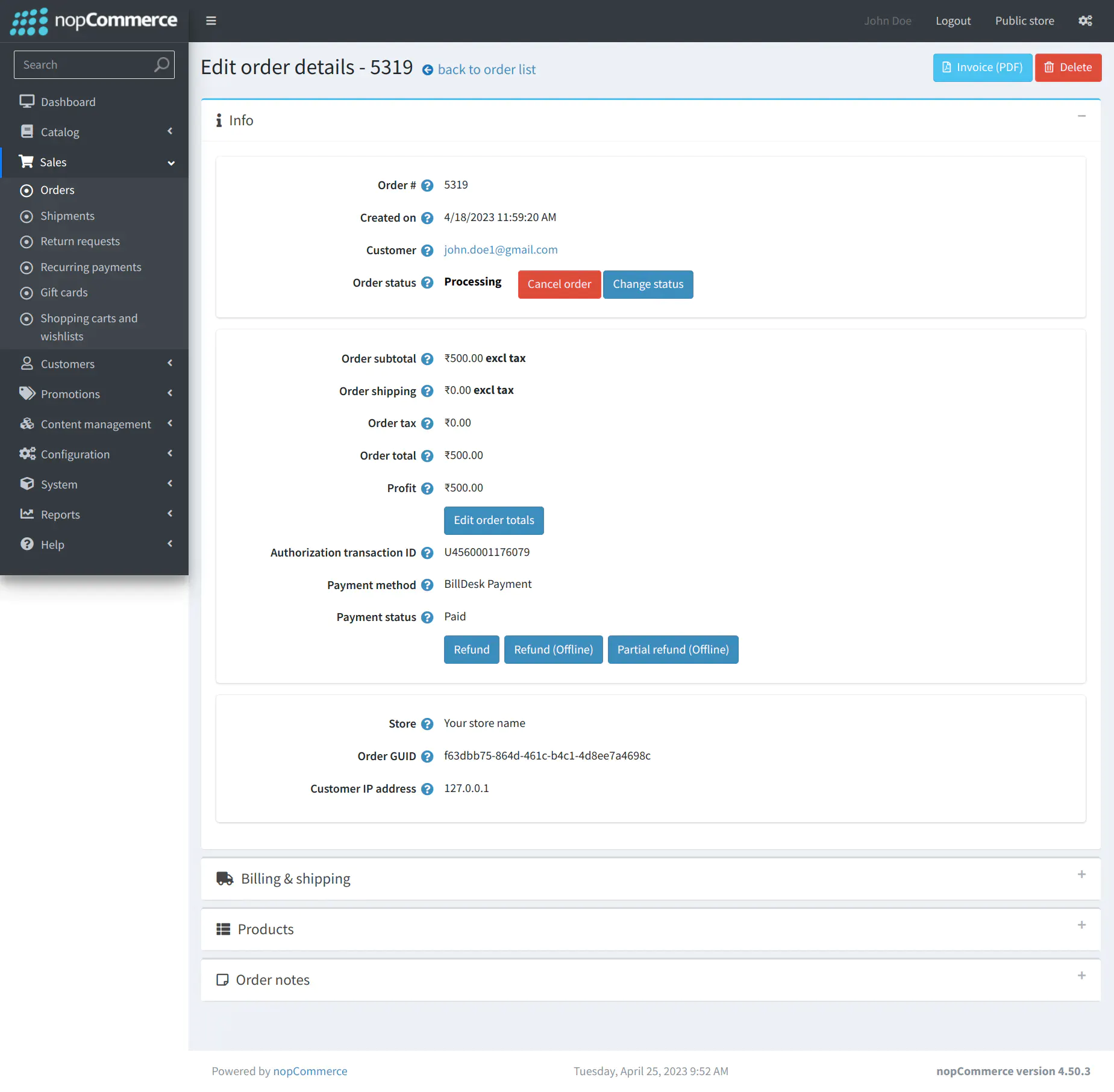
- After the refund is succesfully processed, Payment status changes to Refunded.
Order Listing
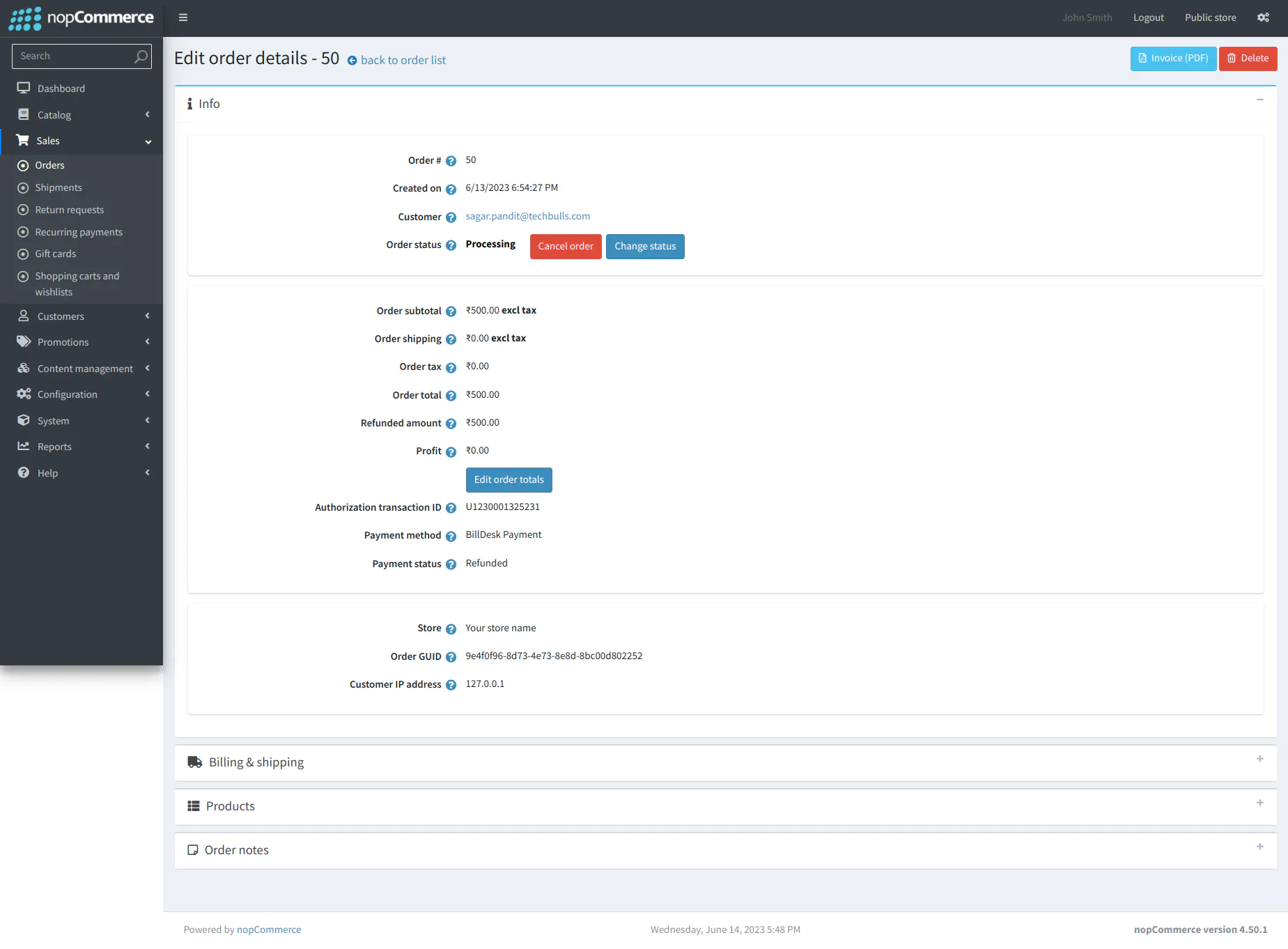
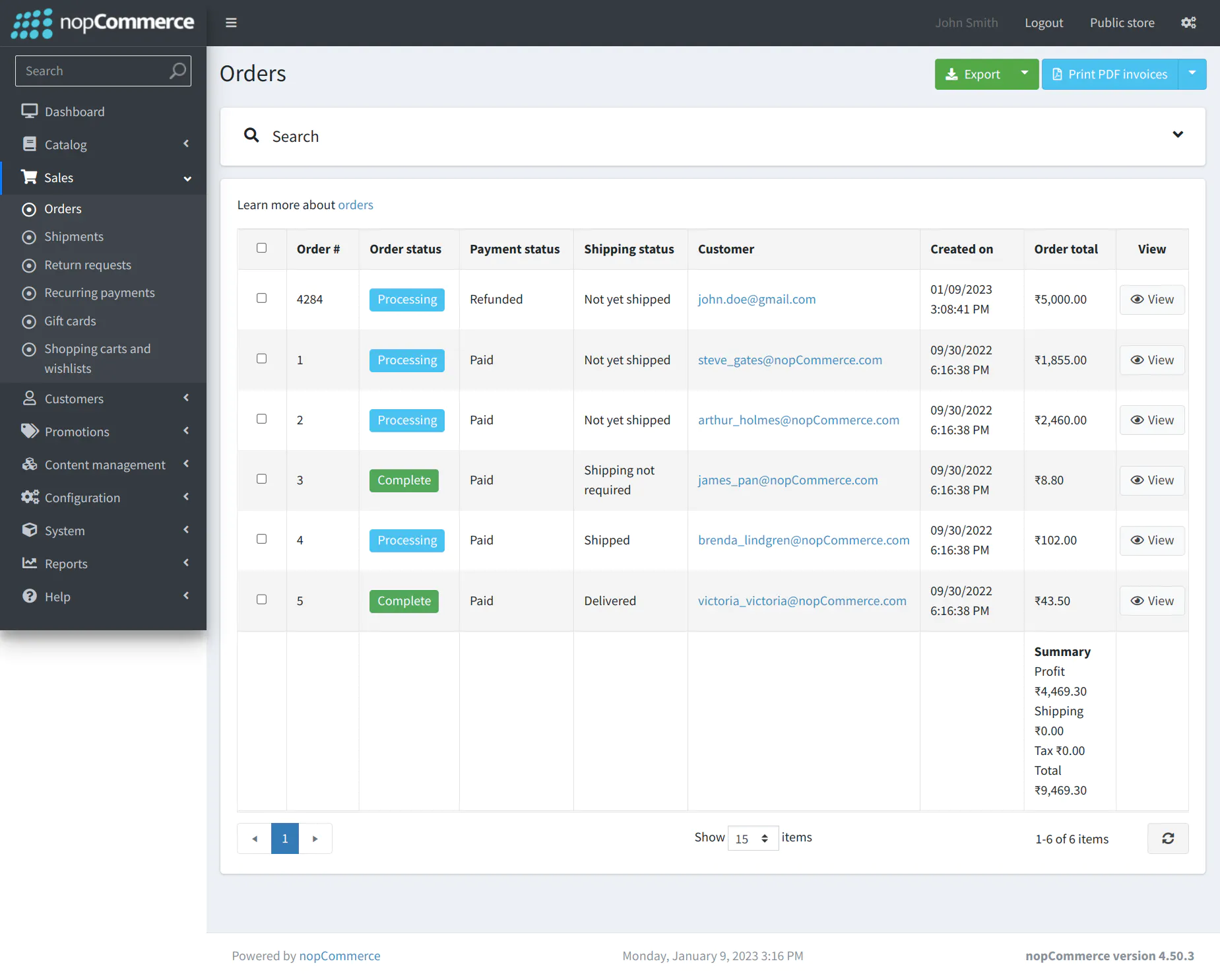
Merchant can view all order under Sales → Orders.
Troubleshooting
For nopCommerce, there is a nopCommerce specific logs present at System → log, where the merchant can check the reason of failure.
Updated 11 months ago