

CX+ – Deep API
1. Introduction
CX+ – Deep API allow merchants to complete their customers' payment journey through simplified steps.
The advantages of such an integration are to allow seamless customer experience to their customers, be it on the website or on an app. The merchant can manage checkout experience and define the workflows for various scenarios.
Refer BillDesk CX+ – Deep API documentation and complete their transactions.
2. Salient Features
- Manage end customer experience, be it on merchant's website or on merchant app
- Manage & control payment method
- Manage payment lifecycle post transaction through "Retrieve Transaction" or "Refund Transaction" API
3. Experience the Product
To get a first-hand experience of how the API works, BillDesk requests to go to API Playground.
> 🚧 API Playground

4. Integration Steps
Depending on the payment method, the orchestration of the APIs/ workflow has been explained below:
> 🚧 Card (PAN Based Transactions)
A step by step guide to integrate the API, to complete the payment.
Below section explains & covers the Card, Network/ Issuer and Alt ID Token based Integration.
4.1 For Card (PAN Based Transactions)
BillDesk presents a range of payment methods that cater to specific use cases, transaction amounts, and transaction process types. In this section, for payment_method_type as card the details of the workflow are defined as follows. These steps will help the merchant to understand how they can complete a payment journey.
Step 1. Create Transaction
To initiate payment transaction using card details, use the Create Transaction API. The steps explain how the cardholder can complete their transaction on merchant website/ app.
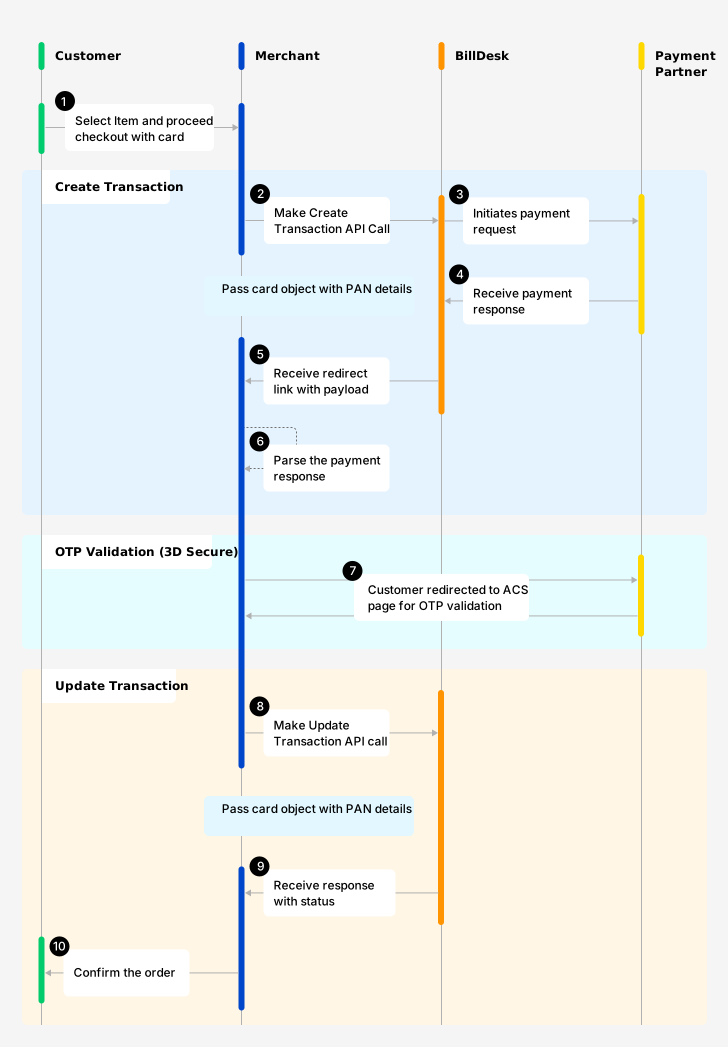
One Time Payment with Card (PAN Data)
To provision token with the payment request, the Create Transaction API also allows merchant to save the card (post customer consent) or Card-on-File Tokenisation (CoFT) for the card details sent in the request object.
- Pass attributes such as tokenize & coft_consent. These attributes will help in creating token for the card passed in card object.
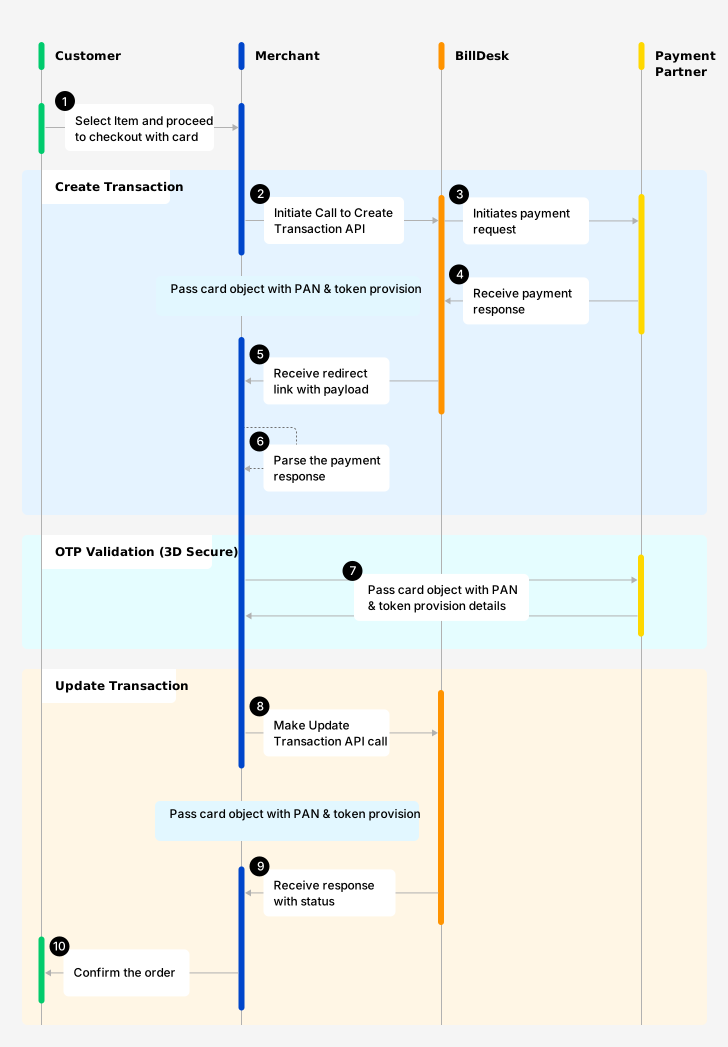
One Time Payment with card + token provision (PAN details + tokenize, coft_consent = true)
To create a transaction use, Create Transaction API. Here are some of the attributes required to initiate create transaction request.
Request Body (Sample)
| Attributes | Description |
|---|---|
| mercid | Unique identifier as defined by BillDesk for the merchant. |
| 3ds_parameter | Entity (merchant/ BillDesk) that captures the device object attributes for 3DS2.0 authentication, values are: • |
| bankid | BillDesk defined unique identifier for the bank or acquirer |
| ru | Merchant return url, and required for specific payment methods – card, netbanking, wallet, cashcard. |
| itemcode | Value as provided by BillDesk, with a default value For EMI transactions, the value will be shared by the designated BillDesk RM based on issuer. E.g. |
| payment_method_type | Indicates the method of payment, and the values are: • card, The associated object will also be provided in the request. |
| txn_process_type | Indicates transaction processing type, will be the following values: • For card then value as |
| customer_refid | Unique customer identifier as per merchant, required for cardaccountid.
|
| card{} | Payment method object associated with card. |
| device{} | Device details object (Required for 3DS2.0 protocol). For more details on device object click here. |
Response Body (Sample)
Response of the Create Transaction API will essentially inform the merchants to follow the next step that is required.
| Attribute | Description |
|---|---|
| auth_status | Indicates the authorization status of the transaction with the following possible values: • 0300 - transaction is successful.• 0002 - transaction is pending for authorization.• 0399 - transaction failed. |
| eci | Authentication ECI indicator, as per the 3DS2.0 protocol. Received for 3DS2.0 workflow. • ECI: 05/02
|
| next_step | The attribute helps to determine next step at merchant end. It can take any single value as below: • 3ds2_challenge – for 3DS2.0. 3DSecure OTP flow needs to be completed as per below steps• capture_otp – for OTP led workflow (Only applicable in case of RuPay).• approve_collect_request – for UPI Collect.• approve_qr_request – for UPI QR.• approve_intent_request – for UPI Intent. |
| links | Associated links with the object. |
| payment_category | • 00 for Card Gateway• 01 for NetBanking• 02 for Credit card• 03 for Debit card• 04 for Cash card• 05 for Mobile wallet• 10 for UPI• 11 for Bharat QR• 12 for Loan EMI• 13 for NEFT• 18 for UPI Credit• 19 for ENACH• 20 for CBDC• 21 for UPI Prepaid Wallet• 22 for UPI Credit Line |
Call to action by merchantFrom the response of Create Transaction API, merchant will receive the links array object:
- Pass the attributes & their corresponding values from the parameters object.
- Method attribute suggest 'GET/ POST', which the merchant should appropriately manage.
- Redirect the customer to the href URL basis the attributes/method mentioned above.
{
  //Sample code. Actual response will vary.
  "links": [
	{
		"href": "https://www.issueurl.com/page.jsp",
		"rel": "redirect",
		"method": "post",
		"parameters": {
      //BillDesk in response may send either "creq" or "bdcreq" as the attribute
			"creq": "eyJtZXNzYWdl2luZG93U2l6ZSI6IjA1In0="
		}
	}
],
"next_step":"3ds2_challenge",
"eci":"05",
"auth_status":"0002"
}
NoteThe attributes and their values in parameters object are dynamic in nature. Please do not hard code these attributes/values at merchant's end.
Step 2. Update Transaction
Update Transaction is the second step, to authorize the payment. The step is essential for all card/token led transactions. Merchant should initiate update transaction API post authentication is successfully complete.
To update a transaction use, Update Transaction API. Here are some of the attributes required to initiate update transaction request.
| Attribute | Description |
|---|---|
| transactionid | Unique transactionid generated by BillDesk. |
| mercid | Unique identifier as defined by BillDesk for each merchant. |
| payment_method_type | Method of payment e.g. card etc. Attach the associated object to the transaction. |
| card{} | Payment method object associated with card. |
| response_parameters{} | Response parameters from issuer (for redirect flows) or entered by the customer (for OTP flow) |
4.2 For Card (using Network/ Issuer Token)
BillDesk supports network/ issue token-based transactions. In this section, for payment_method_type as card the details of the workflow are defined as follows:
Step 1. Create Transaction
To initiate payment transaction using network or issuer token, use the Create Transaction API. For one time transaction with network/ issuer token object.
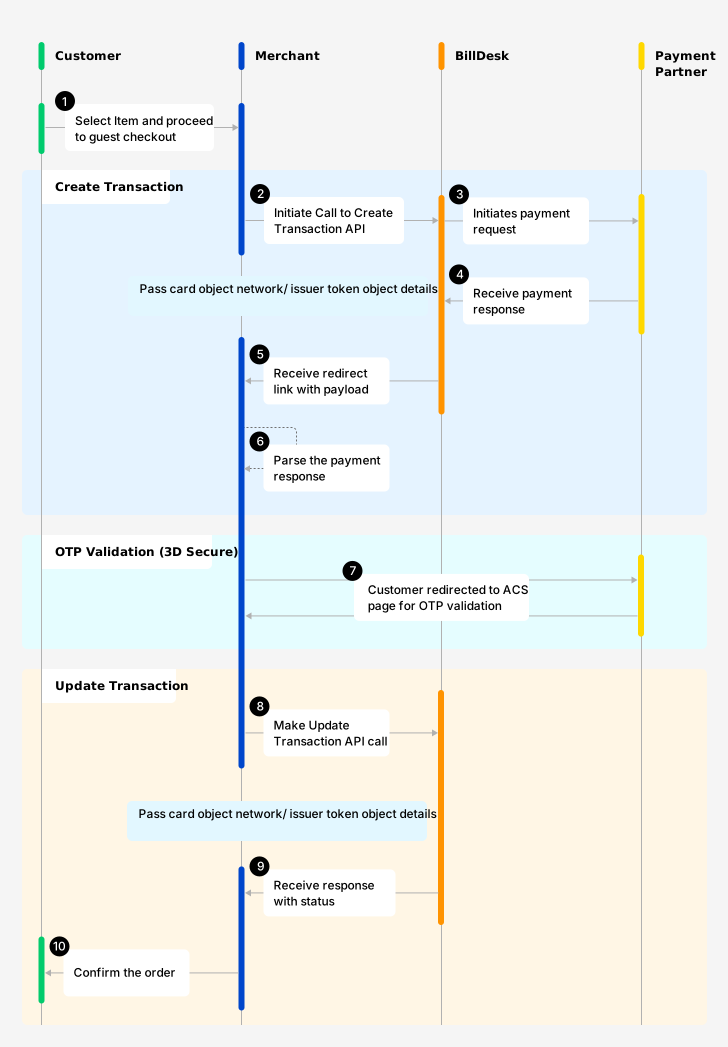
One Time Payment with Network/Issuer Token
Request Body (Sample)
Request body mentioned in section 4.1 above will be used with network token object for initiating a transaction.
Response Body (Sample)
Response body mentioned in section 4.1 above will be used by the merchant.
Understanding the various Create Transaction Status codes:
| Status | Status Code | Description |
|---|---|---|
| SUCCESSFUL | 0300 | A transaction which has been initiated at BillDesk is marked as successful. |
| PENDING | 0002 | A transaction which has been initiated but is in pending status. |
| FAILED | 0399 | A transaction which has been initiated but is in failed state |
Step 2. Update Transaction
Update Transaction is the second step, to authorize the payment. The step is essential for all card/token led transactions. Merchant should initiate update transaction API post authentication is successfully complete.
To update a transaction use, Update Transaction API.
4.3 For Card (using Alt ID Token)
BillDesk supports Alt ID based transactions (referred as Guest Checkout Transactions). The Alt ID can be fetched using BillDesk API. To know more about Fetch Alt ID API, click here.
In this section, for payment_method_type as card the details of the workflow are defined as follows:
Step 1. Create Transaction
To initiate payment transaction using Alt ID token, use the Create Transaction API. Merchant needs to send Alt ID token details within the card object as part of request object. For one time transaction with Alt ID token object, please refer below sample. Click here to access the API.
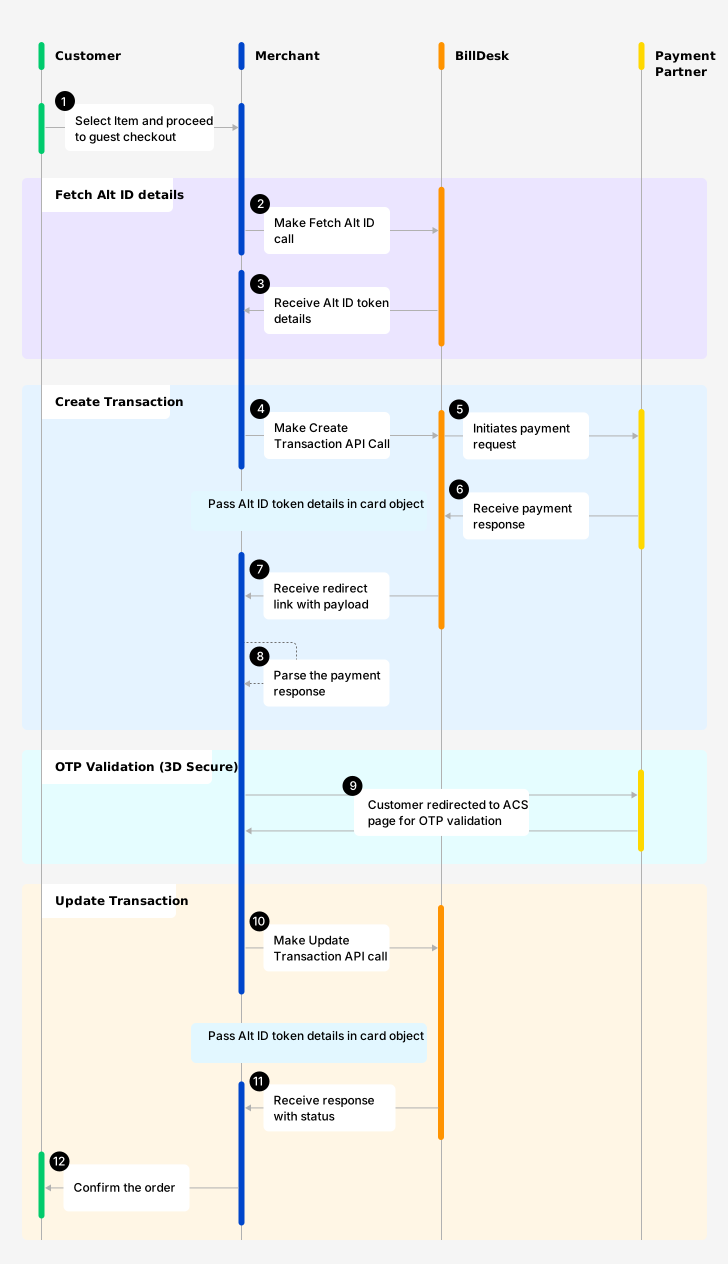
Request Body (Sample)
Request body mentioned in section 4.1 above will be used with altid token object for initiating a transaction.
Response Body (Sample)
Response body mentioned in section 4.1 above will be used by the merchant.
Understanding the various Create Transaction Status codes:
| Status | Status Code | Description |
|---|---|---|
| SUCCESSFUL | 0300 | A transaction which has been initiated at BillDesk is marked as successful. |
| PENDING | 0002 | A transaction which has been initiated but is in pending status. |
| FAILED | 0399 | A transaction which has been initiated but is in failed state |
Step 2. Update Transaction
Update Transaction is the second step, to authorize the payment. The step is essential for all card/token led transactions. Merchant should initiate update transaction API post authentication is successfully complete.
To update a transaction use, Update Transaction API.
> 🚧 Payment Method: UPI
A step-by-step guide to integrate the API, to complete the payment.
Below section explains the UPI Integration.

4.4 For UPI
BillDesk offers UPI payment method with three variations such as Collect, QR and Intent. In this section, for payment_method_type as upi the details of the workflow are defined as follows:
Step 1. Create Transaction (with UPI)
Merchant can initiate payment transaction using UPI. BillDesk supports different processing types for upi like, collect, qr or intent. For one time transaction with UPI, please refer below sample. Click here to access the API.
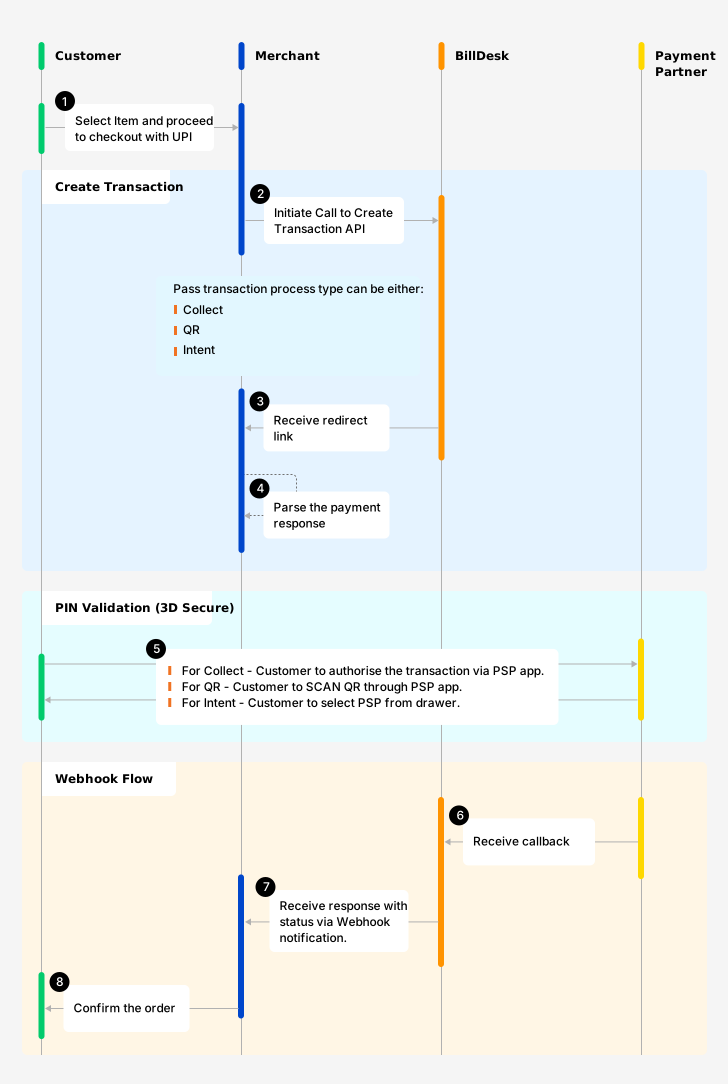
One Time Payment - UPI (Collect, QR & Intent)
Request Body (Sample)
Request body mentioned in section 4.1 above will be used with upi object for initiating a transaction.
Response Body (Sample)
Response body mentioned in section 4.1 above will be used by the merchant.
Understanding the various Create Transaction Status codes
| Status | Status Code | Description |
|---|---|---|
| SUCCESSFUL | 0300 | A transaction which has been initiated at BillDesk is marked as successful. |
| PENDING | 0002 | A transaction which has been initiated but is in pending status. |
| FAILED | 0399 | A transaction which has been initiated but is in failed state. |
Step 2. Transaction Status via Webhook
UPI transactions are asynchronous transaction, thus the status update by the network scheme happens after sometime (usually response is received within a few milliseconds).
BillDesk will update the merchant for the payment method upi via Webhook.
> 🚧 Payment Method: NetBanking
A step by step guide to integrate the API, to complete the payment.
Below section explains the NetBanking Integration.
4.5 For NetBanking, Wallet & Cashcard
BillDesk also offers NetBanking as payment method. In this section, for payment_method_type as netbanking the details of the workflow are defined as follows:
Step 1. Create Transaction
Merchant can also initiate payment transaction using netbanking. For one time transaction with netbanking, please refer below sample. Click here to access the API.
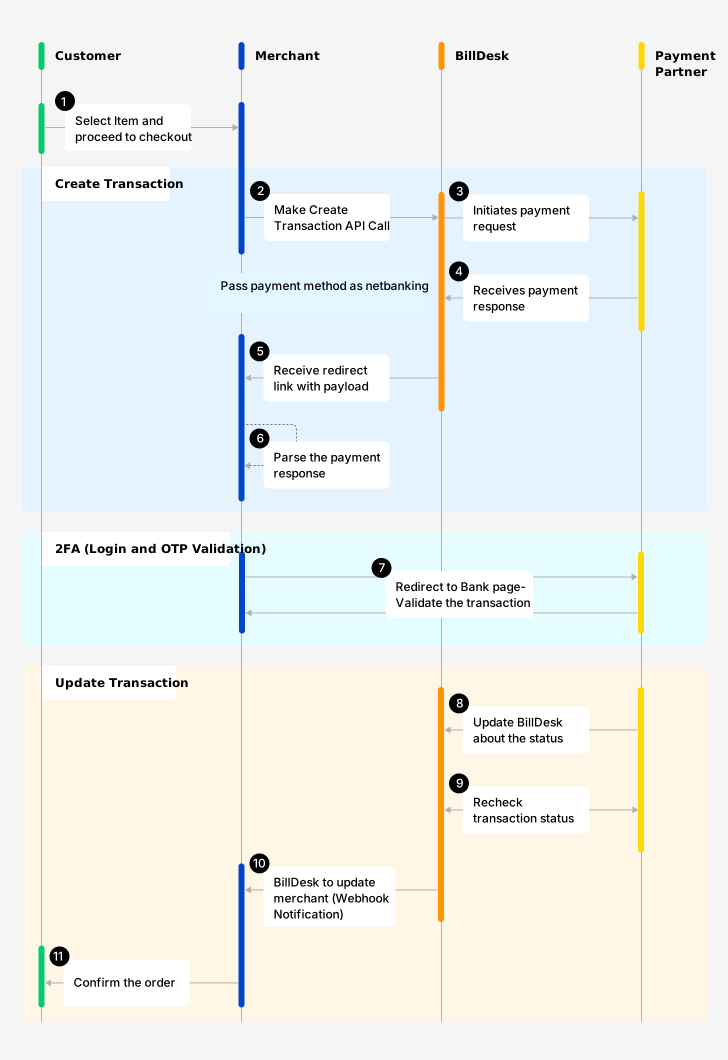
One Time Payment - NetBanking
Request Body (Sample)
Request body mentioned in section 4.1 above will be used with netbanking object for initiating a transaction.
Response Body (Sample)
Response body mentioned in section 4.1 above will be used by the merchant.
Understanding the various Create Transaction Status codes
| Status | Status Code | Description |
|---|---|---|
| SUCCESSFUL | 0300 | A transaction which has been initiated at BillDesk is marked as successful. |
| PENDING | 0002 | A transaction which has been initiated but is in pending status. |
| FAILED | 0399 | A transaction which has been initiated but is in failed state |
NoteMerchant can make use of below mentioned APIs to complete the transaction lifecycle at their end.
5. Next Steps
> 📘 Refund transaction
Merchant can initiate a refund for any successful transaction using the Create Refund API.

Transaction status checkMerchant can check the status of a transaction at any point using the Retrieve Transaction API.

6. API Orchestration
The orchestration of the API/s workflow has been explained below:
Transaction Use cases:
| API Reference | Description |
|---|---|
| Create Transaction (One Time Payment) | For one time payment, merchant can use create transaction API to invoke the multiple transaction workflows like: • Transaction based on card. For sample code click here. |
| Create Transaction (Token Provision) | To create a token along with payment request, merchant can use create transaction + token provisioning API to provision a card token along with the payment in a single request. For sample code click here. |
| Create Transaction (TPV) | Merchant can use the create transaction (with third party validation API) to invoke the workflow that involves AVS (Third party account validation) such as: • Transaction based on card. For sample code click here. |
| Update Transaction | Merchant can initiate the update transaction API only after create transaction API is sent to BillDesk. The API can be used to authorise the transaction where payment method type is card (for regular as well as with third-party account validation). For sample code click here. |
Updated 11 months ago