

CX+ – Deep API
1. Introduction
CX+ – Deep API allow merchants to complete their customers' payment journey through simplified steps. The advantage of such an integration is to allow seamless user experience at the customer end, be it on website or on an app.
As a merchant, you will have to integrate a few sets of APIs to complete the transaction. There are certain points to be noted before proceeding.
> 📘 Validity of an eMandate
An eMandate can be set for a custom validity depending on the requirement.
*An exception of UPI & e-NACH, where the maximum time limit for a mandate can be set as 30 years.

2. Salient Features
- Automate the subscription/ mandates workflows
- Automate life-cycle management post mandate setup through Invoice, Retrieve Mandate, Modify Mandate & Delete Mandate APIs
3. Experience the Product
To get a first hand experience of how the API works, BillDesk requests to go to API Playground.
> 🚧 API Playground

4. eMandate Scenarios


5. Setup eMandate via approach 'A'
The use case is applicable where in the charge and eMandate setup.
5.1 For Card - with PAN
BillDesk provides a range of payment methods that cater to specific use cases, transaction amounts, and transaction process types. In this section, for payment_method_type as card the details of the workflow are defined as follows. These steps will help merchant to understand how they can complete a payment journey.
Step 1. Create Transaction + Set Mandate
To setup a mandate for the internal workflows, merchant can initiate payment transaction using card details with some additional attributes for setting up a mandate. For one time transaction along with mandate setup using card object, please refer below sample.
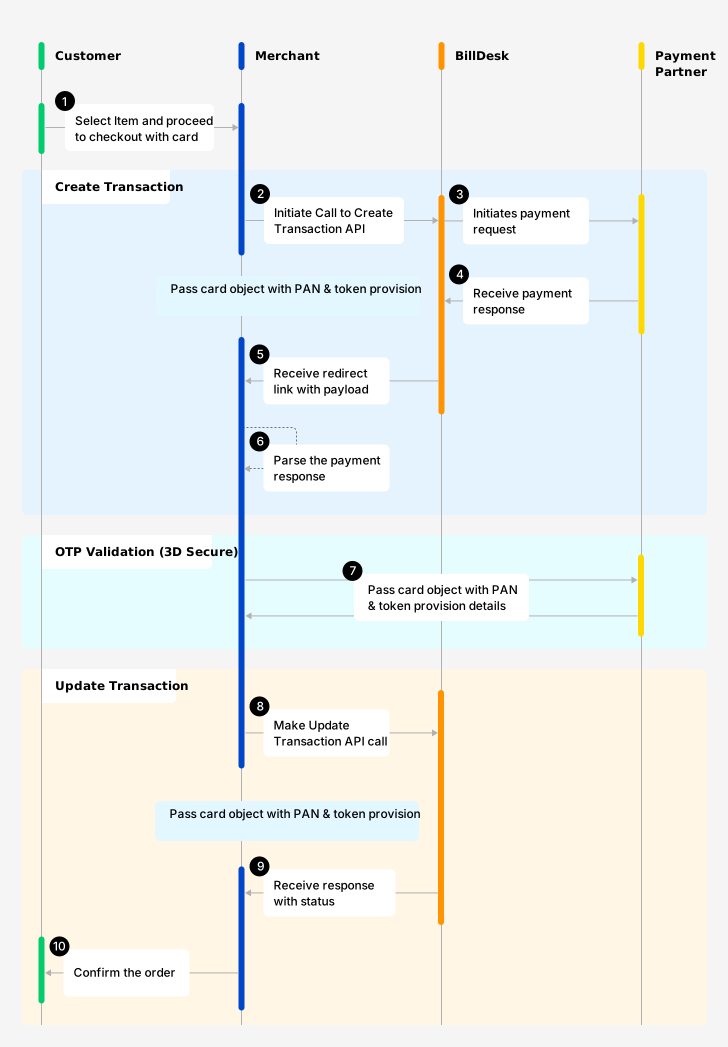
Transaction + Set Mandate Flow based on CARD (PAN)
To create a transaction with mandate setup use, Create Transaction API. Sample request/ response body mentioned below:
Request Body (Sample)
| Attributes | Description |
|---|---|
| mercid | Unique identifier as defined by BillDesk for the merchant. |
| 3ds_parameter | Entity (merchant/BillDesk) that captures the device object attributes for 3DS2.0 authentication, values are: • |
| bankid | BillDesk defined unique identifier for the bank or acquirer. |
| ru | Merchant return url, and required for specific payment methods – card, netbanking, wallet, cashcard. |
| itemcode | Value as provided by BillDesk, with a default value For EMI transactions, the values will be shared by the designated BillDesk RM based on issuer. E.g. |
| payment_method_type | Method of payment, and the values are: • card. The associated object will also be provided in the request. |
| txn_process_type | Indicates transaction processing type, will be the following values: • For card then value as |
| customer_refid | Unique customer identifier as per merchant, required for cardaccountid.
|
| device | Device details object (Required for 3DS2.0 protocol). For more details on device object click here. |
| mandate{} | Used for setting up a eMandate for recurring charges. For more details on device object click here. |
//Mandate Object is needed along with transaction object to setup mandate with transaction
"mandate": {
		"mercid": "BDMERCID",
		"customer_refid": "CUST614514520010012",
		"subscription_refid": "SUB614514510012",
		"subscription_desc": "Unlimited Plan",
		"start_date": "2023-03-14",
		"end_date": "2050-12-22",
		"amount": "774.00",
		"currency": "356",
		"frequency": "adho",
		"amount_type": "max"
	}
Response Body (Sample)
Response of the Create Transaction API will essentially inform the merchants to follow the next step that is required.
| Attribute | Description |
|---|---|
| auth_status | Represents the authorization status of the transaction with the following possible values: • 0300 - transaction is successful.• 0002 - transaction is pending for authorization.• 0399 - transaction failed. |
| eci | Authentication ECI indicator, as per the 3DS2.0 protocol. Received for 3DS2.0 workflow. • ECI: 05/02
|
| next_step | Will be a fixed value as below: • 3ds2_challenge – for 3DS2.0.• capture_otp – for OTP led workflow (Only applicable in case of RuPay).• approve_collect_request – for UPI Collect.• approve_qr_request – for UPI QR.• approve_intent_request – for UPI Intent. |
| links | Associated links with the object. |
Call to action by merchantFrom the response of Create Transaction API, merchant will receive the links array object:
- Pass the attributes & their corresponding values from the parameters object.
- Method attribute suggest 'GET/ POST', which the merchant should appropriately manage.
- Redirect the customer to the href URL basis the attributes/ method mentioned above.
{
  "links": [
	{
		"href": "https://www.issueurl.com/page.jsp",
		"rel": "redirect",
		"method": "post",
		"parameters": {
      //BillDesk in response may send either "creq" or "bdcreq" as the attribute
			"creq": "eyJtZXNzYWdl2luZG93U2l6ZSI6IjA1In0="
		}
	}
],
"next_step":"3ds2_challenge",
"eci":"05",
"auth_status":"0002"
}
NoteThe attributes and their values in parameters object are dynamic in nature. Please do not hard code these attributes/values at merchant's end.
Understanding the various Create Transaction Status codes
| Status | Status Code | Description |
|---|---|---|
| SUCCESSFUL | 0300 | A transaction which has been initiated at BillDesk is marked as successful. |
| PENDING | 0002 | A transaction which has been initiated but is in pending status. |
| FAILED | 0399 | A transaction which has been initiated but is in failed state |
Step 2. Update Transaction
Update Transaction is the second step, to authorize the payment. The step is essential for all card/ token led transactions. Merchant should initiate update transaction API post authentication is successfully complete.
To update a transaction use, Update Transaction API.
| Attribute | Description |
|---|---|
| transactionid | Unique transactionid generated by BillDesk. |
| mercid | Unique identifier as defined by BillDesk for each merchant. |
| payment_method_type | Method of payment e.g. card, upi etc. The associated object will also be attached to the transaction. |
| card{} | Payment method object associated with card. |
| response_parameters{} | Response parameters from issuer (for redirect flows) or entered by the customer (for OTP flow) |
5.2 For Card - with token (network/ issuer)
BillDesk supports network/ issuer token-based transactions. In this section, for payment_method_type as card the details of the workflow are defined as follows:
Step 1. Create Transaction + Set Mandate
To initiate payment transaction with mandate setup using network or issuer token, use the Create Transaction API. To setup mandate setup using network/ issuer token object, please refer below sample.
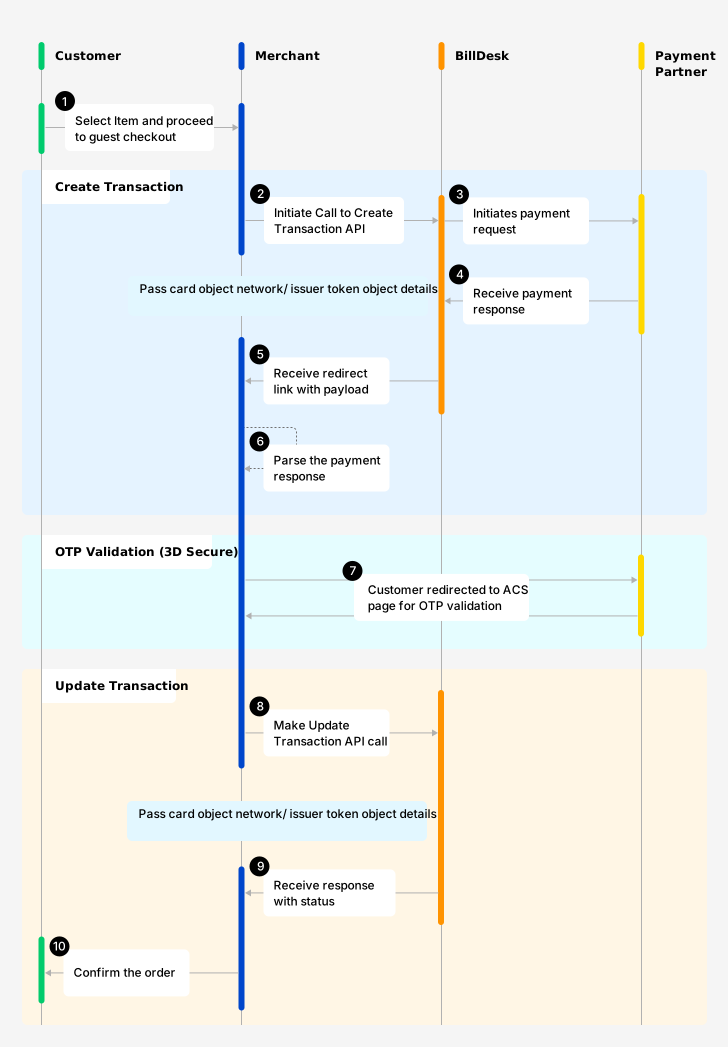
Transaction + Mandate flow based on Network/ Issuer Token
Understanding the various Create Transaction Status codes:
| Status | Status Code | Description |
|---|---|---|
| SUCCESSFUL | 0300 | A transaction which has been initiated at BillDesk is marked as successful. |
| PENDING | 0002 | A transaction which has been initiated but is in pending status. |
| FAILED | 0399 | A transaction which has been initiated but is in failed state |
Step 2. Update Transaction
Update Transaction is the second step, to authorize the payment. The step is essential for all card/ token led transactions. Merchant should initiate update transaction API post authentication is successfully complete.
To update a transaction use, Update Transaction API.
5.3 For Card - with Token (CardAccountId)
The API workflow below supports BillDesk Token (Card Account Id) based transactions. In this section, for payment_method_type as card the details of the workflow are defined as follows:
Step 1. Create Transaction + Set Mandate (with cardaccountid)
To initiate payment transaction with mandate setup using cardaccountid, use the Create Transaction API. For direct mandate setup using cardaccountid, please refer below code sample.
"card": {
	"cardaccountid": "CA0AAEF9000000000123",
	"cvv": "123",
	"card_end": "0055",
	"holder_name": "John Doe"
}
Understanding the various Create Transaction Status codes
| Status | Status Code | Description |
|---|---|---|
| SUCCESSFUL | 0300 | A transaction which has been initiated at BillDesk is marked as successful. |
| PENDING | 0002 | A transaction which has been initiated but is in pending status. |
| FAILED | 0399 | A transaction which has been initiated but is in failed state |
Step 2. Update Transaction
Update Transaction is the second step, to authorize the payment. The step is essential for all card/ token led transactions. Merchant should initiate update transaction API post authentication is successfully complete.
To update a transaction use, Update Transaction API.
5.4 For UPI
BillDesk offers UPI AutoPay payments with three variations such as Collect, QR and Intent. In this section, for payment_method_type as upi the details of the workflow are defined as follows:
Step 1. Create Transaction + Set Mandate (with UPI)
Merchant can initiate payment transaction for setting up mandate using UPI. BillDesk supports different processing types for upi like, collect, qr or intent.
Some merchants have use cases where they want the mandate to be setup on a particular bank account number of the customer. This is termed as "account validation" in normal parlance. For these cases, merchant needs to confirm this upfront that they want to opt for this service and then have to additionally pass below object mandatorily in all requests.
Once successful, mandate will be setup on that particular bank account number of the customer and all future recurring charges will be debited from the same customer bank account
Additionally, when the payment method is UPI and processing type is collect, merchant need to pass below object to verify the account number & ifsc code to complete Third Party Verification to setup a mandate.
{
	"payment_method_type": "upi",
	"txn_process_type": "collect",
	"upi": {
		"vpa": "billdesk@upi"
	},
	"avs": {
		"bankaccount": [
			{
				"number": "12340001234",
				"ifsc": "ABCD0123456"
			}
		]
	}
}
For one time transaction + mandate setup with UPI, please refer below sample.
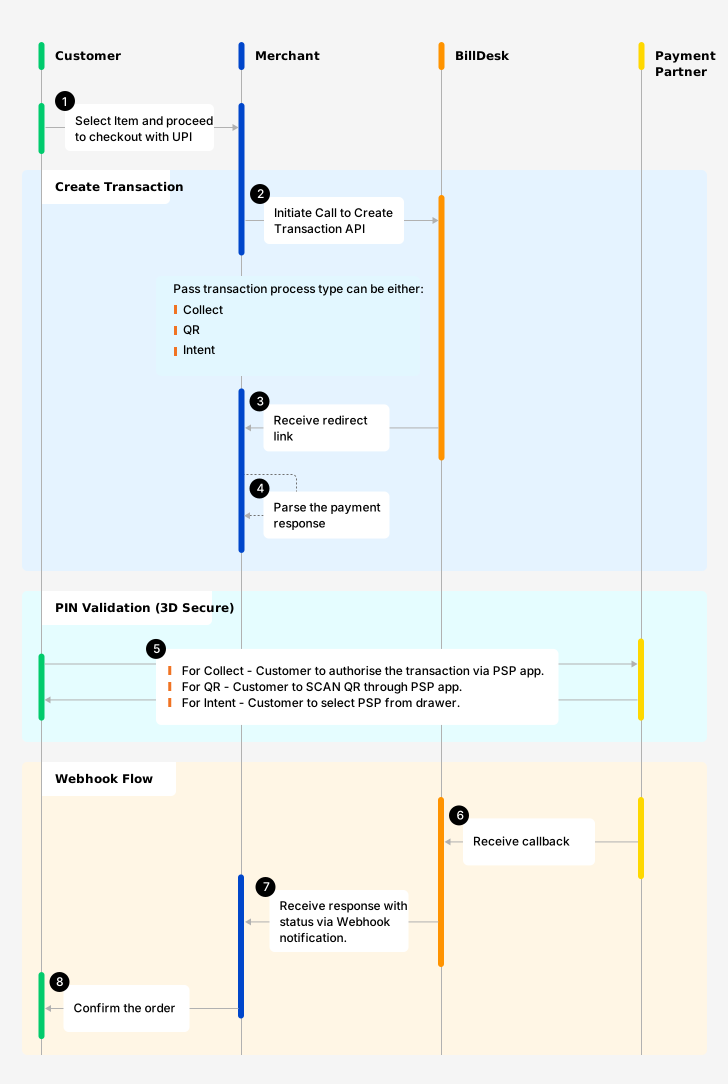
Transaction + Set Mandate flow based on UPI
Understanding the various Create Transaction Status codes
| Status | Status Code | Description |
|---|---|---|
| SUCCESSFUL | 0300 | A transaction which has been initiated at BillDesk is marked as successful. |
| PENDING | 0002 | A transaction which has been initiated but is in pending status. |
| FAILED | 0399 | A transaction which has been initiated but is in failed state |
Step 2. Transaction & Mandate status via Webhook
BillDesk will update the merchant for the payment method upi via Webhook. UPI transactions and mandates are asynchronous flows, thus the status update by the network scheme happens after sometime (usually response is received within a few milliseconds).
Use cases of webhook are mentioned below (only applicable in case of payment method as UPI).
| txn_process_type | Webhook Flow |
|---|---|
collect | 1. Customer will authorize the transaction via the UPI PSP app.2. On successful authorisation, BillDesk to receive a callback from the acquirer, post which BillDesk notifies the merchant via webhook notification (with transaction and mandate object). |
qr | 1. Customer completes the mandate setup by QR scan, authorizes the mandate through PSP app.2. On successful authorisation, BillDesk to receive a callback from the acquirer, post which BillDesk notifies the merchant (with transaction and mandate object) via webhook notification. |
intent | 1. Once the response is received, the base64 encoded value in the intent attribute; decode it and invoke the standard upi mandate intent to invoke available PSP app(s) on customer's phone 2. Customer to select the relevant PSP app (from the app drawer to authorize) and complete the mandate authorization.3. On successful authorisation, BillDesk to receive callback from the acquirer, post which BillDesk notifies (with the transaction and mandate object) the merchant via webhook notification. |
StatusMerchant have completed the transaction + mandate setup process for Cards (with card, network token), UPI and eNACH.
6. Setup eMandate via approach 'B'
For offerings such as free trail for a set duration, merchant can make use of Create/ Update Mandate API. The orchestration of the APIs/ workflow has been explained below:
6.1 For Card (PAN Based Transactions)
BillDesk offers a variety of payment methods for a particular use case, transaction amount & transaction process type. In this section, for payment_method_type as card the details of the workflow are defined as follows:
Step 1. Create Mandate (only mandate setup)
To create a mandate for the internal workflows, merchant can use card details with some additional attributes. Note - For such a mandate creation process, a ‘small-value’ authorization has to be completed. Click here to access the API.
Understanding the various Create Transaction Status codes:
| Status | Status Code | Description |
|---|---|---|
| SUCCESSFUL | 0300 | A transaction which has been initiated at BillDesk is marked as successful. |
| PENDING | 0002 | A transaction which has been initiated but is in pending status. |
| FAILED | 0399 | A transaction which has been initiated but is in failed state |
Step 2. Update Mandate
Update Mandate is the second step, to authorize the payment and complete the mandate setup. The step is essential for all card/ token led transactions. Merchant should initiate update mandate API post authentication is successfully complete.
To update a mandate use, Update Mandate API.
6.2 For UPI
BillDesk offers UPI payment method with three variations such as Collect, QR and Intent to create a mandate. In this section, for payment_method_type as upi the details of the workflow are defined as follows:
Step 1. Create Mandate (with UPI)
Merchant can initiate create mandate using UPI. BillDesk supports different processing types for upi like, collect, qr or intent.
Once BillDesk receives the mandate request, BillDesk will initiate a ‘small-value’ authorization. This token amount will be refunded back to customer by BillDesk and merchants will not get the settlement for the same.
The attributes mentioned are some of the mandatory attributes to initiate a create mandate request. To check the complete request attributes Click here to access the API.
| Attribute | Description |
|---|---|
| payment_method_type | Payment method type - allowed value is upi. |
| txn_process_type | Indicates how the orchestration is done, and can take the following values: •collect.• qr.• intent.
|
Step 2. Mandate Status via Webhook
BillDesk will update the merchant for the payment method upi via Webhook. UPI flows are asynchronous, thus the status update by the network scheme happens after sometime (usually response is received within a few milliseconds of customer authorization).
6.3 For eNACH
BillDesk also offers eNACH as payment method to create a mandate. In this section, for payment_method_type as bankaccount the details of the workflow are defined as follows:
Step 1. Create Mandate
Merchant can also create mandate using bankaccount i.e. payment_method_type as bankaccount. To create a mandate, use Create Mandate API.
The attributes mentioned are some of the mandatory attributes to initiate a create mandate request. To check the complete request attributes Click here to access the API.
| Attribute | Description |
|---|---|
| verification_required | Indicates whether a verification is required while creating the mandate, and takes the boolean true.- *Note** Required only where payment_method_type = bankaccount. |
| verification_type | Indicates type of verification that will be performed by the customer to set up the mandate, accepted values areenach_nbfor netbanking, enach_dc for debit card.- *Note** Required only where payment_method_type = bankaccount. |
| payment_method_type | Payment method type - allowed value is bankaccount. |
| device{} |
|
Understanding the various Create Transaction Status codes
| Status | Status Code | Description |
|---|---|---|
| SUCCESSFUL | 0300 | A transaction which has been initiated at BillDesk is marked as successful. |
| PENDING | 0002 | A transaction which has been initiated but is in pending status. |
| FAILED | 0399 | A transaction which has been initiated but is in failed state. |
6.4 Account Validation Services (Cards, BankAccount, UPI)
To create a mandate using a payment method, a ‘small-value’ authorization has to be completed.
Not applicable for UPI mandates. For UPI mandates a token charge will happen irrespective of "avs" or "No avs"
In UPI, TPV is possible in both Only mandate flows and Transaction plus mandate flows
Step 1. Create Mandate
Merchant can also create mandate using account validation services. To create a mandate, use Create Mandate API.
The attributes mentioned are some of the mandatory attributes to initiate a create mandate request. To check the complete request attributes Click here to access the API.
| Attribute | Description |
|---|---|
| verification_required | Indicates whether a verification is required while creating the mandate, and takes the boolean true.- *Note** Required only where payment_method_type = bankaccount. |
| verification_type | Indicates type of verification that will be performed by the customer to set up the mandate, accepted values areenach_nbfor netbanking, enach_dc for debit card.- *Note** Required only where payment_method_type = bankaccount. |
| payment_method_type | Payment method type - allowed values are card, upi, bankaccount. |
| avs{}.bankaccount{} | Object that contains the details of the payment method. |
| device{} | Device details object (Required for 3DS2.0 protocol). For more details on device object click here. |
Understanding the various Create Transaction Status codes
| Status | Status Code | Description |
|---|---|---|
| SUCCESSFUL | 0300 | A transaction which has been initiated at BillDesk is marked as successful. |
| PENDING | 0002 | A transaction which has been initiated but is in pending status. |
| FAILED | 0399 | A transaction which has been initiated but is in failed state. |
Step 2. Webhook - For payment method as UPI
Only applicable in case of payment method as UPI.
| txn_process_type | Webhook Flow |
|---|---|
collect | 1. Customer will authorize the transaction via the UPI PSP app.2. On successful authorisation, BillDesk to receive a callback from the acquirer, post which BillDesk notifies the merchant via webhook notification. |
qr | 1. Customer completes the mandate setup by QR scan, authorizes the mandate through PSP app.2. On successful authorisation, BillDesk to receive a callback from the acquirer, post which BillDesk notifies the merchant (with mandate object) via webhook notification. |
intent | 1. Once the response is received, the base64 encoded value in the intent attribute; decode it and invoke the standard upi mandate intent to invoke available PSP app(s) on customer's phone 2. Customer to select the relevant PSP app (from the app drawer to authorize) and complete the mandate authorization.3. On successful authorisation, BillDesk to receive callback from the acquirer, post which BillDesk notifies (with the mandate object) the merchant via webhook notification. |
Step 2. Update Mandate - For payment method as card
This API is used to carry out a ‘small value’ authorization using the payment method linked to the mandate, and is applicable for the card payment method. Below attributes are required to be sent in the Update Mandate request.
| Attributes | Description |
|---|---|
| mandateid | Unique mandateid generated by BillDesk. |
| mercid | Unique identifier as defined by BillDesk for each merchant. |
| response_parameters | Response parameters from issuer (for redirect flows) or entered by the customer (for OTP flow) |
| card (object) | Details of the card, that was used as the payment method in the Create Mandate API. |
7. Next Steps
Initiate InvoiceMerchant can initiate a Create Invoice request for recurring transaction using the Create Invoice API.
Transaction status checkMerchant can check the status of a mandate transaction at any point using the Retrieve Mandate API.
Modify MandatesMerchant can modify a mandate to make changes to the original mandate setup using the Modify Mandate API.
Delete a MandateMerchant have an option of deleting a mandate using the Delete Mandate API.
8. API Orchestration
The orchestration of the API/ s workflow has been explained below:
| API Reference | Description |
|---|---|
| Create Transaction (for Mandate Setup) | Use this API to invoke the transaction workflow that involves setting up mandate: • Transaction + Mandate based on card. For sample code click here. |
| Create Transaction (for Mandate Setup with TPV) | A mandate can be created by providing the details of the subscription and the associated payment method along with avs (account validation service) object to allow for TPV • Transaction based on card. For sample code click here. |
| Update Transaction | The API can be used to authorise the transaction where payment method type is card (for regular as well as with third-party account validation). For sample code click here. |
| Create Mandate (Only Mandate Setup) | A mandate can be created by providing the details of the subscription and the associated payment method. To create a mandate using a payment method, a ‘small-value’ authorization has to be completed. For sample code click here. |
| Update Mandate (Only Mandate Setup) | This API is used to carry out a ‘small value’ authorization using the payment method linked to the mandate, and is applicable for the For sample code click here. |
Updated 11 months ago