

OpenCart 3.0
Introduction
OpenCart helps merchants set up a new user-friendly store in minutes. With the BillDesk OpenCart plugin, the merchant can start accepting seamless payments on this store.
Merchants can download the plugin with the following link.
Prerequisites
Ensure that the merchant has:
- OpenCart version 3.0
- PHP version 7.4
- A zip file named opencart-billdesk-plugin.ocmod.zip file of BillDesk extension, which they will get from BillDesk.
Dependency:
- Create Indian currency (INR)
- Go to System → Localisation → Currencies.
- Click on “+” icon to Add New Currency.
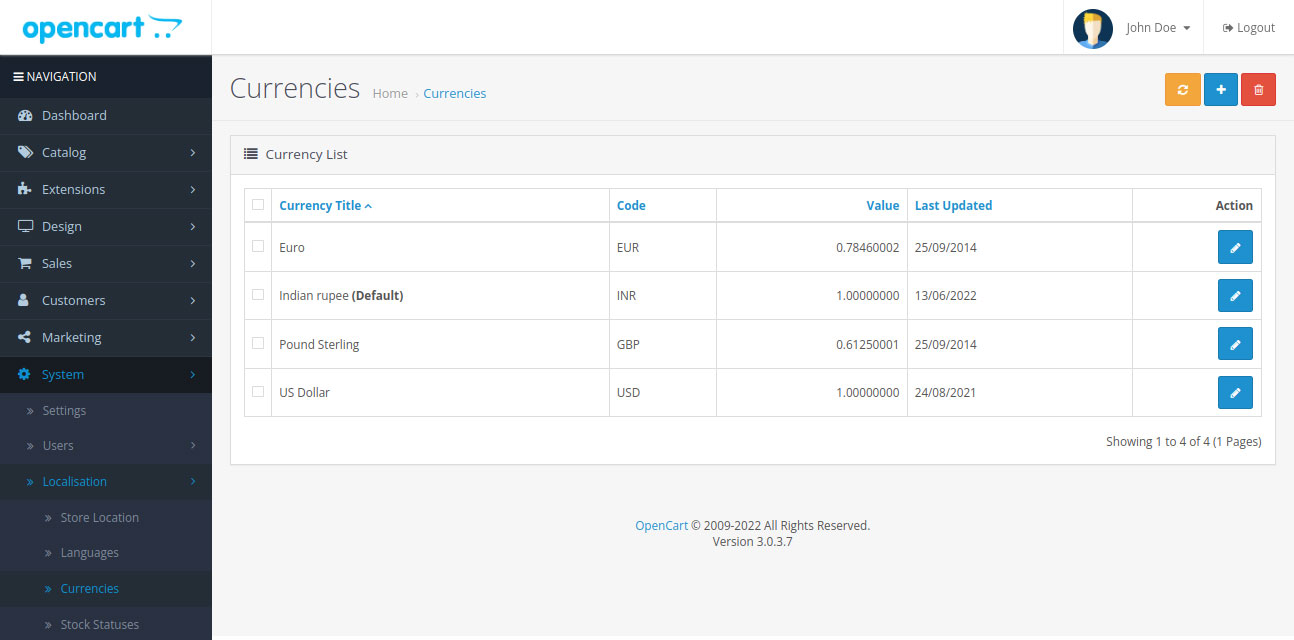
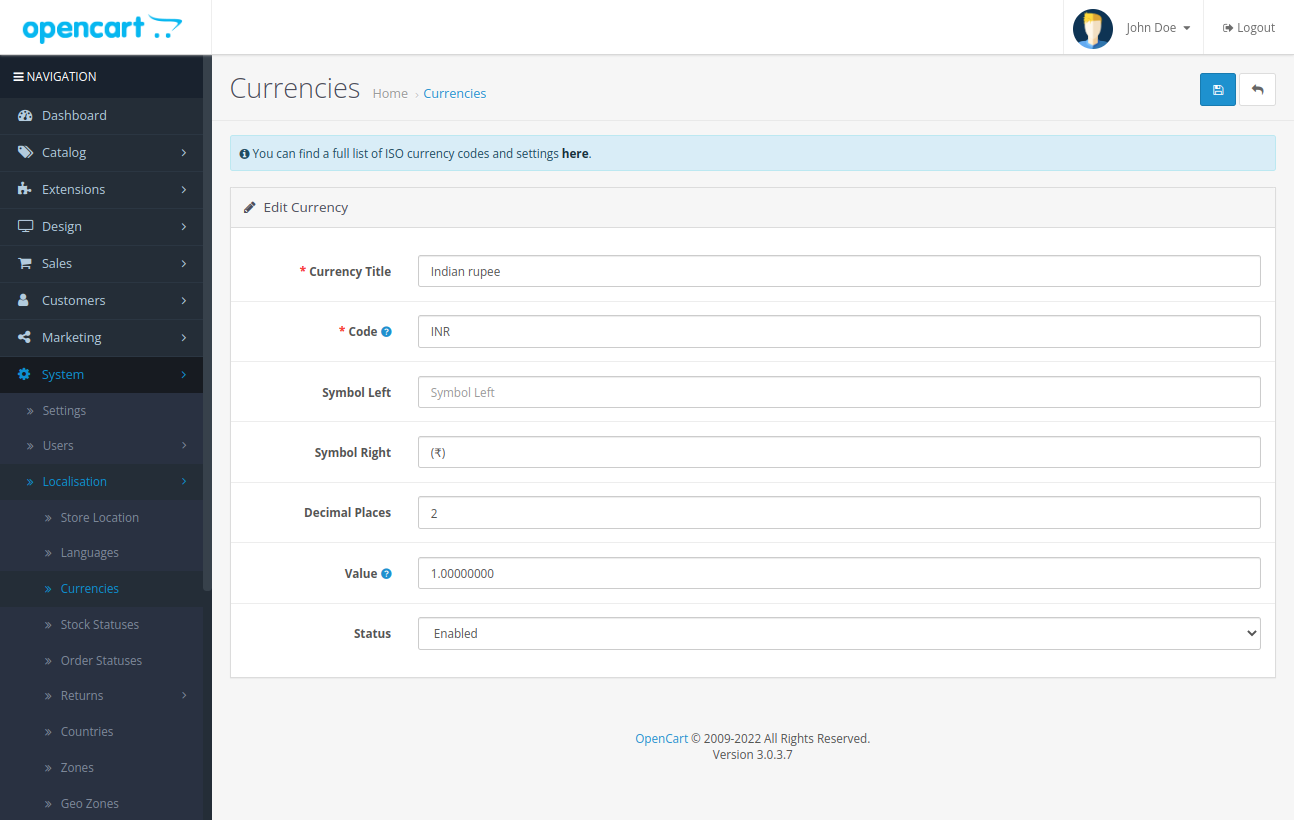
- Enter the details below:
| Currency Title | INR |
|---|---|
| Code | INR |
| Symbol Left | ₹ |
| Value | 1.00 |
| Status | Enable |
- Click on Save Changes.
- Set Default country as India and Currency as INR.
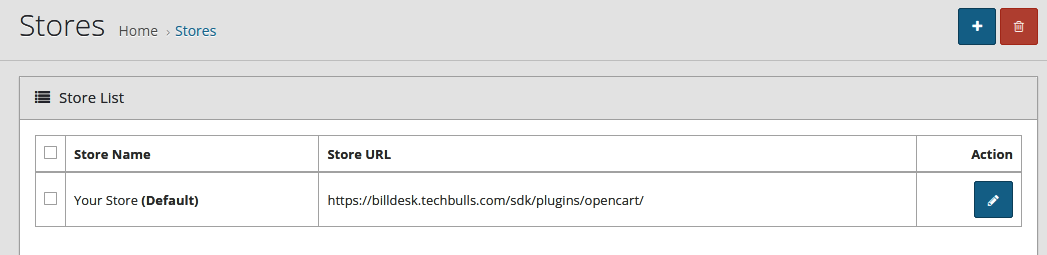
- In System → Settings, select Edit icon.
- In Local tab, select Country as India and Currency as INR.
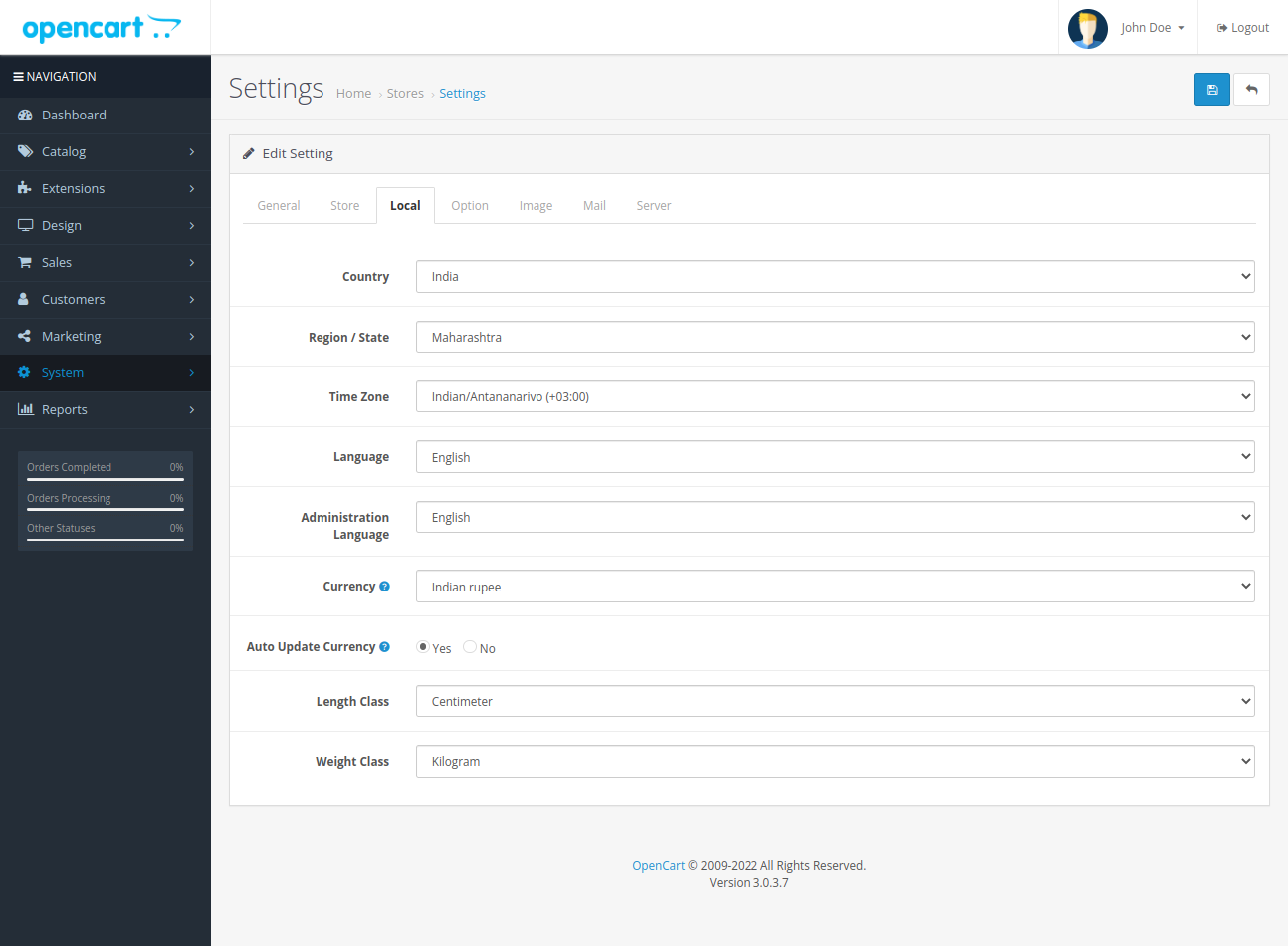
| Country | India |
|---|---|
| State | Maharashtra |
| Time Zone | UTC (+00:00) |
| Currency | INR |
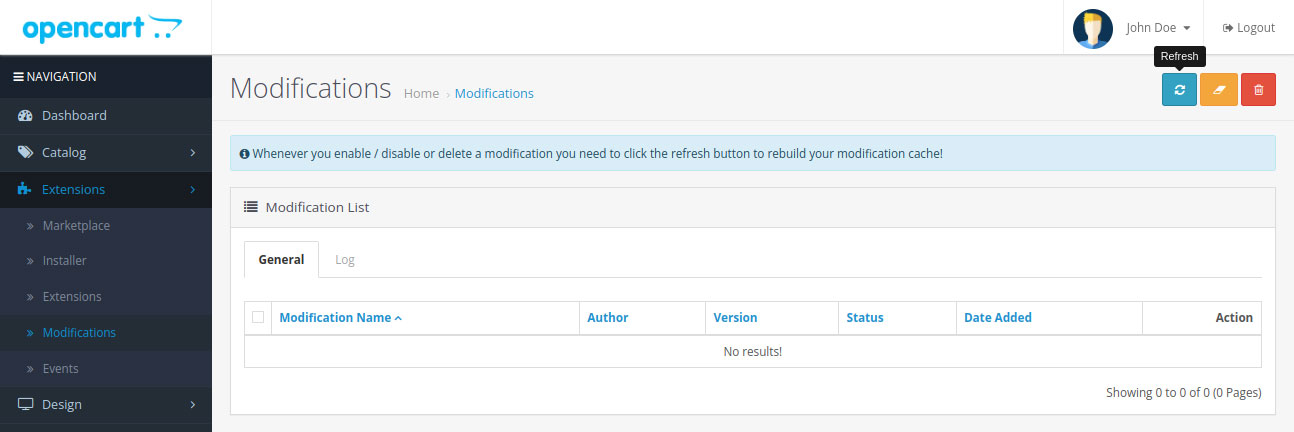
NoteClick Modification → Refresh for every change. Whenever the merchant enables, disables, or deletes a modification, click on the Refresh button to rebuild the merchant's modification cache.
Integration Steps
Installation and Activation
Follow the steps below to install and activate the BillDesk OpenCart 3.0 plugin.
Installation
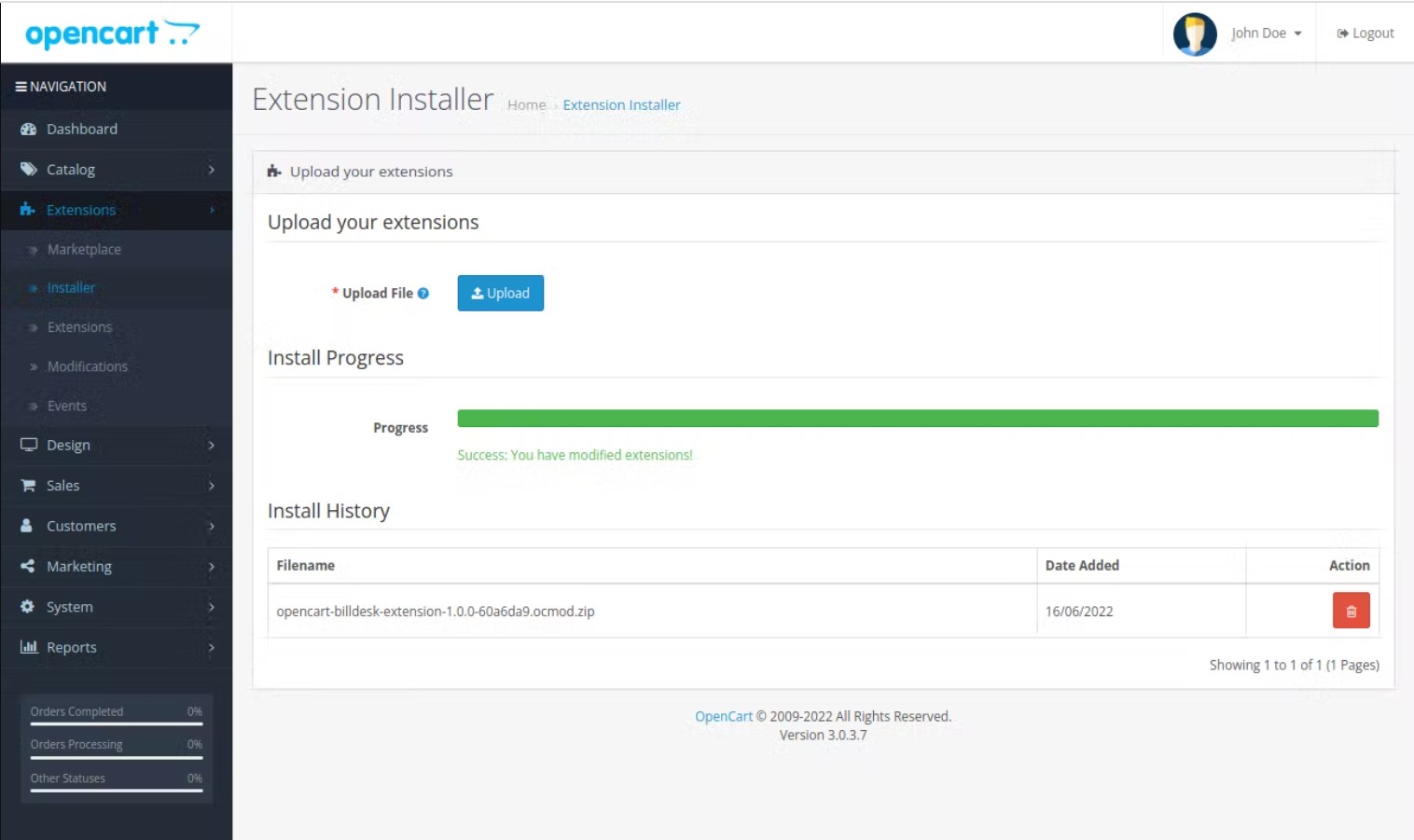
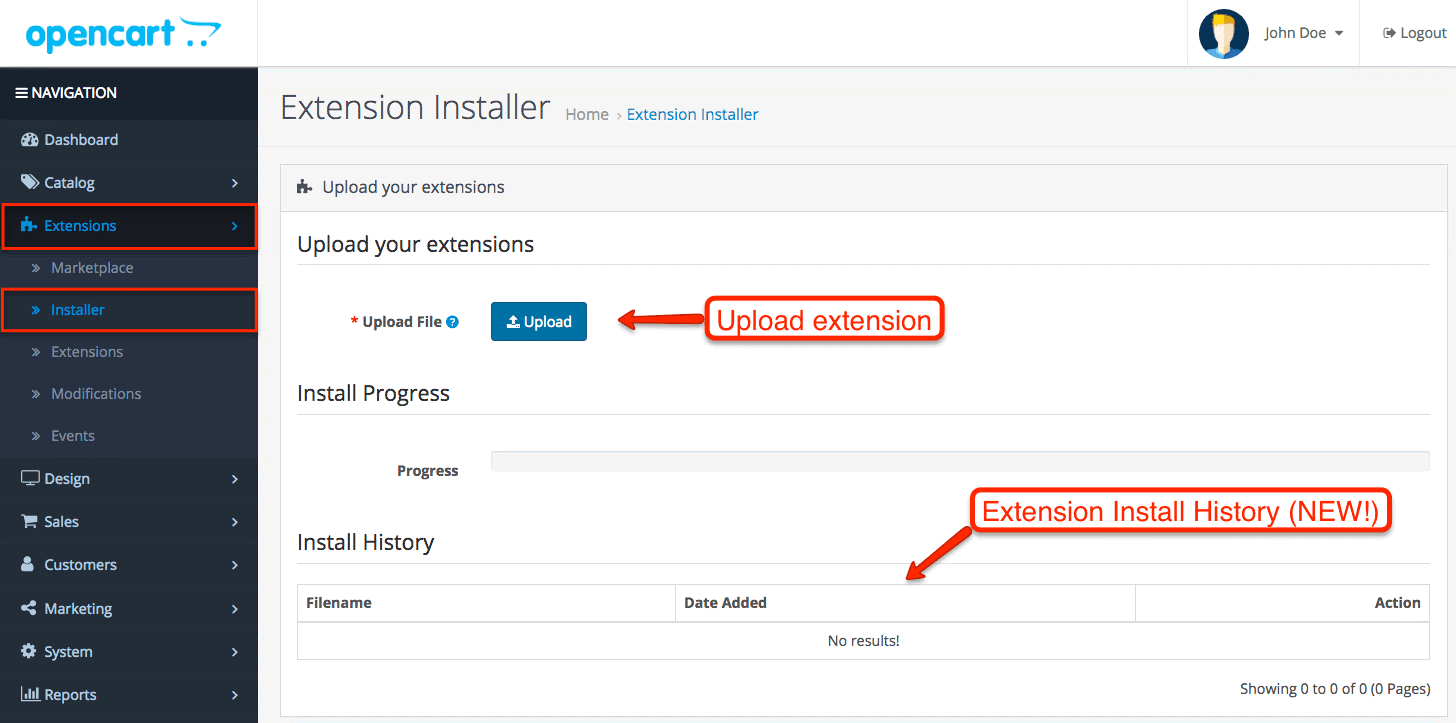
- In the sidebar, click on Extensions→ Installer.
- Click on Upload. Select the billdesk.ocmod.zip file of BillDeskextension to complete the installation.
Extension Configuration
Post installation, merchant can configure the plugin to enable it and accept payments.
Enable BillDesk Extension
To enable BillDesk Extension:
- In the sidebar, click on Extensions → Extensions.
- Select Payments option from the drop-down box.
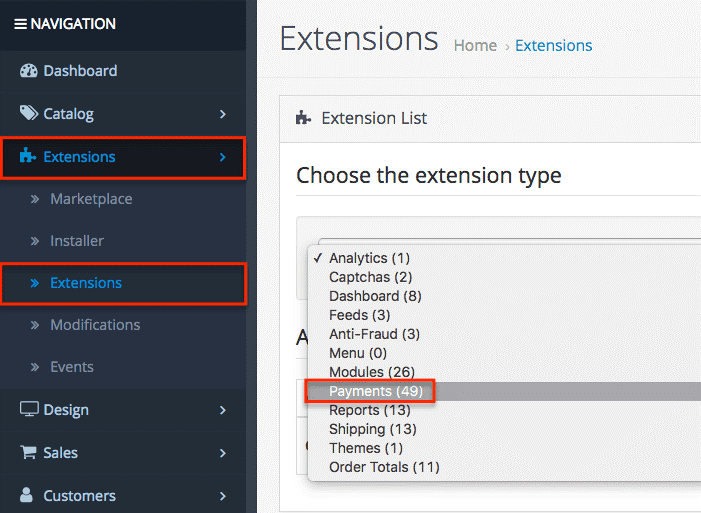
- Click “+” button of BillDesk.
- Go to Edit Extensions.

- Enter all merchant configuration details and save changes.
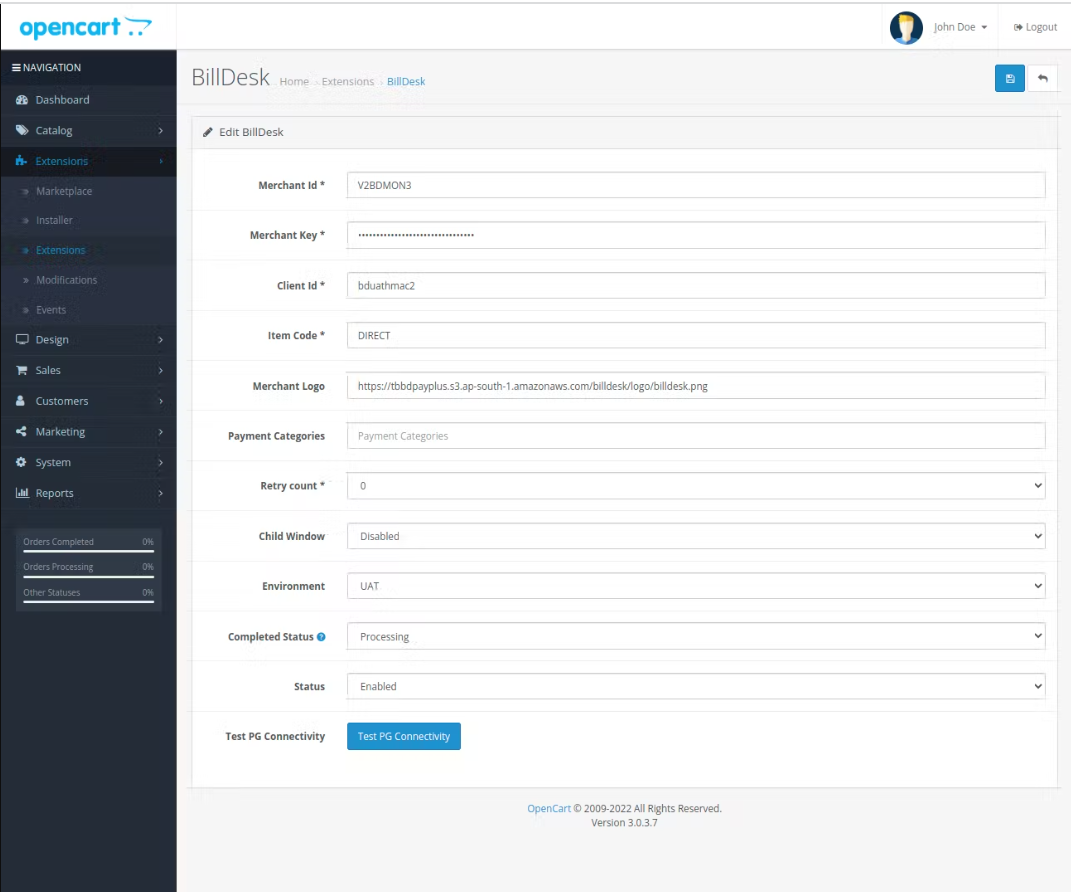
Ensure that the merchant has obtained necessary details like Merchant ID, Merchant Key, etc. from BillDesk. The configuration page looks as above.
-
Merchant Id - string - This is the unique ID created by BillDesk to identify the merchant.
-
Merchant Key - string - An encryption key that is used to protect the communication with Payment Gateway APIs.
-
Client Id - string - A client ID shared by BillDesk for accessing the Payment Gateway APIs.
-
Currency - Currency code (ISO 4217) for the currency to be used in the payment. For Indian Rupees, use code 356.
-
Merchant Logo - string - A URL or Base64 encoded logo of the merchant that will be visible on the payment dialog.
-
Item Code - string - Item Code as shared by BillDesk team.
-
Environment - string - Enables switching between the UAT or Production environments. Depending on this configuration, the plugin will connect to the UAT or production URLs.
-
Payment Category - string - Merchant can configure Allowed Payment categories at the BillDesk backend. This ensures that only the configured payment categories enabled for the merchant will be displayed. However, this option also allows the merchant to override the payment category configuration.
For example, if a merchant wants to show cards as the only payment option, they can configure it using this setting. Merchant must mention all allowed payment methods as comma-separated values.
Note: Payment methods can have dynamic names. The valid payment category codes are as follows:
Allowed values: [card, emi, nb, upi, wallets, qr, gpay] -
Retry Count - number - Controls the number of payment re-attempts that should be allowed to users on failed payment.
-
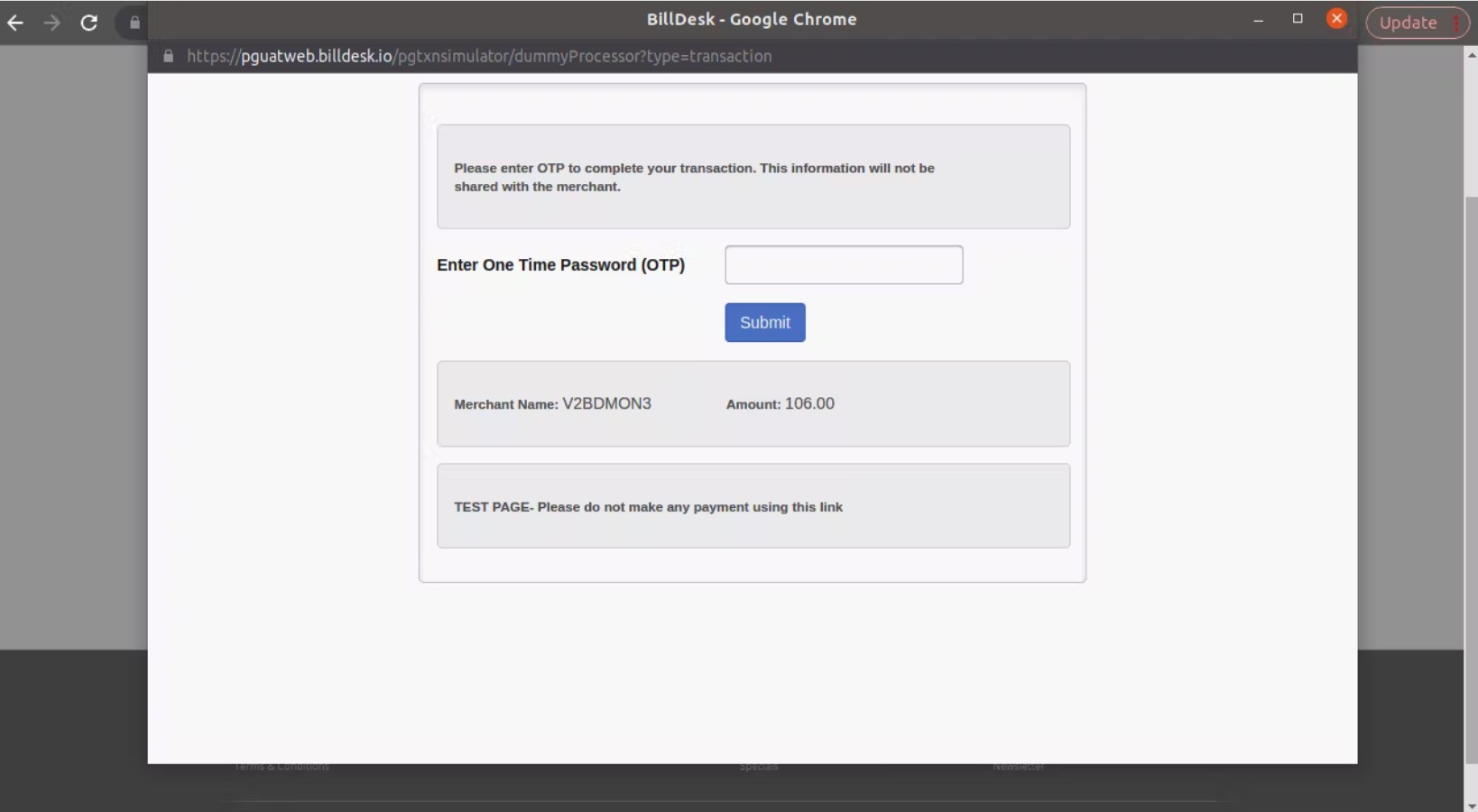
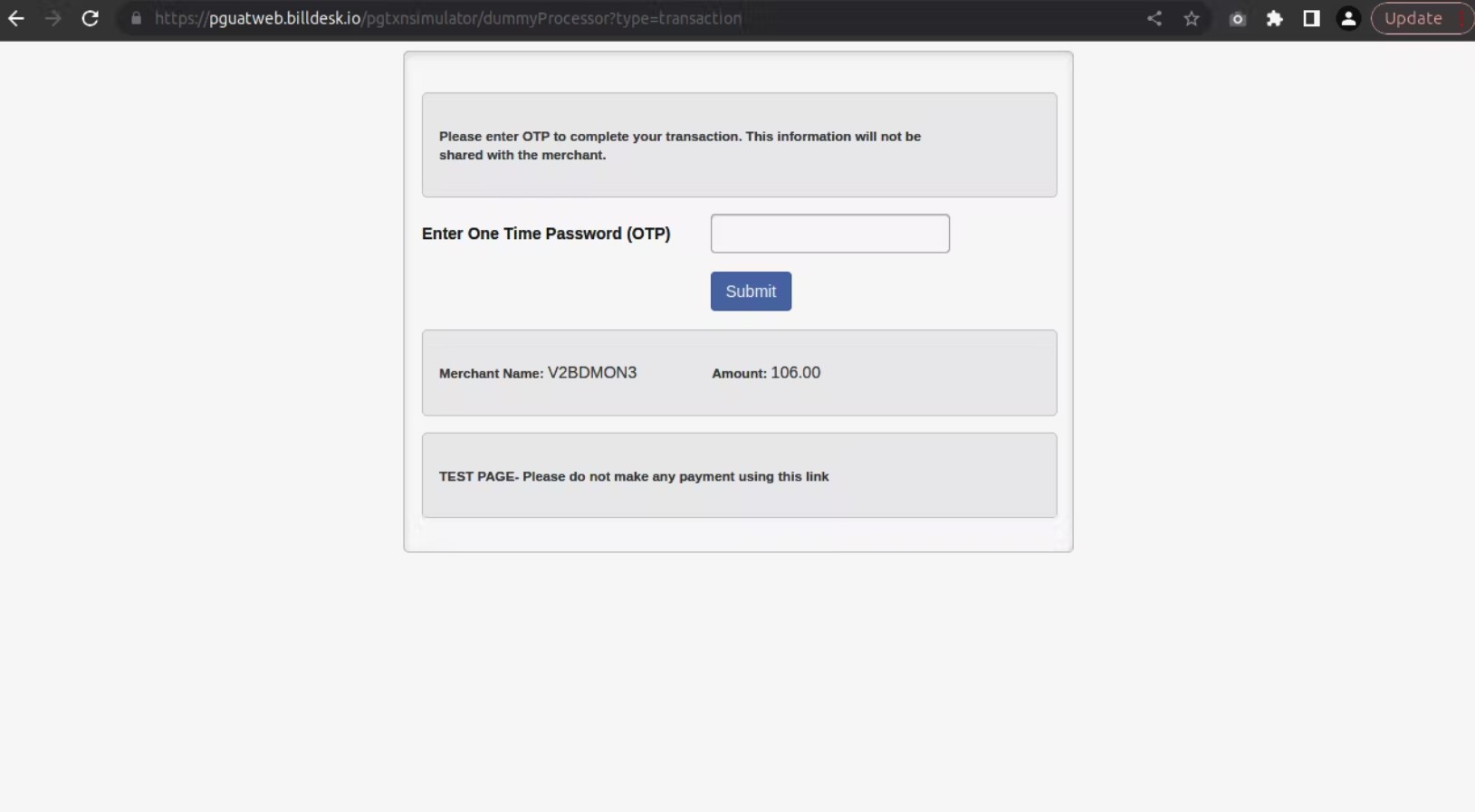
Child Window - number - Enables or disables the child window.
- True/Enabled - If it is enabled, the modal opens the bank's page for processing in another window.
- False/Disable - If it set to disabled, the modal redirects the merchant page to bank URLs for processing instead of opening them in another window.
-
Complete Status - Select Yes to set as Complete.
-
Status - Select Yes to enable the BillDesk Payment Integration.
-
TEST PG CONNECTIVITY - Confirm the successful configuration by clicking on 'Test PG Connectivity'. If the configuration was not successful, check Troubleshooting for error code analysis.
- Click Save Changes.
SuccessAt this stage, the BillDesk Extension is configured completely. Merchant will be able to pay via the BillDesk Payment Integration.
Features
BillDesk OpenCart extension comes with some exclusive features.
Payment
Placing an Order
- In the website, login or create an account.
- Add a product to the cart and click Checkout.
- Enter details and repeat step 3 and step 4 to add more products to the merchant's cart.
- Select Pay by BillDesk, then select the Terms & Conditions check box and click on Continue.
- Confirm the order.
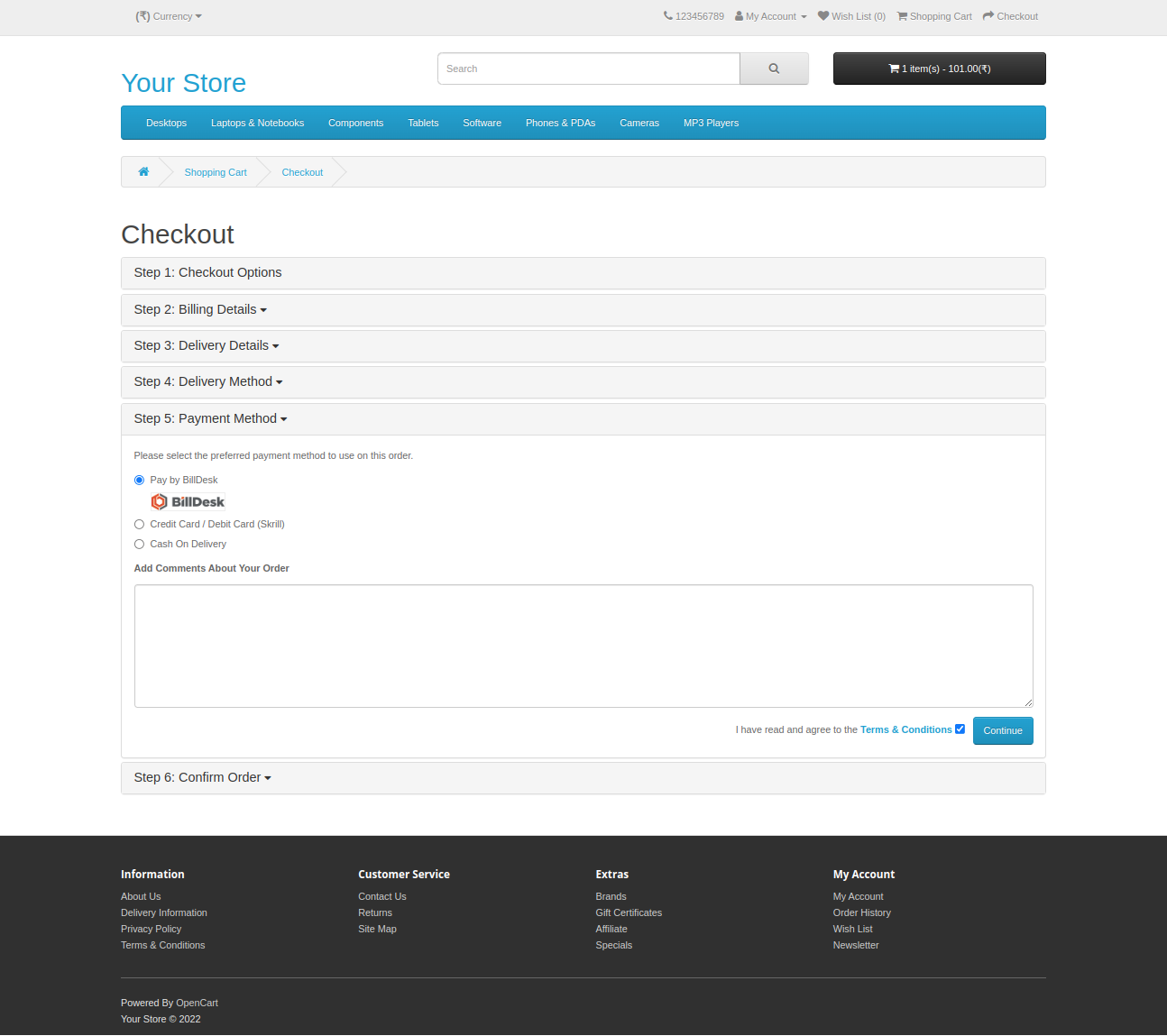
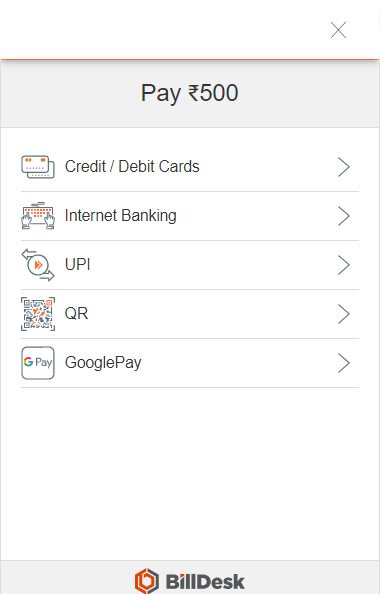
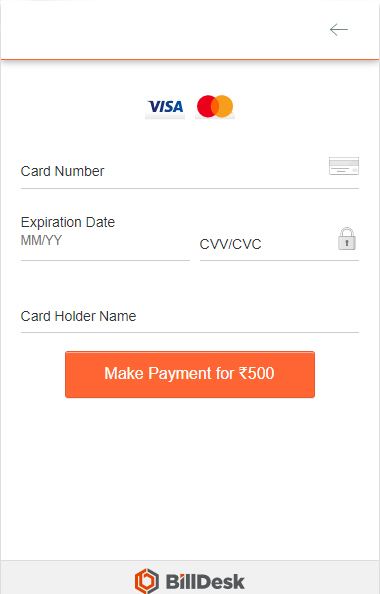
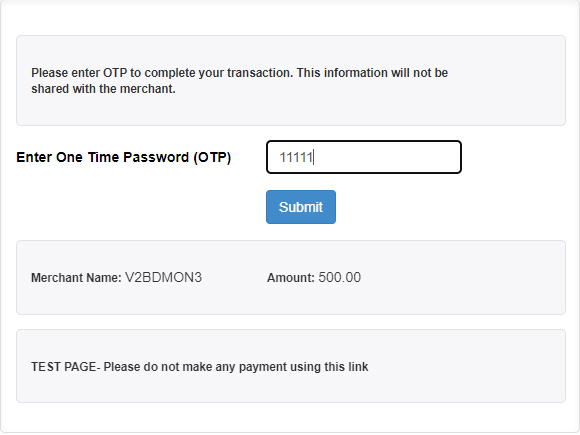
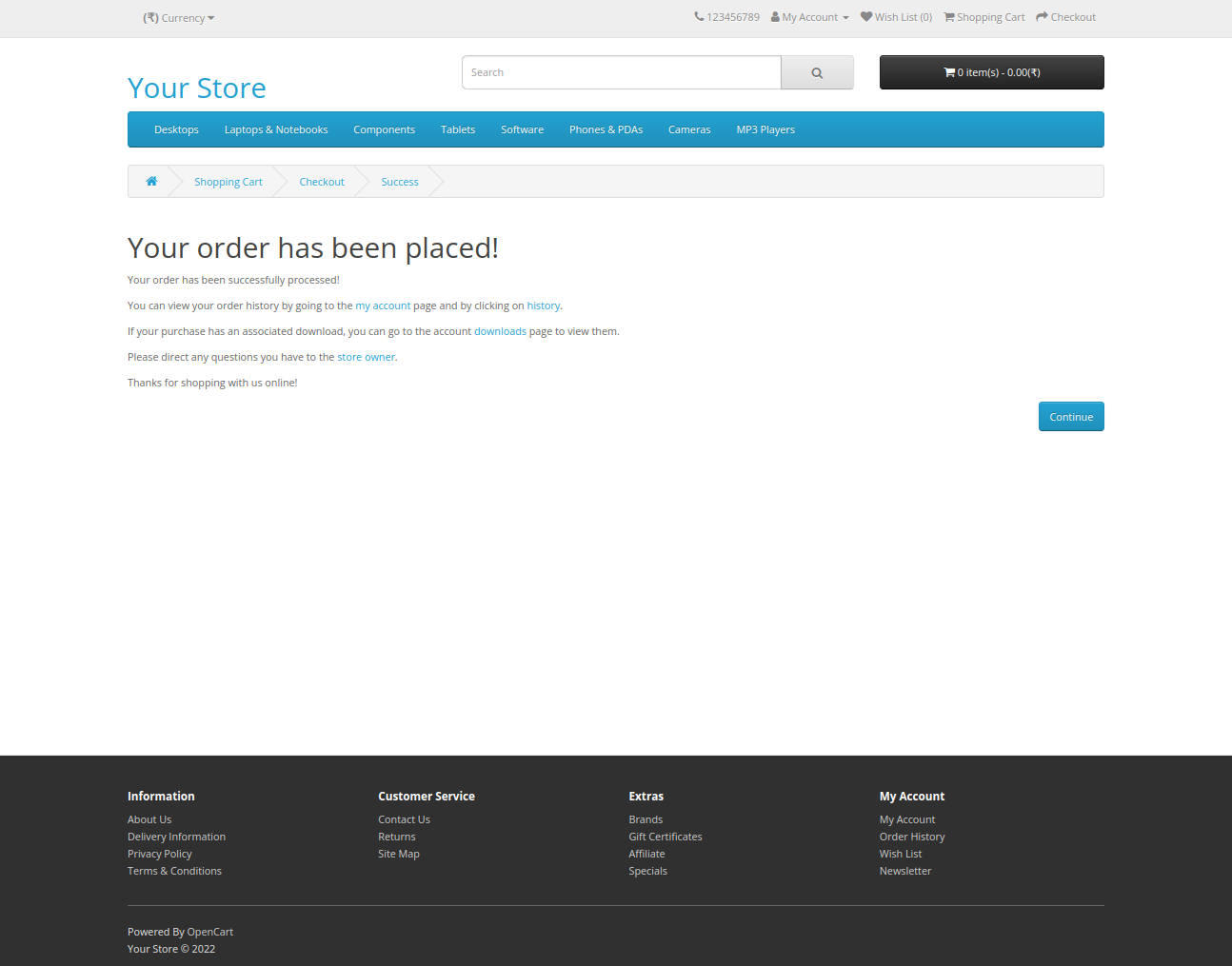
- Continue completing the payment by BillDesk. After completing the payment, the user will be redirected to the Success page.
- The user flow is depicted in the screenshots below:
Refund
Product Refund
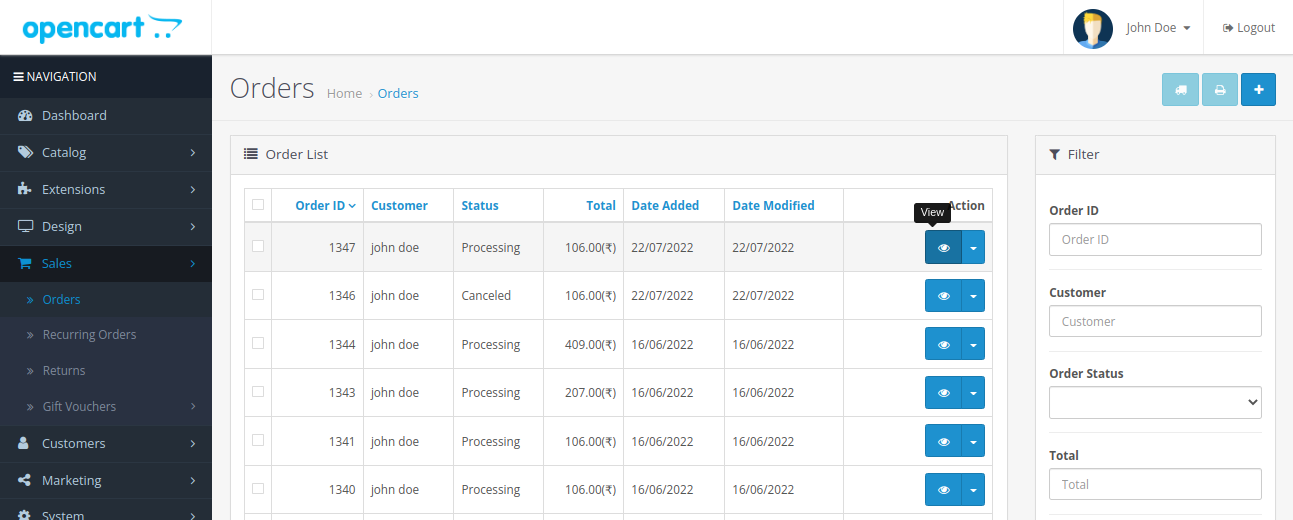
- Go to menu Sales → Orders.
- Select any order with status “Completed” or “Processing”.
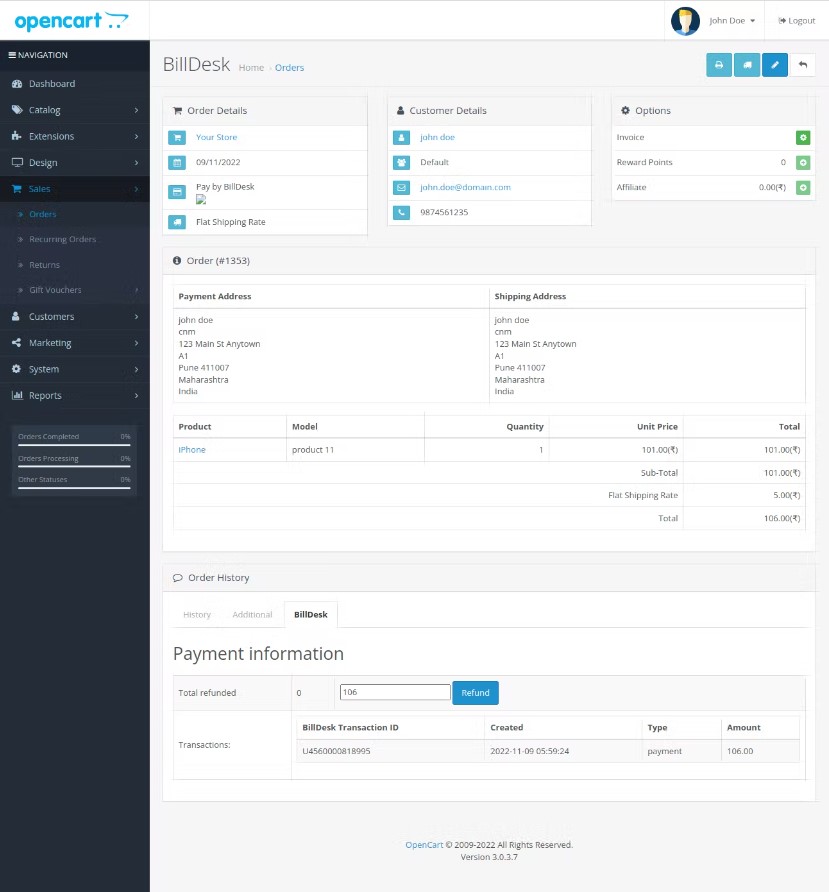
- Click on BillDesk tab.
- Enter Refund Amount
- Two types of refunds:
- Full refund
- Partial refund
- Click on Refund button and the refund will be initiated.
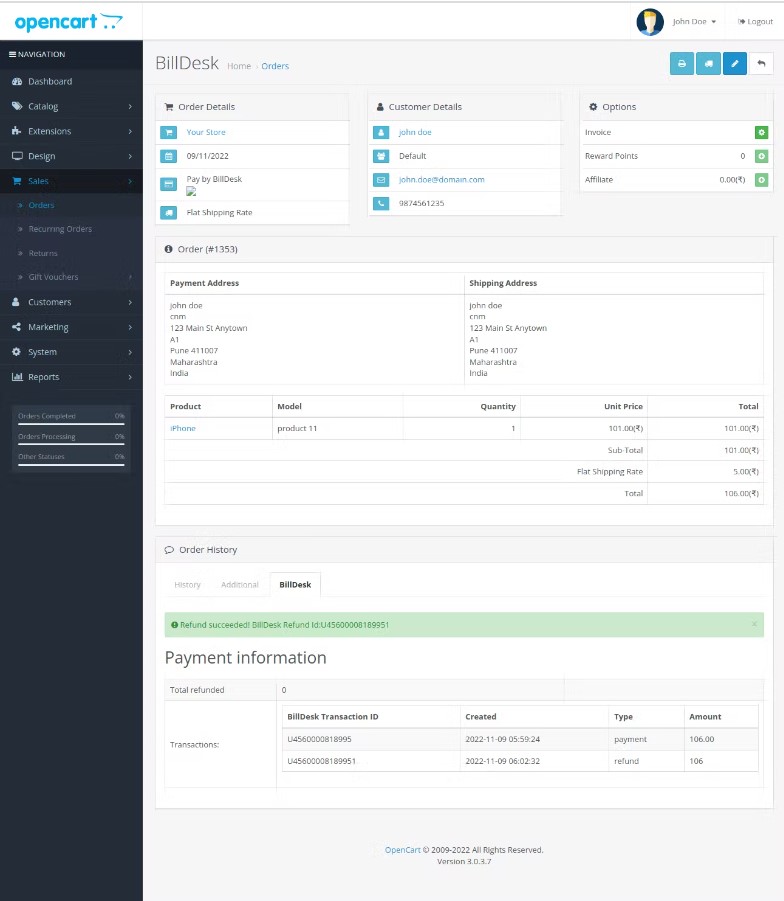
- Upon successful refund, a confirmation message will be shown on the page.
Product Returns
For the product returns settings management, please follow the below link:
https://webocreation.com/blog/how-product-returns-are-handled-in-opencart-3-opencart-user-manual/
Order Listing
View Order Details
- Go to My Account Page.
- Click on History.
- Click on the View icon in the row of an order.
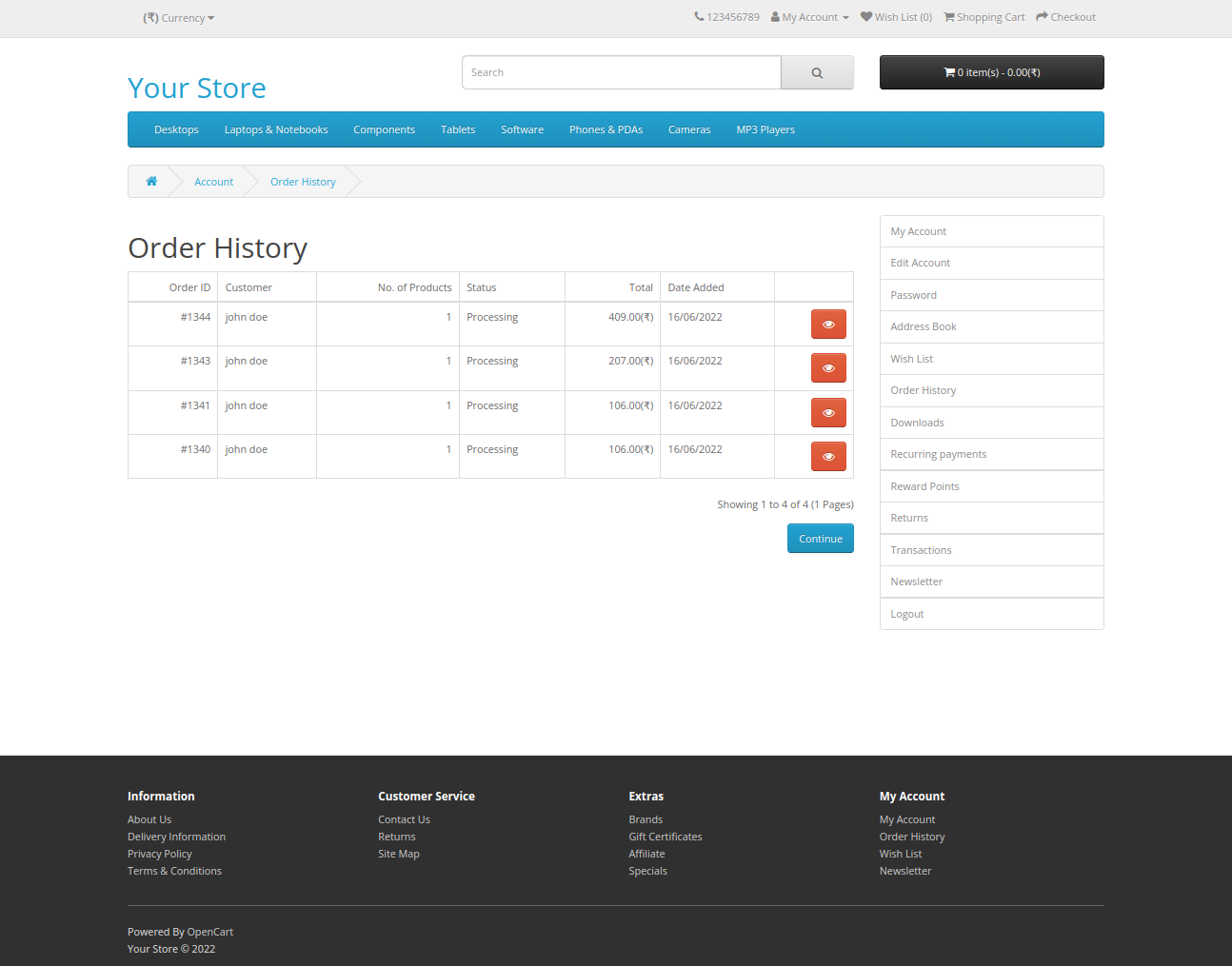
NoteMerchant will get detailed information about the transactions and their current status.
Troubleshooting
For Open-cart, there is an Open-cart specific logs present at system/Maintenance/Error Logs and a plugin specific log file present at system/storage/logs/oc_billdesk-yyyy-mm-dd.log, where the merchant can check the reason of failure.
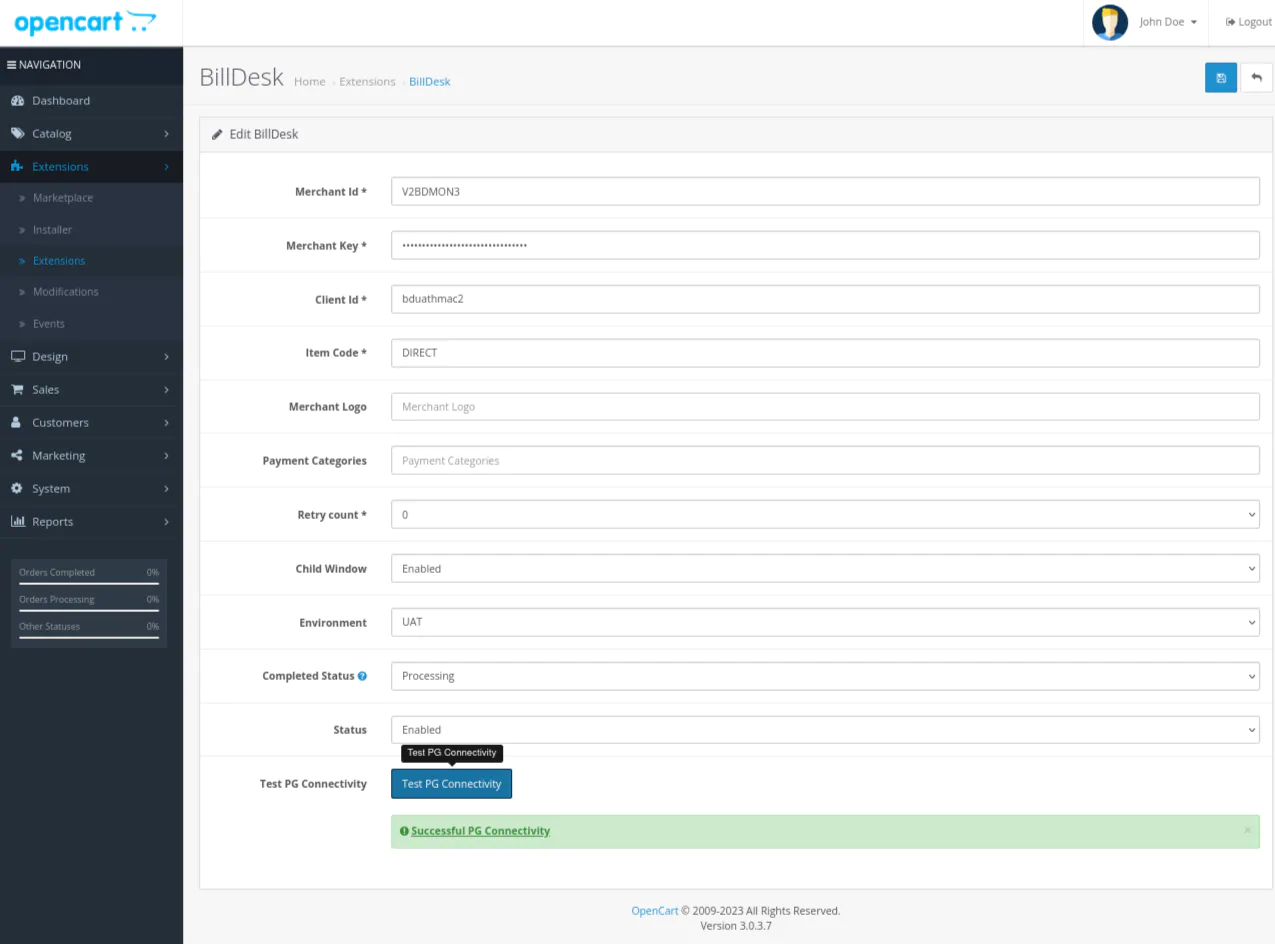
To confirm that PG connection is established, go to the Configuration page and click on TEST PG CONNECTIVITY.
Case 1: PG connectivity is successful.
Case 2: PG connectivity is unsuccessful.
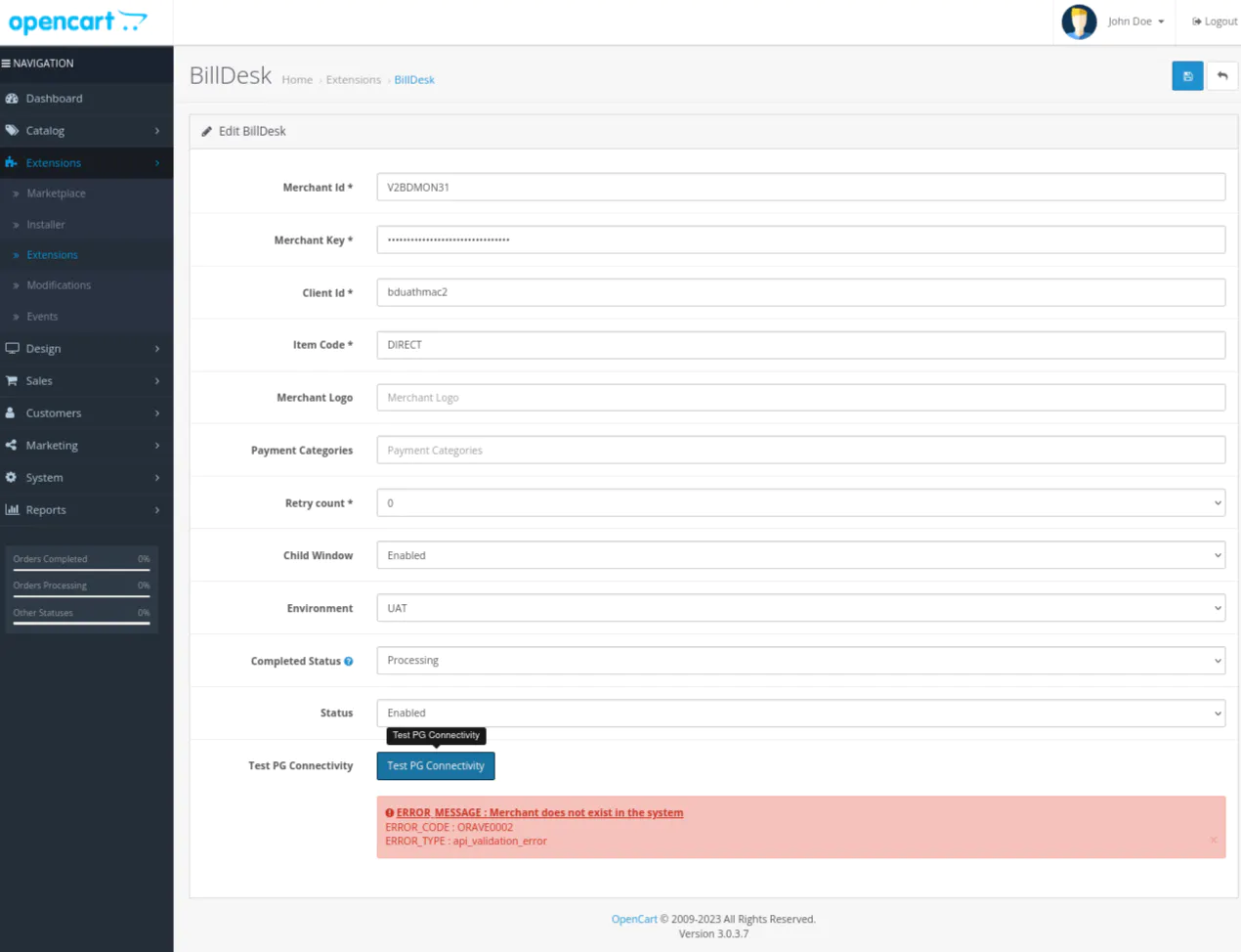
If an error occurs during the connection, please refer to the following table:
| Error Code | Error Type | Error Description |
|---|---|---|
| GNAUE0006 | authentication_error | Request from unauthorized IP. |
| ORIRE0001 | invalid_request_error | Required parameter Merchant ID is missing. |
Updated 11 months ago