

Ace – SDK (Bootstrap)
1. Introduction
Introducing an easy to integrate Javascript SDK with a pre-built UI for accepting payments. The BillDesk Ace – SDK works by displaying the Ace – SDK as a modal window within merchant page giving their customers a seamless and integrated payments experience.
To add on, the UI (user interface) is responsive i.e. it automatically optimizes for the form factor, be it a desktop or mobile device allowing the merchant to cater to a wide client base.
2. Salient Features
- Low code integration - Accept payments with a few easy steps and minimal code with this offering
- Customizable - Customize aspects such as merchant's company logo, payment methods as well as themes to give their customers an integrated experience
3. Experience the Product
To gain firsthand insight into the functionality of the Ace – SDK, BillDesk invites merchants to explore the capabilities of BillDesk's API Playground.
> 🚧 API Playground

4. Integration Steps
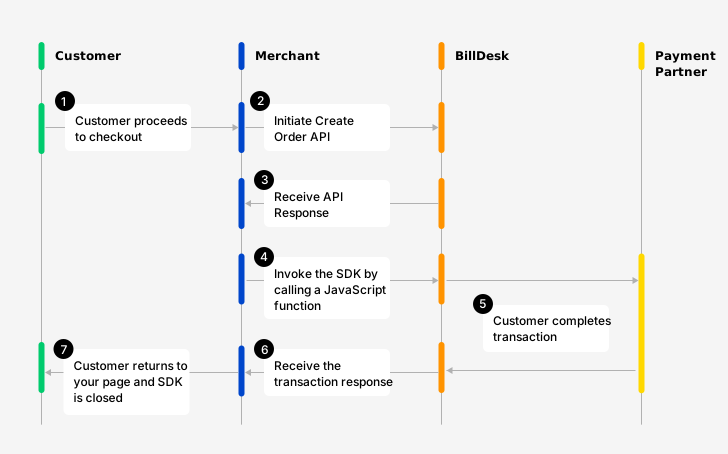
Flow Diagram explaining this Workflow
Step 1: Create an Order
An order needs to be created for every transaction initiated using the Ace – SDK.
To create an order, use the Create Order API. The response of this API provides the bdorderIdand authorization values (among other attributes) which are required to invoke the Ace – SDK (explained in Step 2)
| Attribute | Description |
|---|---|
| mercid | Unique identifier provided by BillDesk for each merchant. |
| bdorderid | Value generated by BillDesk and provided in the Create Order API response. This value is unique for every order which is created. |
| authorization | An authorization token created by BillDesk and provided in the Create Order API response. This value is unique for every order which is created. |
{
	"objectid": "order",
	"orderid": "ORDERID280920230002",
	"bdorderid": "OAZY21S8GXAC",
	"mercid": "BDMERCID",
	"order_date": "2023-09-28T12:25:00+05:30",
	"amount": "2.00",
	"currency": "356",
	"ru": "https://www.merchanturl.com/response.jsp",
	"additional_info": {
		"additional_info1": "Details1",
		"additional_info2": "Details2",
    "additional_info3":"NA",
    "additional_info4":"NA",
    "additional_info5":"NA",
    "additional_info6":"NA",
    "additional_info7":"NA"
	},
	"itemcode": "DIRECT",
	"createdon": "2023-09-28T12:33:36+05:30",
	"next_step": "redirect",
	"links": [
		{
			"href": "https://www.domainname.com/pgi/ve1_2/orders/ORDERID280920230002",
			"rel": "self",
			"method": "GET"
		},
		{
			"href": "https://www.domainname.com/pgi/MerchantPayment/",
			"rel": "redirect",
			"method": "POST",
			"parameters": {
				"mercid": "BDMERCID",
				"bdorderid": "OAZY21S8GXAC",
				"rdata": "89fd934cf8ca5ad76b8efbcf1d56caf8546a28d5b7876ad0f4070d48fa9b6bc00d3d5c85cda042d681d4593a28dd4ecf19b97c4f15eddff452885653e3f08425d35868fc0b05dd1af21d6eec07364e13b9a3b8f4fd56bdc6983fa732a7ab5267c2708da2b41de3edbb05919787dd5f7c52d17b8e9522e0965164100632eda8575a59483f667255b1c4b0f63bb4ef61d.70675f706172616d5f656e6333"
			},
			"valid_date": "2023-09-28T13:03:36+05:30",
			"headers": {
				"authorization": "OToken 89fd934cf8ca5ad76b8efbcf1d56caf8546a28d5b7876ad0f4070d48fa9b6bc00d3d5c85cda042d681d4593a28dd4ecf19b97c4f15eddff452885653e3f08425d35868fc0b05dd1af21d6eec07364e13b9a3b8f4fd56bdc6983fa732a7ab5267c2708da2b41de3edbb05919787dd5f7c52d17b8e9522e0965164100632eda8575a59483f667255b1c4b0f63bb4ef61d.70675f706172616d5f656e6333"
			}
		}
	],
	"status": "ACTIVE",
	"invoice": {
		"invoice_number": "11221133",
		"invoice_display_number": "11221133",
		"invoice_date": "2023-09-26T12:25:00+05:30",
		"customer_name": "John",
		"gst_details": {
			"cgst": "8.00",
			"sgst": "8.00",
			"igst": "0.00",
			"gst": "16.00",
			"cess": "0.00",
			"gstincentive": "5.00",
			"gstpct": "16.00",
			"gstin": "07AAAAA2194A1A1"
		}
	}
}
Preparing a request payloadEvery API request needs to encrypted. Similarly, the response of each API is also returned in an encrypted format by BillDesk.
A step by step guide to prepare the request payload, transmit it and capture the response is available here.

Pick and choose the flowThe Create Order API is modular and supports 2 additional workflows as add-ons:
- Account Validation Service (AVS): AVS can be used in case merchant wish to permit the customer to complete the transaction with a pre-defined account. More details on AVS is available here.
- Split Settlement: Applicable in case merchant wants he transaction settlements in multiple accounts. More details on Split Settlement are available here.
Note: If merchant would like to implement these flows, they would need to contact the designated BillDesk RM prior to initiating the integration.


Step 2: Incorporate JS & CSS links
Please refer to the below for the BillDesk Javascript and css links for both UAT and production environments which need to be incorporated on merchant checkout page where the Ace – SDK would launch
<script type="module" src="https://uat1.billdesk.com/merchant-uat/
sdk/dist/billdesksdk/billdesksdk.esm.js"></script>
<script nomodule="" src="https://uat1.billdesk.com/merchant-uat/sdk/dist/billdesksdk.js"></script>
<link href="https://uat1.billdesk.com/merchant-uat/sdk/dist/billdesksdk/billdesksdk.css" rel="stylesheet">
<script type="module" src="https://pay.billdesk.com/jssdk/v1/dist/billdesksdk/billdesksdk.esm.js"></script>
<script nomodule="" src="https://pay.billdesk.com/jssdk/v1/dist/billdesksdk.js"></script>
<link href="https://pay.billdesk.com/jssdk/v1/dist/billdesksdk/billdesksdk.css" rel="stylesheet">Step 3: Objects Configuration
The flow_config and config are 2 objects which need to be prepared to launch the Ace – SDK
Flow_Config - The flow config is an object which defines how certain aspects of the the SDK will render. It contains:
- Values received from the Create Order API (Step 1).
- Customizations that merchant would like to make on the Web SDK.
var flow_config = {
	merchantId: "BDMERCID",
	bdOrderId: "TSFFDHWE",
	authToken: "OToken FDD5C104249A4CDAE734623",
	childWindow: true,
	returnUrl: "http://www.demo.com/api/pgresponse",
	retryCount: 3,
	prefs: {
		"payment_categories": ["card", "nb"],
		"allowed_bins": ["459150", "525211"]
	},
	netBanking:{
		"showPopularBanks" : "Y",
		"popularBanks": ["Kotak Bank"," AXIS Bank [Retail]"]
	}
}
var config = {
merchantLogo: "data:image/png;base64:eqwewqesddhgjdxsc=="
flowConfig: flow_config,
flowType: "payments"
}Elements in the flow_config object:
| Attribute | Classification | Description |
|---|---|---|
| merchantId | mandatory | Unique identifier provided by BillDesk for each merchant. |
| bdOrderid | mandatory | Value generated by BillDesk and provided in the Create Order API Response. This value is unique for every order which is created. |
| authToken | mandatory | An authorization token created by BillDesk and provided in the Create Order API Response This value is unique for every order which is created. |
| childWindow | optional | Can take a value of either "true" or "false"
|
| returnUrl | mandatory | The URL where the customer is to be redirected post completion of the payment on the Ace – SDK. BillDesk will also POST the transaction response to this URL.
|
| retryCount | optional | Number of retry attempts merchant want the customer to be able to get. In case, the earlier attempt to complete the transaction failed, the customer will get an option to retry the payment. |
| prefs | optional | Changes in the SDK UI based on specific parameters: • payment_categoriesPayment categories passed here will be displayed in that specific order. Possible values are: ["card", "emi", "nb", "upi", "wallets", "qr", "gpay"] . In case merchant do not want a particular payment category which is enabled for them to show on the SDK, merchant can remove it from payment_categories and it will not show on the SDK.
If this object is passed, the flow config object, there are 2 possible orchestrations: 1. The "showPopularBanks" attribute is : "Y" Possible values which can be passed here are: 2. The "showPopularBanks" attribute is: "N” Note: Even if a list of banks has been passed in the "popularBanks" attribute in this case, no popular banks will be shown. |
Elements in the config object
| Attribute | Description | Classification |
|---|---|---|
| merchantLogo | Merchant logo as a base 64 image or a URL where the logo is hosted. BillDesk recommends maintaining the logo size as 120 pixels (width) x 60 pixels (height) | mandatory |
| flowType | Fixed value of "payments" | mandatory |
Step 4: Include the function to launch
The scripts and configuration objects created in the steps above need to be passed to the function: window.loadBillDeskSdk(config) to launch the Web SDK
Step 5: Include the onload close event on the Return URL
Applicable if the childWindow flag has been set as true in the configuration
In this scenario, the Return URL must have an onload close event defined in it. This ensures that the child window gets closed automatically once the customer has completed a transaction.
Sample code for the onload close event: <html><head><title>BillDesk</title></head><body onload="window.close();"></body></html>
Step 6: Review your Integration
Based on the steps outlined above, please find below a summary on how merchant integration should look
<script type="module" src="https://pay.billdesk.com/jssdk/v1/dist/billdesksdk/billdesksdk.esm.js"></script>
<script nomodule="" src="https://pay.billdesk.com/jssdk/v1/dist/billdesksdk.js"></script>
<script src="https://code.jquery.com/jquery-latest.min.js" type="text/javascript"></script>
<link href="https://pay.billdesk.com/jssdk/v1/dist/billdesksdk/billdesksdk.css" rel="stylesheet">
var flow_config = {
merchantId: "BDMERCID",
bdOrderId: "TSFFDHWE",
authToken: "OToken FDD5C104249A4CDAE734623",
childWindow: true,
returnUrl: "http://www.demo.com/api/pgresponse",
retryCount: 3,
prefs: {
"payment_categories": ["card", "nb"],
"allowed_bins": ["459150", "525211"]
},
netBanking:{
"showPopularBanks" : "Y",
"popularBanks": ["Kotak Bank"," AXIS Bank [Retail]"]
}
}
var config = {
	merchantLogo: "data:image/png;base64:eqwewqesddhgjdxsc=="
	flowConfig: flow_config,
	flowType: "payments"
}
window.loadBillDeskSdk(config);
Step 7: Capture the transaction response
Once the transaction has been completed by the customer using a payment method of choice, the customer is returned to the "ru" attribute provided in the Create Order API. BillDesk will also POST a response to this URL containing details of the transaction.
Capture and parse the transaction response
The transaction response provided depends on the payment method used by the customer. (Samples provided below)
The value after the transaction_response parameter till the next "&" character is the encrypted transaction response which provides more details about the transaction.
7.1 Transaction response in cases where Child Window is “true”
mercid=BDMERCID&terminal_state=Y&orderid=MERCORDERID12&bdcres=a6b80a345f3819b70f445fb9bc1f060f78edfd3bfbff98574b6665a4244f50001992f918e4ee28ad15608dcd.70675f706172616d5f656e6331&transaction_response=eyJhbGciOiJIUzI1NiIsImNsaWVudGlkIjoiYmRobWFjdGVzdCIsImtpZCI6IkhNQUMifQ.eyJtZXJjaWQiOiJCRE1PTklUT1IiLCJ0cmFuc2FjdGlvbl9kYXRlIjoiMjAyMy0xMS0wMVQxODowNjoyMSswNTozMCIsInN1cmNoYXJnZSI6IjAuMDAiLCJwYXltZW50X21ldGhvZF90eXBlIjoidXBpIiwiYW1vdW50IjpiMS4wMCIsInJ1IjoiaHR0cHM6Ly93d3cuYmlsbGRlc2suY29tL3dlYi8iLCJvcmRlcmlkIjoiTUVSQ09SREVSSUQxMiIsInRyYW5zYWN0aW9uX2Vycm9yX3R5cGUiOiJzdWNjZXNzIiwiZGlzY291bnQiOiIwLjAwIiwicGF5bWVudF9jYXRlZ29yeSI6IjEwIiwiYmFua19yZWZfbm8iOiIzMzA1Njg1ODA5MDQiLCJ0cmFuc2FjdGlvbmlkIjoiWklDNTE1MDMzMjYxMDkiLCJ1cGkiOnsidnBhIjoiYXJqdW4ua3VyYW5lQHlibCIsIm1hc2tlZF92cGEiOiJ4eHh4eHhAeWJsIn0sInR4bl9wcm9jZXNzX3R5cGUiOiJxciIsImJhbmtpZCI6IklDNSIsImFkZGl0aW9uYWxfaW5mbyI6eyJhZGRpdGlvbmFsX2luZm83IjoiTkEiLCJhZGRpdGlvbmFsX2luZm82IjoiTkEiLCJhZGRpdGlvbmFsX2luZm85IjoiTkEiLCJhZGRpdGlvbmFsX2luZm84IjoiTkEiLCJhZGRpdGlvbmFsX2luZm8xMCI6Ik5BIiwiYWRkaXRpb25hbF9pbmZvMSI6Ik5BIiwiYWRkaXRpb25hbF9pbmZvMyI6Ik5BIiwiYWRkaXRpb25hbF9pbmZvMiI6Ik5BIiwiYWRkaXRpb25hbF9pbmZvNSI6Ik5BIiwiYWRkaXRpb25hbF9pbmZvNCI6Ik5BIn0sIml0ZW1jb2RlIjoiRElSRUNUIiwidHJhbnNhY3Rpb25fZXJyb3JfY29kZSI6IlRSUzAwMDAiLCJjdXJyZW5jeSI6IjM1NiIsImF1dGhfc3RhdHVzIjoiMDMwMCIsInRyYW5zYWN0aW9uX2Vycm9yX2Rlc2MiOiJUcmFuc2FjdGlvbiBTdWNjZXNzZnVsIiwib2JqZWN0aWQiOiJ0cmFuc2FjdGlvbiIsImNoYXJnZV9hbW91bnQiOiIxLjAwIn0.kcdlqnotIs-W8E8CfT_jcmSjAzoRMC4cMRLDQLqXpF0&return_url=https%3A%2F%2Fwww.merchanturl.com%2F{
"objectid":"transaction",
"mercid":"BDMERCID",
"transaction_date":"2020-11-20T13:55:59+05:30",
"surcharge":"2.00",
"payment_method_type":"netbanking",
"amount":"300.00",
"ru":"https://example.com/pgresponse/modal/redirect",
"orderid":"yukkq8hnxcrztea8op24bk",
"transaction_error_type":"success",
"discount":"0.00",
"transactionid":"U1230000041968",
"txn_process_type":"nb",
"bankid":"123",
"additional_info":{
"additional_info1": "Details1",
"additional_info2": "Details2",
"additional_info3":"NA",
"additional_info4":"NA",
"additional_info5":"NA",
"additional_info6":"NA",
"additional_info7":"NA"
},
"itemcode":"DIRECT",
"transaction_error_code":"TRS0000",
"currency":"356",
"auth_status":"0300",
"transaction_error_desc":"Transaction Successful",
"charge_amount":"302.00",
"payment_category":"01"
}7.2 Transaction response in cases where Child Window is “false”
mercid=BDMERCID&terminal_state=Y&orderid=65609b50908bb&bdcres=dc0b523a1240071a898676ad1391ed7705d72a6b3e96fbd265c9d3f2de12fd9498d53edab5ea08e1f8ecfee6.70675f706172616d5f656e6331&transaction_response=eyJhbGciOiJIUzI1NiIsImNsaWVudGlkIjoid2NocGRyaXZ2MiIsImtpZCI6IkhNQUMifQ.eyJtZXJjaWQiOiJCRE1FUkNJRCIsInRyYW5zYWN0aW9uX2RhdGUiOiIyMDIzLTExLTI0VDE4OjE4OjQyKzA1OjMwIiwic3VyY2hhcmdlIjoiMC4wMCIsInBheW1lbnRfbWV0aG9kX3R5cGUiOiJ1cGkiLCJhbW91bnQiOiIxLjAwIiwicnUiOiJodHRwczovL21lcmNoYW50dXJsLm9yZy8iLCJvcmRlcmlkIjoiNjU2MDliNTA5MDM0YiIsInRyYW5zYWN0aW9uX2Vycm9yX3R5cGUiOiJzdWNjZXNzIiwiZGlzY291bnQiOiIwLjAwIiwicGF5bWVudF9jYXRlZ29yeSI6IjEwIiwiYmFua19yZWZfbm8iOiIzMzI4NjkxMzQ1MDI5IiwidHJhbnNhY3Rpb25pZCI6IlpJQzUxNTU3MzQ1NSIsInR4bl9wcm9jZXNzX3R5cGUiOiJjb2xsZWN0IiwiYmFua2lkIjoiSUM1IiwiYWRkaXRpb25hbF9pbmZvIjp7ImFkZGl0aW9uYWxfaW5mbzEiOiJOQSIsImFkZGl0aW9uYWxfaW5mbzIiOiJOQSJ9LCJpdGVtY29kZSI6IkRJUkVDVCIsInRyYW5zYWN0aW9uX2Vycm9yX2NvZGUiOiJUUlMwMDAwIiwiY3VycmVuY3kiOiIzNTYiLCJhdXRoX3N0YXR1cyI6IjAzMDAiLCJ0cmFuc2FjdGlvbl9lcnJvcl9kZXNjIjoiVHJhbnNhY3Rpb24gU3VjY2Vzc2Z1bCIsIm9iamVjdGlkIjoidHJhbnNhY3Rpb24iLCJjaGFyZ2VfYW1vdW50IjoiMS4wMCJ9.F8olIFq970gDkgcAOXqsX9vTEDf4cvHIxFaQG6yKKak&return_url=https%3A%2F%2Fmerchanturl.org%2Ftransaction_response=eyJhbGciOiJQUzI1NiIsIng1dCNTMjU2IjoiZmU2WWxsdS1BcHZDV3Q5dDBDZU93ODl2QnVUWTlobVpJVlhYQmtoVkFiSSIsImNsaWVudGlkIjoiQUJDRDEyMzQifQ.ZXlKNE5YUWpVekkxTmlJNkltWmxObGxzYkhVdFFYQjJRVLdi04SndqZ1dSRk93aVB0X285aldWd0RMdWxSYzVvaUpUaDJUVnlGUWdfMnM3c1cyZVJBOGtGbmJRdTk4V0UwUWN0aldhMFU2RUFpa3hvQkVHeEVxM0pyYzBiRUN3UHJaZ3Etb3lIaFRKSHo2dm5aLVZEbU1VdWhpc2hrQ3BlcXpDYjVoR1JrdTNPNkx0aEtocTB4SFpSazBjWENxdmd3OW9jd0p1Q1IxVEtwRzRFb0JOa0ZGVXYkhmWE5qbnBPTnVsbHJaOElYdy4zdGpHd3RGd0lySWtkcmRhLnBGVGtrZ1hla194cFNNWWY5R2psUkZRWFJ2bUJEOEEtWXI2TV85c3pNZXRoZTVDTnFjS2V2c0MtWGZ4c0VsR1dlOGxQZUdRZ3pBWlN5Z0stWFNlN25TelprcTdLZzVuNlc0SmdPOVIzUUM2RVRsUVViWmh6WW1za3VJSi1FT1RSMkQxdDUtWFVIdHl3ZzU3THNqUjDR3ckZrdEIzRmtNcW93R0JwbDZMU0Q0WDlxSmN1YmhQWEU4M01FVnA0cWpCZUh6c0F4R1g0cWFIbS1DQmNIOUVqLWNmRXV6eFRud2JIdGVBczU1VGFYbFVpT0V1ekpiLXhhQjhYNTFVeGtPOVJYcDRnYXZxSll0U3dVVW5qQVJqLXdHdkgyLUtJTWZxdHVjNVI1XzhVSHNMa2RYaHl1R0VaZ0VscGFHMDNhNlFtUHhxY1JDSzE3bjhiNHRGR2d5Qm1zanNVNXJJNVJfeTR6Q3Q4d0JJQ0xsTVUzNVRfaWxEaFptcmo3RFVTZm1CODF2VVdfb1lSZXgzT1pJRFpIbnM2LUc1ZTJOU0J4SjNqTFRVNk5MTUhlankydjBGTkZkT1pVdXdoMnhtV1VKV0x5dkQ0Q09PMDZ2aktST0NtZlZ6ckhVZXpsR0RJT0s1WUhKODNYU0xjVEkyZ24zSjlLWTJBN3FHNExhNnFvd1hLVlJRYUd0ektLMHY5Vmk1QWpGQkFFZkJsTzhvQ243Qkw5UVd4eEFFSjRsdWJnT2NLMkFoTkN1S1JCektmN3lXbC1ESlh6amxKWGh0RHVYSXZmUkVvOExiUTA5MXExZFF4cU81bVJZYm5ON00zX1JSWkpzVGZ0aTZUdE4yRDFab09UaHlVb3NVU01ZbVhKMkdWSUFMbkc3VlNTWDhnSjFOU2lJaHBYUng2Y0dXM1BBVjFzMXNMbjJLaVpkaGdReFE4RWMwTnh2VDdmTGFxVVlfblFFaE9wTzlmM3BSS3JKc2xFdUZHLTZmTm8zVzdrb1paN1dDVUU1WGVBVlJMUlhJMWVUSXRIaHFsSjJqTFcwMzRPUmxXaEw1VHRnTVdTeDRjcW5QdHFJRU5MS21mRlVpSkd5RHpLOXN3dTlnc09jdVFpc1l4aGhFdnJFbVB1ckZuUFZjYTNiNWdvdExlSXlPSksuRFFLeFkzQ010c2F4RE1JT1lSc3VkQQ.JoC2rUaLQpl25hIDjFUP1wyY1kl3Cv_2tcfKADvXdkq3wOGCtZEtJVmZncc_U-DSLW4HiOmi3UqZF4olEwcgP_R-jaMggoAC27sPVMtjb6WTN5Vx_5Crd5iJSIdCfIIZekjAc0RGPayrD7GJSyUyXHpciEuK6h5wFTCiX0K-fecEqpJwx9vIAjiy-Ue6hrtHLyKEc1iAJtnqLQeyKLN__S3F4KH6ClMelReGKM4J02x7VsauAbB1Ell-mGBFSotMCh14Ruf5MRrm0EkpCXjjiUSNCQO3QzaTn9ay_0fQL_RGIL9qnLI1OiIwwyQ_cr36ylYAgTkYJ6vok78cBB4E3gtransaction_response=eyJhbGciOiJIUzI1NiIsImNsaWVudGlkIjoiYmRobWFjdGVzdCIsImtpZCI6IkhNQUMifQ.eyJzdXJjaGFyZ2UiOiIwLjAwIiwicGF5bWVudF9tZXRob2RfdHlwZSI6ImNhcmQiLCJydSI6Imh0dHBzOi8vd3d3LmJpbGxkZXNrLmNvbS93ZWIvIiwiZGlzY291bnQiOiIwLjAwIiwiZWNpIjoiMDIiLCJwYXltZW50X2NhdGVnb3J5IjoiMDIiLCJiYW5rX3JlZl9ubyI6IlQ5MzY1MCIsInRyYW5zYWN0aW9uaWQiOiJaSE1QMTQ2OTg3NzQ3NCIsInR4bl9wcm9jZXNzX3R5cGUiOiIzZHMiLCJiYW5raWQiOiJITVAiLCJjdXJyZW5jeSI6IjM1NiIsImF1dGhfc3RhdHVzIjoiMDMwMCIsInRyYW5zYWN0aW9uX2Vycm9yX2Rlc2MiOiJUcmFuc2FjdGlvbiBTdWNjZXNzZnVsIiwibWVyY2lkIjoiQkRNT05JVE9SIiwidHJhbnNhY3Rpb25fZGF0ZSI6IjIwMjMtMTAtMTdUMTc6MTA6NDUrMDU6MzAiLCJhbW91bnQiOiIxLjAwIiwib3JkZXJpZCI6IkRSRFI0M2ZnaCIsInRyYW5zYWN0aW9uX2Vycm9yX3R5cGUiOiJzdWNjZXNzIiwiYXV0aGNvZGUiOiJOQSIsImFkZGl0aW9uYWxfaW5mbyI6eyJhZGRpdGlvbmFsX2luZm83IjoiTkEiLCJhZGRpdGlvbmFsX2luZm82IjoiTkEiLCJhZGRpdGlvbmFsX2luZm85IjoiTkEiLCJhZGRpdGlvbmFsX2luZm84IjoiTkEiLCJhZGRpdGlvbmFsX2luZm8xMCI6Ik5BIiwiYWRkaXRpb25hbF9pbmZvMSI6Ik5BIiwiYWRkaXRpb25hbF9pbmZvMyI6Ik5BIiwiYWRkaXRpb25hbF9pbmZvMiI6Ik5BIiwiYWRkaXRpb25hbF9pbmZvNSI6Ik5BIiwiYWRkaXRpb25hbF9pbmZvNCI6Ik5BIn0sIml0ZW1jb2RlIjoiRElSRUNUIiwidHJhbnNhY3Rpb25fZXJyb3JfY29kZSI6IlRSUzAwMDAiLCJvYmplY3RpZCI6InRyYW5zYWN0aW9uIiwiY2FyZCI6eyJjYXJkX2VuZCI6IjExNjQiLCJ0eXBlIjoiQ1JFRElUIiwiaXNzdWVyIjoiWWVzIEJhbmsiLCJtYXNrZWRfdmFsdWUiOiJ4eHh4eHh4eHh4eHgxMTY0IiwibmV0d29yayI6Ik1BU1RFUiJ9LCJjaGFyZ2VfYW1vdW50IjoiMS4wMCJ9.7yAkzMIk7L323twTi1wD0cuvCopgWiSvKGOpVtnKmVI&orderid=DRDR43fgh{
"objectid":"transaction",
"mercid":"BDMERCID",
"transaction_date":"2020-11-20T13:55:59+05:30",
"surcharge":"2.00",
"payment_method_type":"netbanking",
"amount":"300.00",
"ru":"https://example.com/pgresponse/modal/redirect",
"orderid":"yukkq8hnxcrztea8op24bk",
"transaction_error_type":"success",
"discount":"0.00",
"transactionid":"U1230000041968",
"txn_process_type":"nb",
"bankid":"123",
"additional_info":{
"additional_info1":"Details1",
"additional_info2":"Details2",
"additional_info3":"NA",
"additional_info4":"NA",
"additional_info5":"NA",
"additional_info6":"NA",
"additional_info7":"NA",
"additional_info8":"NA",
"additional_info9":"NA",
"additional_info10":"NA"
},
"itemcode":"DIRECT",
"transaction_error_code":"TRS0000",
"currency":"356",
"auth_status":"0300",
"transaction_error_desc":"Transaction Successful",
"charge_amount":"302.00",
"payment_category":"01"
}7.3 Decrypted transaction_response for Account Validation Service (AVS) flow
transaction_response for Account Validation Service (AVS) flow{
"mercid":"BDMERCID",
"transaction_date":"2023-11-26T21:26:36+05:30",
"surcharge":"0.00",
"payment_method_type":"upi",
"amount":"1.00",
"ru":"https://www.merchanturl.com/web/",
"orderid":"ORDERTESTS123",
"transaction_error_type":"success",
"discount":"0.00",
"payment_category":"10",
"bank_ref_no":"333075791359",
"transactionid":"ZIC51462622347",
"upi":{
"vpa":"johndoe@ybl",
"masked_vpa":"xxxxxx@ybl"
},
"txn_process_type":"collect",
"bankid":"IC5",
"additional_info":{
"additional_info1":"Details1",
"additional_info2":"Details2",
"additional_info3":"NA",
"additional_info4":"NA",
"additional_info5":"NA",
"additional_info6":"NA",
"additional_info7":"NA"
},
"itemcode":"DIRECT",
"transaction_error_code":"TRS0000",
"currency":"356",
"auth_status":"0300",
"transaction_error_desc":"Transaction Successful",
"objectid":"transaction",
"charge_amount":"1.00",
"avs":{
"bankaccount":[
{
"number":"xxxxxxxxxxx4021",
"ifsc":"YESB0000419",
"holder_name":"John Doe"
}
]
}
}
{
"mercid":"BDMERCID",
"transaction_date":"2023-10-31T16:29:58+05:30",
"surcharge":"0.00",
"payment_method_type":"card",
"amount":"1.00",
"ru":" https://www.merchant.com/web",
"orderid":"ORDERTXN123",
"transaction_error_type":"success",
"discount":"0.00",
"payment_category":"03",
"bank_ref_no":"024412",
"transactionid":"ZAX61500643456",
"txn_process_type":"3ds",
"authcode":"024512",
"bankid":"AX6",
"additional_info":{
    "additional_info1":"Details1",
		"additional_info2":"Details2",
    "additional_info3":"NA",
    "additional_info4":"NA",
    "additional_info5":"NA",
    "additional_info6":"NA",
    "additional_info7":"NA"
},
"itemcode":"VDDIRECT",
"transaction_error_code":"TRS0000",
"currency":"356",
"auth_status":"0300",
"transaction_error_desc":"Transaction Successful",
"objectid":"transaction",
"card":{
"card_end":"2263",
"type":"DEBIT",
"issuer":"ICICI Bank",
"masked_value":"xxxxxxxxxxxx2263",
"network":"VISA"
},
"charge_amount":"1.00"
}
{
"mercid":"BDMERCID",
"transaction_date":"2023-11-27T11:48:27+05:30",
"surcharge":"0.00",
"payment_method_type":"netbanking",
"amount":"1.00",
"ru":"https://www.merchanturl.com/web/",
"orderid":"ORDERTESTS1234",
"transaction_error_type":"success",
"discount":"0.00",
"payment_category":"01",
"bank_ref_no":"IGAQMTMUP3",
"transactionid":"ZSBI1589552520",
"txn_process_type":"nb",
"bankid":"SBI",
"additional_info":{
    "additional_info1":"Details1",
		"additional_info2":"Details2",
    "additional_info3":"NA",
    "additional_info4":"NA",
    "additional_info5":"NA",
    "additional_info6":"NA",
    "additional_info7":"NA"
},
"itemcode":"DIRECT",
"transaction_error_code":"TRS0000",
"currency":"356",
"auth_status":"0300",
"transaction_error_desc":"Transaction Successful",
"objectid":"transaction",
"charge_amount":"1.00"
}
Alternately, merchant can also use the orderid parameter and call the Retrieve Transaction API to query the status of the transaction
5. Next Steps
Once the transaction is completed, the below 3 APIs are available to Create a Refund or Query the status of a transaction / refund
Transaction Status CheckMerchant can check the status of a transaction at any point using the Retrieve Transaction API
RefundsMerchant can initiate a refund for any successful transaction using the Create Refund API
Refund Status CheckMerchant can check the status of a Refund at any point using the Retrieve Refund API
6. See Also
Updated 11 months ago